General Operating Instructions
Set Wavelength
Click the icon on the Tools Bar to set wavelength. Input the value of wavelength in the frame of Set
Wavelength, click Goto to confirm. Then the instrument will move the wavelength to the point you want, then it
blanks automatically.
Blank
Put reference into the light path, click the icon in the Tool Bar.
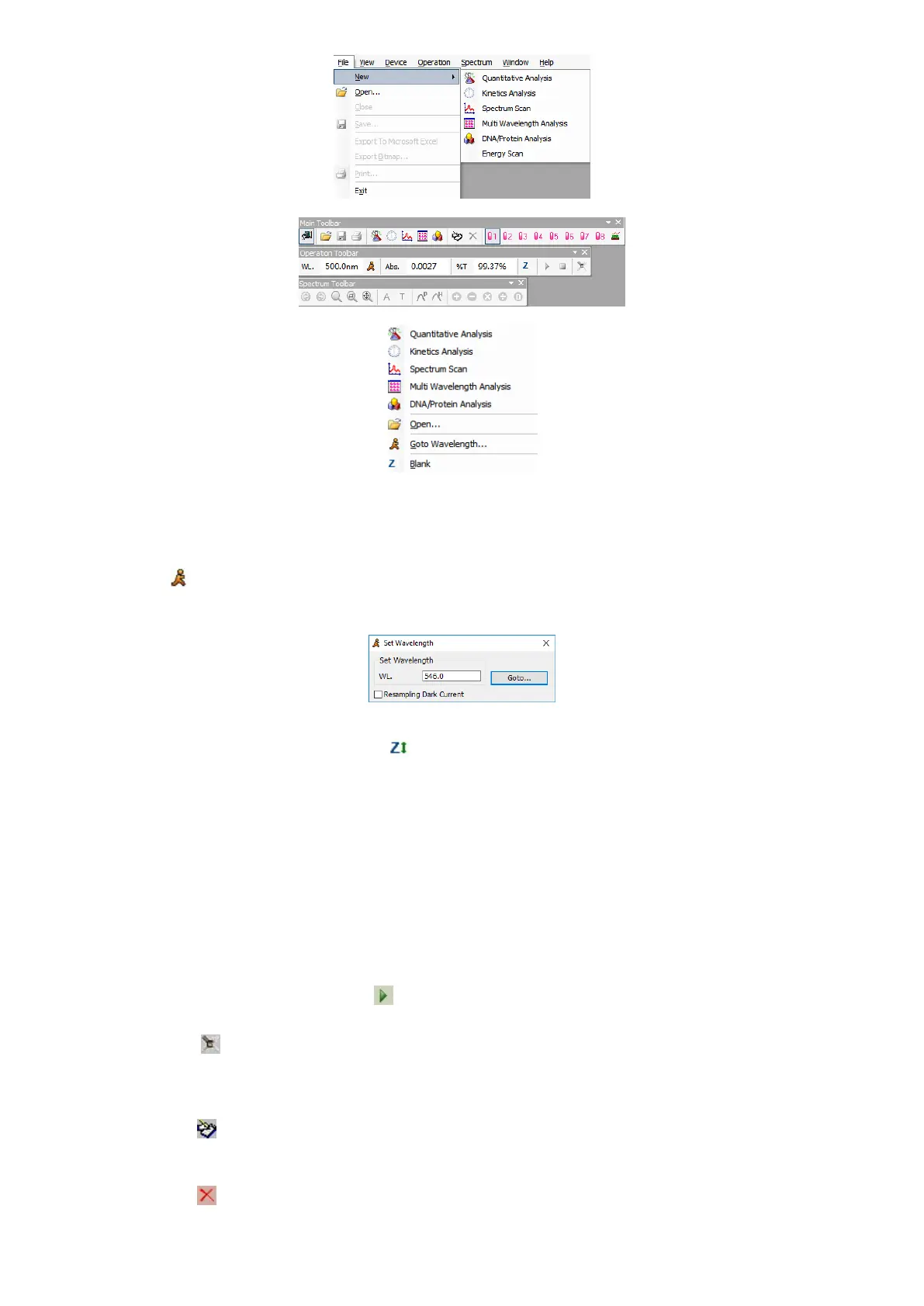
New a Testing
Main Menu→File→New, select a testing to click.
Lists of the file’s type
▪ Quantity Analysis File *.qua
▪ Kinetics Analysis File *.kin
▪ Spectrum Scan File *.wls
▪ Multi-wavelength File *.mti
▪ DNA/Protein Analysis File *.dna
▪ Energy Scan File *.ens
▪ Standard Curve *.std
Test a Sample
Put sample into the light path, click the icon in the Tool Bar.
Set Test Parameters
Click the button of to set the parameters.
Modify a Sample
1. Choose the data frame you want to modify or set the curve as current curve;
2. Pull the unknown sample in light path;
3. Click the icon in Tools Bar to re-measure it, and save the current result to substitute the original one.
Delete a Test Result
1. Choose the data frame you want to modify or set the curve as current curve;
2. Click the icon in the Tools Bar to delete the data.


 To Next Page