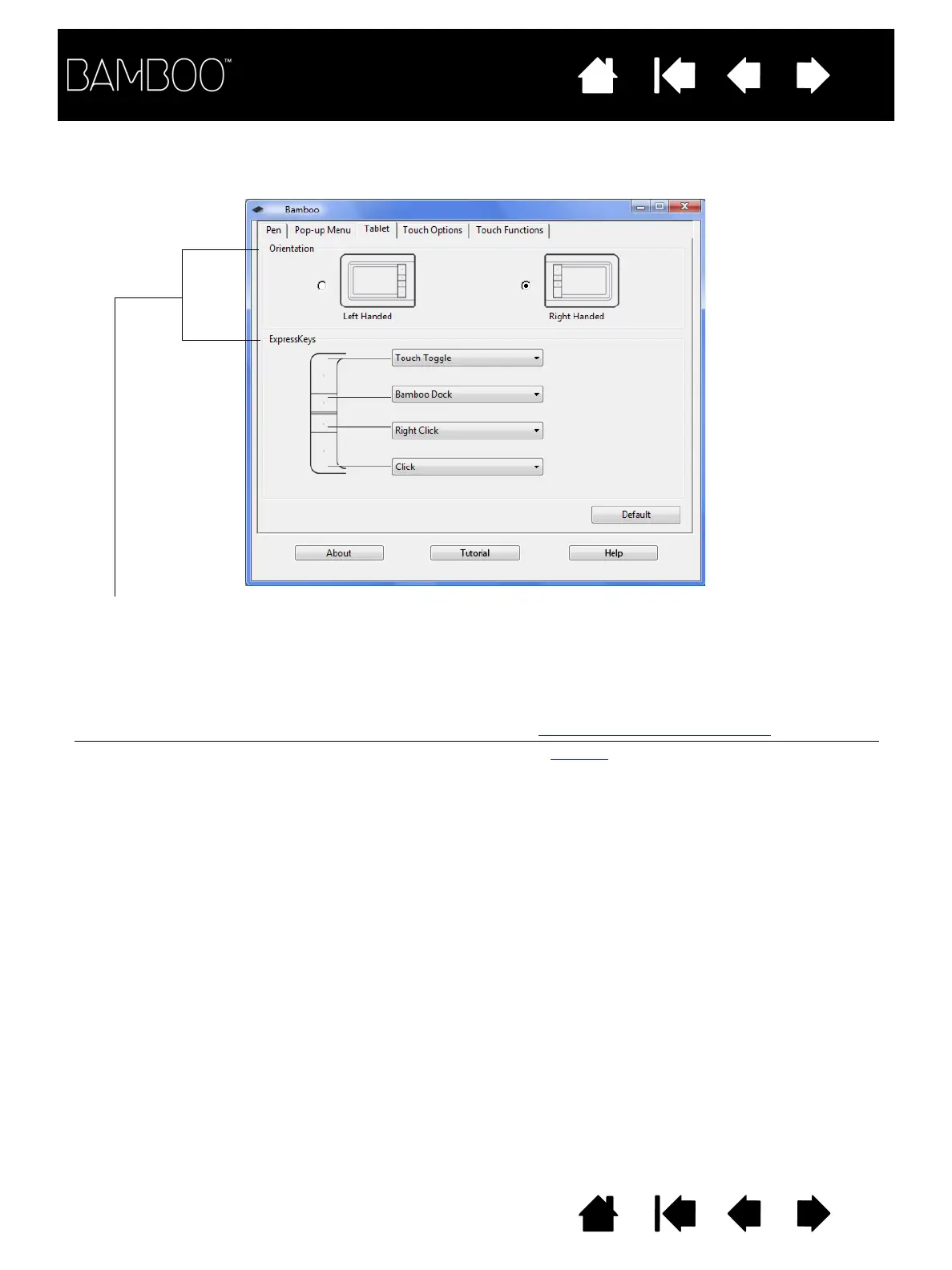
Tablet orientation Change how your tablet is oriented by selecting RIGHT HANDED or LEFT HANDED
input. The tablet driver automatically configures all aspects of the tablet for the
selected option. Next, physically rotate the tablet to match your selection.
Note: At the log-in and user switching screens, the tablet orientation will use the
default orientation that was selected when the driver was installed. If you
want to change the default orientation, you must reinstall the driver using the
Bamboo Installation CD. See configuring the tablet orientation
.
ExpressKey functions Use the pull-down menus to choose a function
that will be performed when the key
is pressed. Your choice will be displayed either within the pull-down menu or
beneath the menu.
• By default the upper key is set to T
OUCH TOGGLE, allowing you to temporarily
disable touch input when you press the ExpressKey. Press the ExpressKey
again to re-enable touch input. (For Bamboo Touch, the default setting enables
you to move F
ORWARD within Internet browsers.)
• You can use the 2nd from top key to launch Bamboo Dock or bring it to the
foreground. Press the key again to minimize Bamboo Dock. For more
information please visit http://bamboodock.wacom.com
• The lower button default conditions are C
LICK (bottom key) and RIGHT CLICK
(2nd key up).
Note: Pen-only tablet models do not include ExpressKeys.













 To Next Page