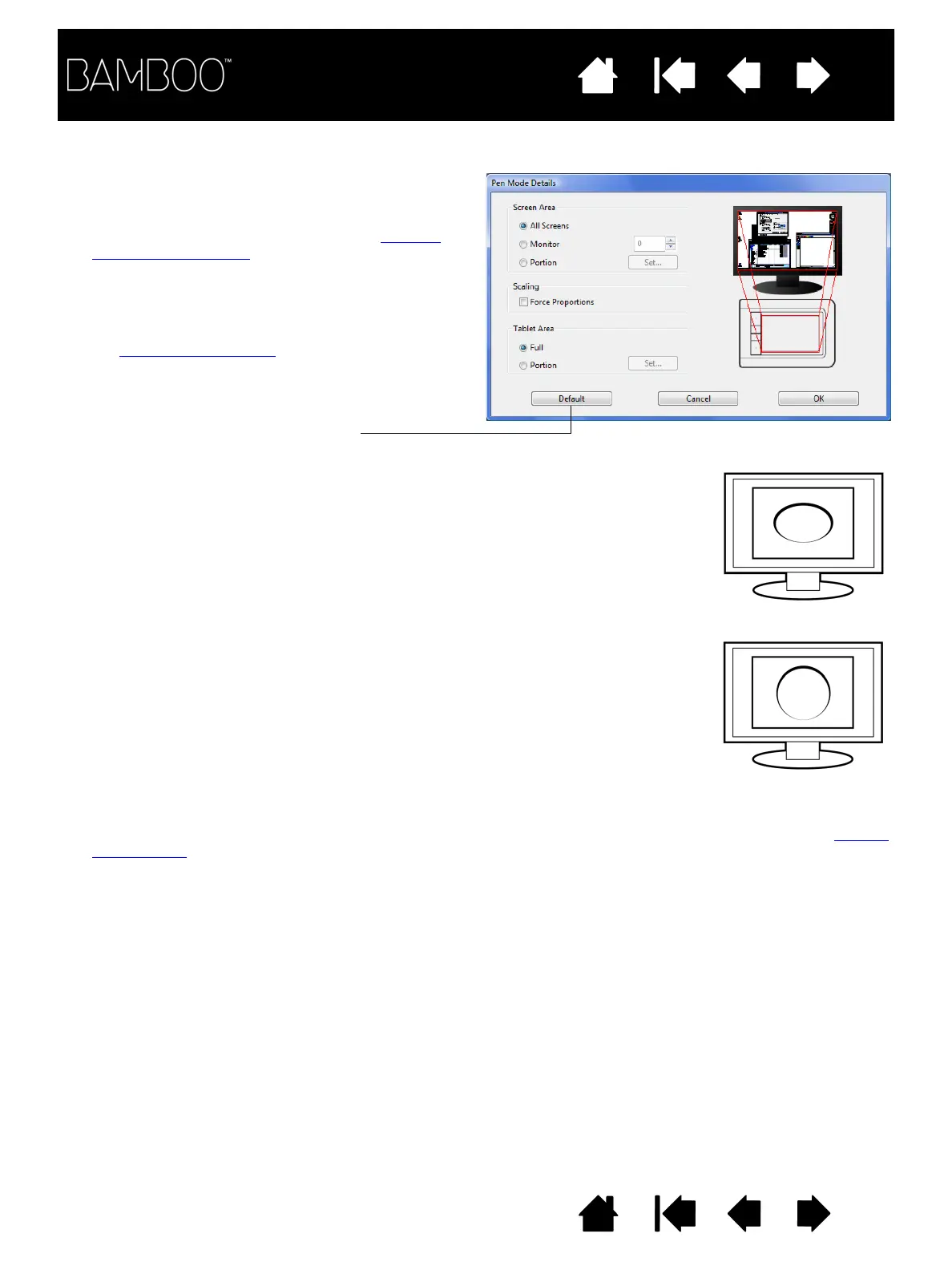
Use the SCREEN AREA options to select a screen area
for tablet to screen mapping.
•A
LL SCREENS. The entire monitor(s) area is
mapped; this is the default setting. See working
with multiple monitors for more information.
•M
ONITOR. The entire area of a single monitor that
you choose is mapped.
•P
ORTION. A portion of the desktop area is mapped.
Click S
ET... to open a dialog box where you can set
the portion of screen area
.
Returns settings to their factory defaults.
Use the TABLET AREA options to select a tablet area for tablet to screen mapping.
•F
ULL. The entire active area of the tablet is mapped. This is the default setting.
•P
ORTION. A portion of the tablet area is mapped. Click SET... to open a dialog box where you can set the portion
of tablet area.
Note: Although Bamboo is optimized for use with 16 : 10 aspect ratio displays, the default settings automatically
adjust for use with other aspect ratio displays.
When F
ORCE PROPORTIONS is unchecked, the correct scale or proportions are not
maintained. The selected tablet area is mapped to the selected display area.
Drawing a circle on the tablet may create an ellipse on the display screen. This is the
default setting.
When F
ORCE PROPORTIONS is checked, the correct vertical and horizontal proportions
are maintained. Drawing a circle on the tablet results in a circle on the display
screen. Depending on your settings, some portions of the tablet active area may no
longer be usable when this option is selected.













 To Next Page