24
24
Index
Contents
Index
Contents
CUSTOMIZING THE PEN BUTTONS
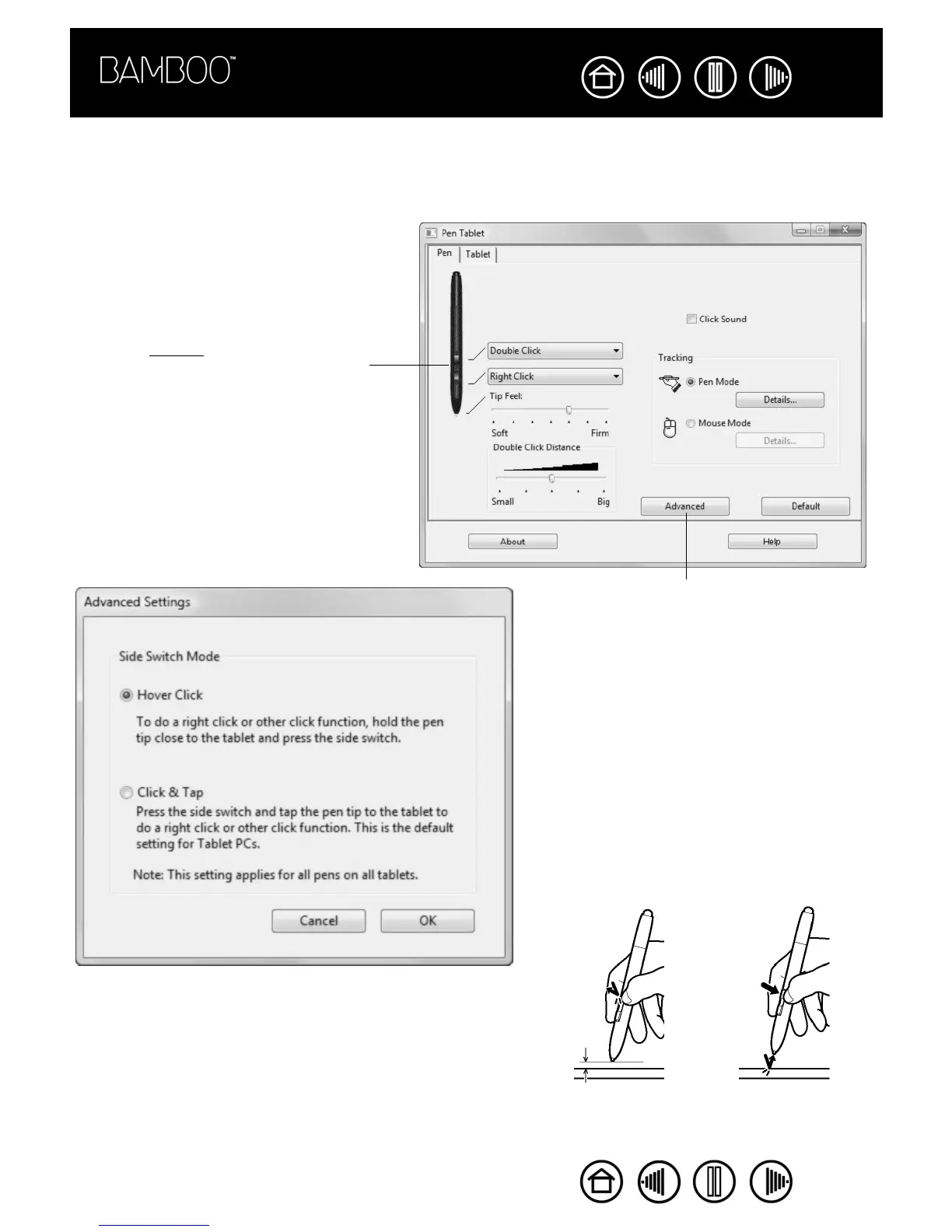
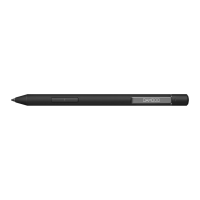
Select the PEN tab to change the functions assigned to the buttons on your Bamboo pen. Each pen button
can be set to simulate a variety of mouse functions; the pull-down menus enable you to choose the function
that will be performed.
Select the function to perform when
pressing the upper or lower pen button.
When you bring the pen tip within 5 mm
(0.20 inch) of the tablet surface without
touching the tablet and press the upper or
lower pen button, the selected function
occurs.
Hint: To make double-clicking easier, set a
pen button to double-click automatically by
selecting DOUBLE CLICK.
Note: You can change the SIDE SWITCH MODE to
best fit the way you like to use the pen when
making right-clicks or other click functions.
To access the SIDE SWITCH MODE settings, click on
the ADVANCED button. In the dialog box that
appears:
• Select HOVER CLICK to perform click functions
without touching the pen tip to the tablet
surface.
• When CLICK & TAP is selected, you must first
press the pen button and then touch the pen
tip to the tablet surface in order to perform a
click function. CLICK & TAP enables the
precise placement of your click functions, and
is the default setting for Tablet PCs.
Hover click.
Click tap.










 To Next Page