32
32
Index
Contents
Index
Contents
PORTION OF TABLET AREA
The tracking options in the PEN MODE DETAILS dialog box allow you to define the tablet area that will be
mapped to the screen area:
• F
ULL. When selected, the entire active area of the tablet is used for tablet to display mapping. This is
the default setting.
• P
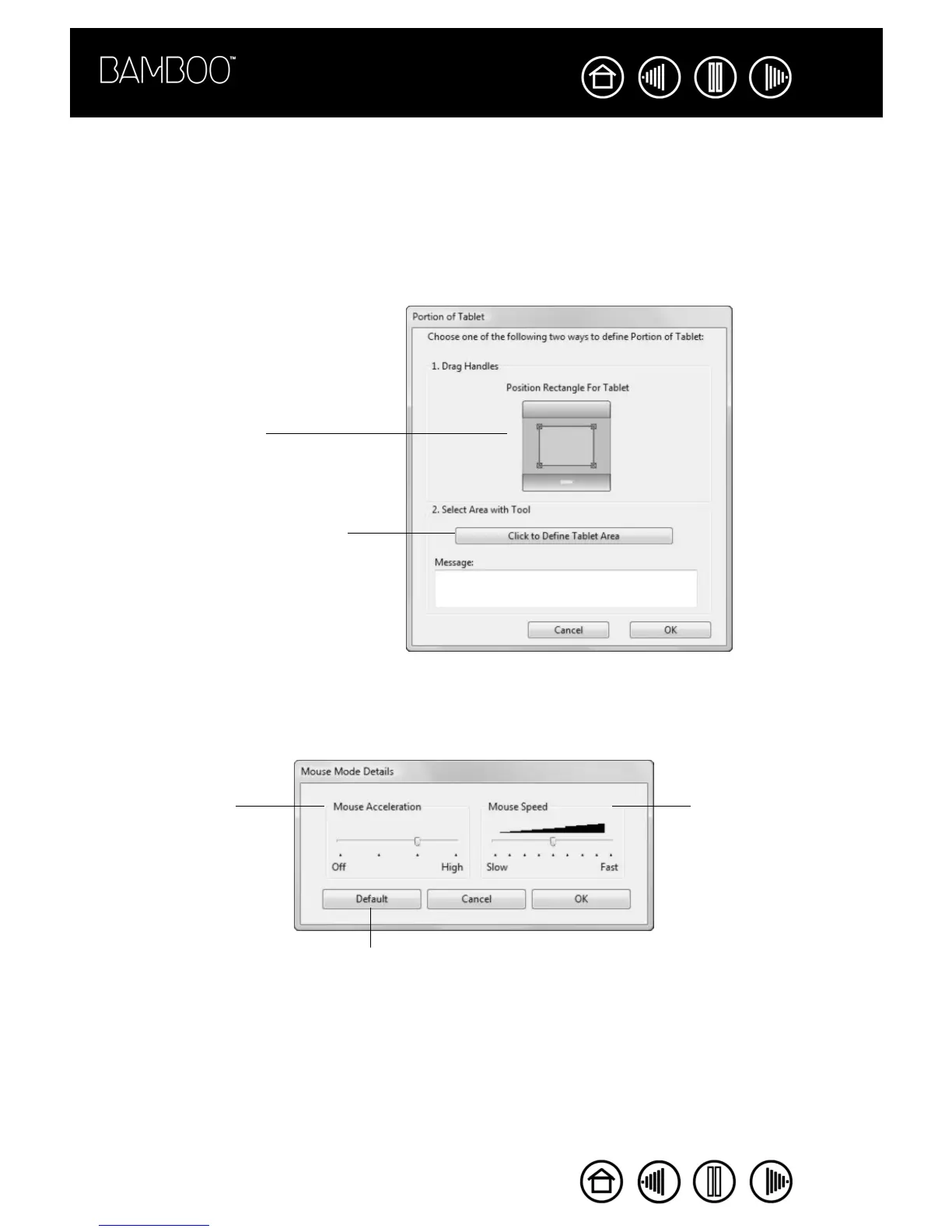
ORTION. When selected, this option allows you to select a portion of the tablet active area for tablet to
screen mapping. Click S
ET... to open the PORTION OF TABLET dialog box.
SETTING MOUSE SPEED
To change the screen cursor acceleration and speed when in MOUSE MODE, click on the MOUSE MODE
D
ETAILS... button (located on the PEN tab) to display a dialog box where you can make your adjustments.
Choose a method for defining a
portion of the tablet:
• Drag corners of the foreground
graphic to select the tablet area
that will be mapped to your
selected screen area.
The background graphic
represents the tablet.
• Use your pen on the tablet to
select the tablet area. Select the
CLICK TO DEFINE TABLET AREA
button. As you define PORTION OF
TABLET, follow any MESSAGE
prompts to set the portion of your
tablet that will be used for
mapping.
Sets the screen cursor
acceleration when in
MOUSE MODE.
Sets the screen cursor
tracking speed when in
MOUSE MODE.
Returns settings to
their factory defaults.
Note: The dialog box will also appear when you set a tool button to MODE
TOGGLE.... Although MOUSE MODE settings can be accessed from a number
of different locations within the control panel, only one ACCELERATION and
SPEED setting can be made.










 To Next Page