27
27
Index
Contents
Index
Contents
• PAN/SCROLL. (Pen only.) Lets you position a document or image in any direction within the active pane
simply by pressing a pen button set for P
AN/SCROLL and then moving the pen tip across the tablet’s
active area.
• K
EYSTROKE.... Enables you to simulate keystrokes. Selecting this option displays the DEFINE
K
EYSTROKE dialog box where you can enter a keystroke or keystroke sequence to play back.
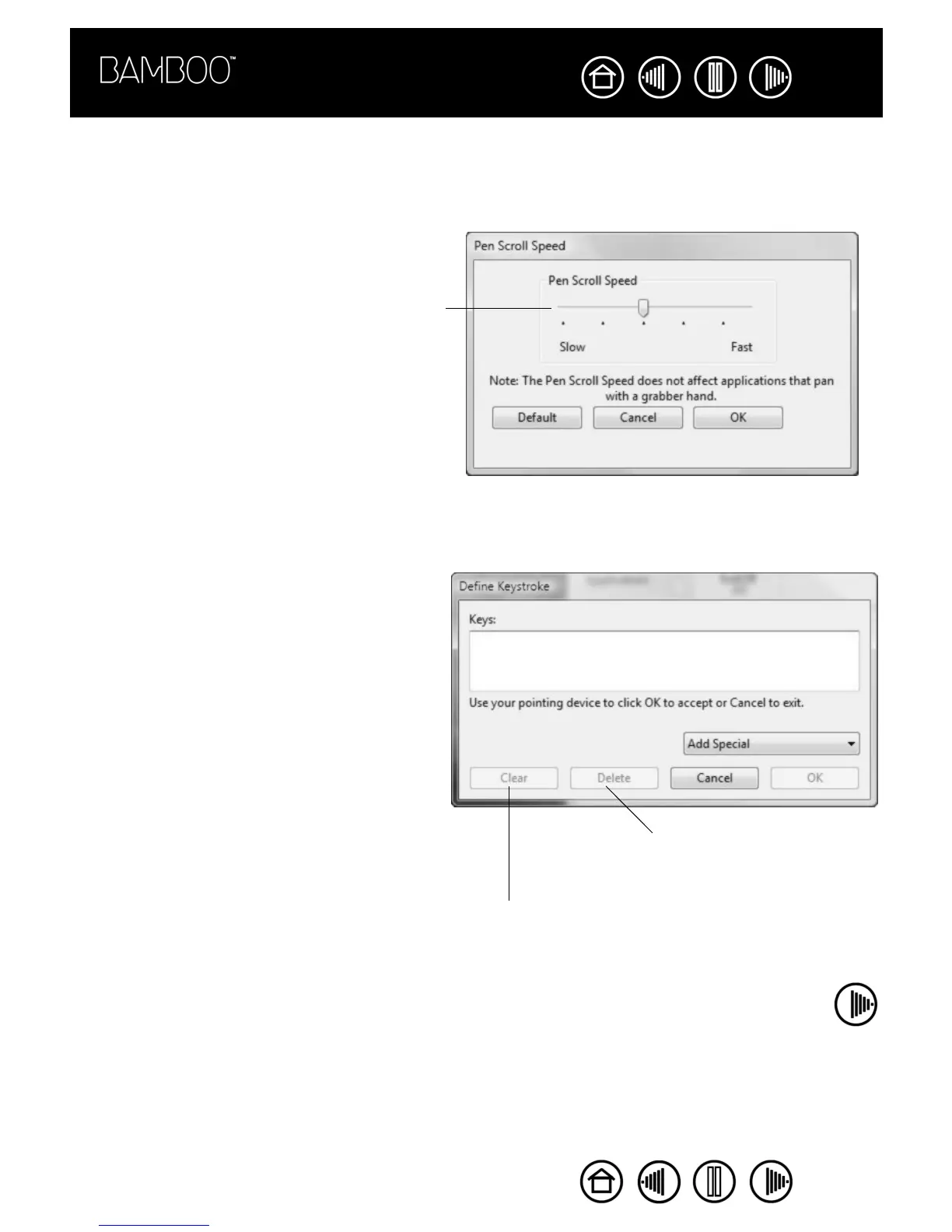
When you select PAN/SCROLL, the PEN SCROLLING
SPEED dialog box prompts you to set a scrolling
speed that will be used in applications that do not
support grabber hand (pixel-level) panning within
a document or image.
• Select SLOW to use more pen movement with
a slower scroll rate. This is a good choice for
close-up and detail work where you need
precise control of the image.
• Select FAST to use less pen movement with a
faster scroll rate.
This setting will not apply to applications that
support grabber hand panning.
You can manually enter a keystroke or keystroke
combination in the K
EYS entry box.
Keystroke combinations can include letters,
numbers, function keys (such as F3) and modifier
keys (such as SHIFT, ALT, or CTRL for Windows, or
SHIFT, OPTION, COMMAND, and CONTROL for
Macintosh).
You can also select special keystrokes or
keystroke combinations from the ADD SPECIAL
drop-down menu. When you make a selection it
is added to the KEYS entry box.
After defining a keystroke sequence, click OK.
Important: Because the ENTER
(Windows) and RETURN (Macintosh)
keys can be selected as a defined
keystroke, they cannot be used to select
OK. You must use your Bamboo pen to
click on the OK button.
If prompted, enter a name for the keystroke
definition. The name will be displayed with the
respective control.
Clears the keystroke entry box.
Deletes only the last entry in the
keystroke entry box.










 To Next Page