30
30
Index
Contents
Index
Contents
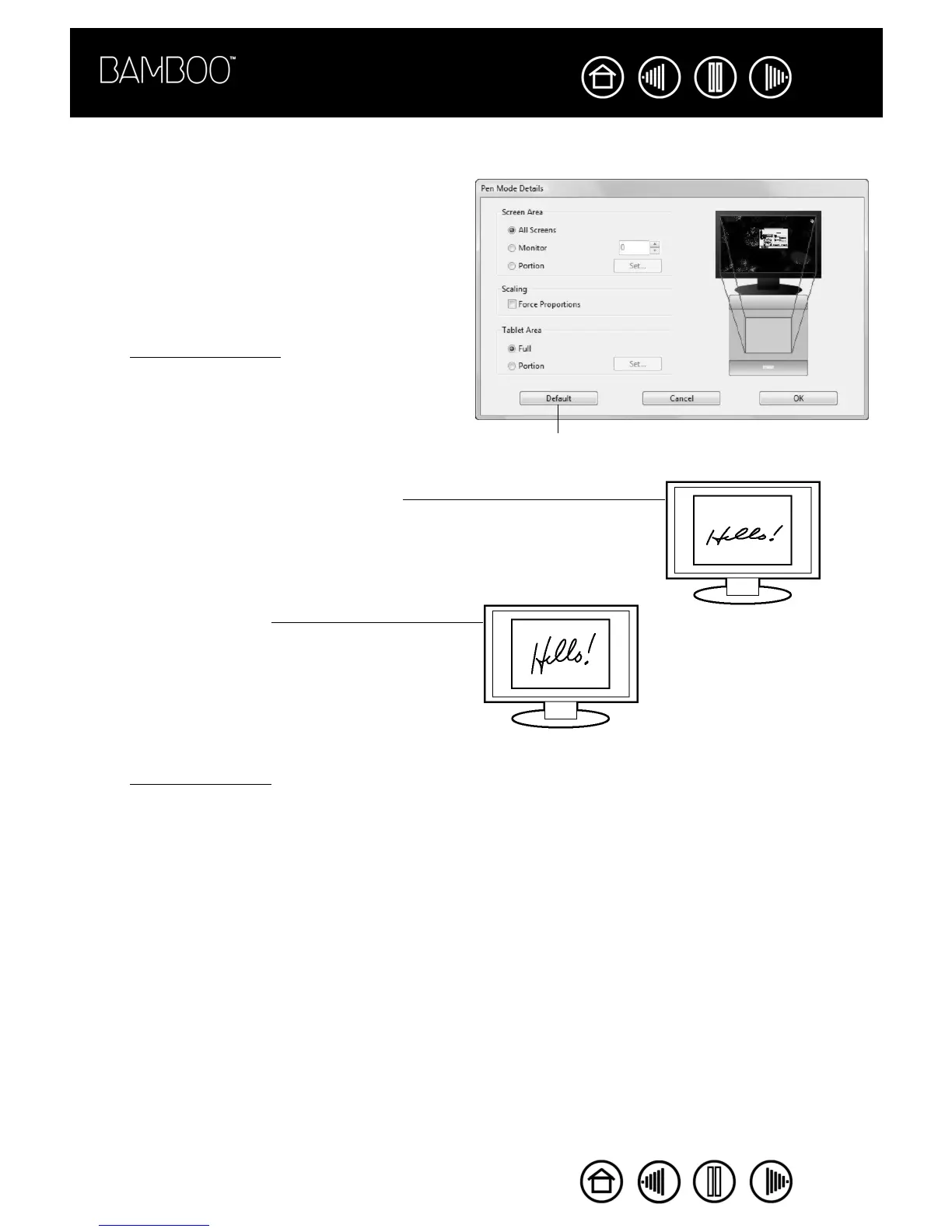
When you click on the PEN MODE DETAILS... button, the PEN MODE DETAILS dialog box is displayed.
Use the SCREEN AREA options to select a screen area
for tablet to screen mapping.
•ALL SCREENS. The entire monitor(s) area is
mapped; this is the default setting. See mapping to
multiple monitors for more information.
•MONITOR. The entire area of a single monitor that
you choose is mapped.
•PORTION. A portion of the desktop area is mapped.
Click SET... to open a dialog box where you can set
the portion of screen area.
FORCE PROPORTIONS. Check or uncheck the box to
determine the tablet to screen mapping relationship.
• When unchecked, the correct scale or proportions
are not maintained. The selected tablet area is
mapped to the selected display area. An inked
word on the tablet may appear distorted on the
display screen. This is the default setting.
• When checked, the correct vertical and horizontal
proportions are maintained between the tablet and
display. Inking a word on the tablet results in a
correctly proportioned word on the display screen.
Depending on your settings, some portions of the
tablet active area may no longer be usable when
this option is selected.
Use the TABLET AREA options to select a tablet area for
tablet to screen mapping.
•FULL. The entire active area of the tablet is
mapped. This is the default setting.
•PORTION. A portion of the tablet area is mapped.
Click SET... to open a dialog box where you can set
the portion of tablet area.
Note: Although Bamboo is optimized for use with
16 : 10 aspect ratio displays, the default settings
automatically adjust for use with other aspect ratio
displays.
Mapping to multiple monitors
If your computer has more than one monitor, Bamboo will map to your monitors based upon how they are
configured in the DISPLAY PROPERTIES control panel. If ALL SCREENS is selected and you are in extended monitor
mode, the tablet will map to all monitors as if they were one large display. If the monitors are in mirror mode, the
tablet will map to the entire space on each monitor and the screen cursor will be displayed on each monitor
simultaneously.
Please refer to your hardware and operating system documentation for details on configuring your computer and
operating system for use with multiple monitors.
Returns settings to their factory defaults.










 To Next Page