30
30
Index
Contents
Index
Contents
ADVANCED TIP AND ERASER PRESSURE SETTINGS
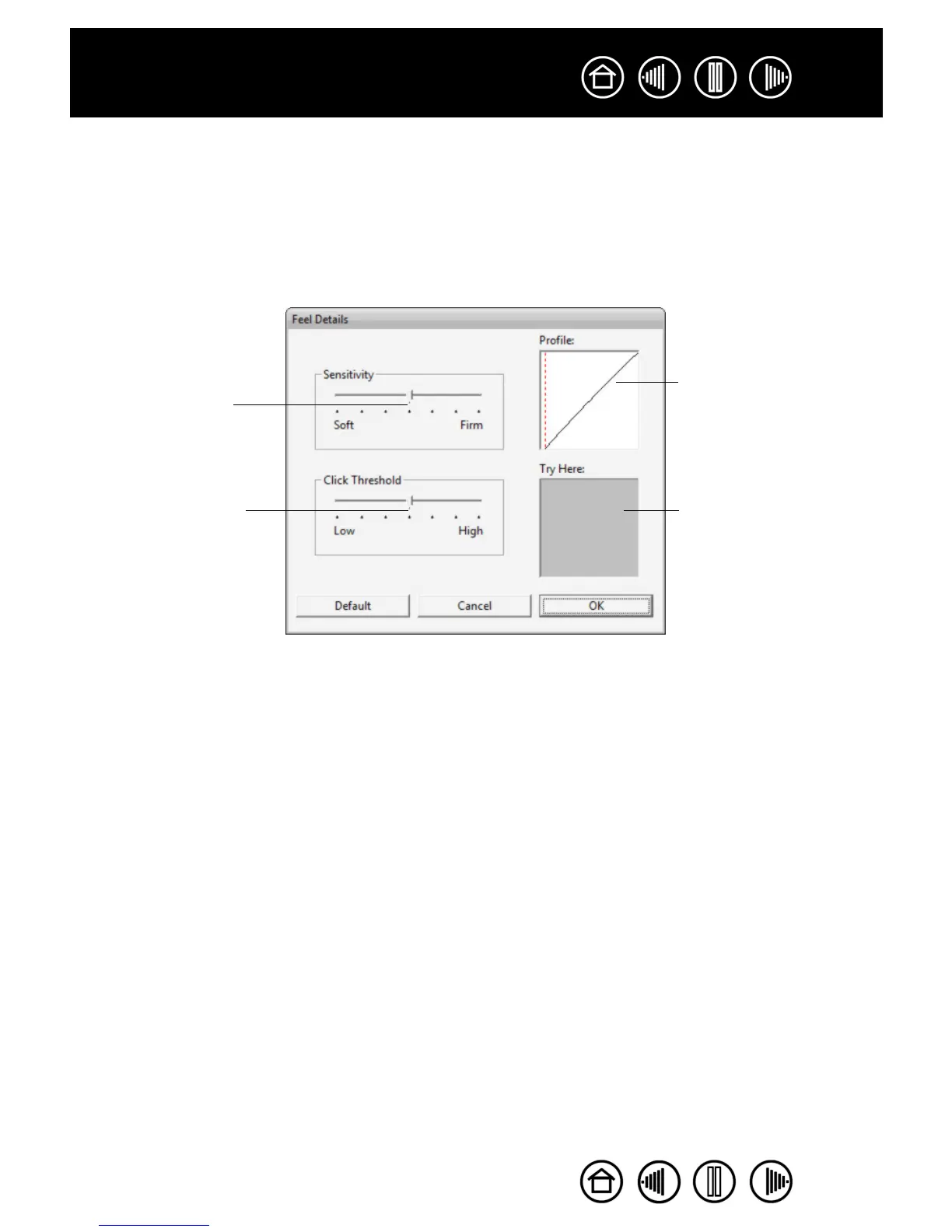
To further customize tip or eraser pressure settings, from the PEN or ERASER tab click on the DETAILS...
button to display the F
EEL DETAILS dialog box. The options within this dialog box enable you to change the
tip or eraser pressure sensitivity and click threshold settings independently. (In the P
EN and ERASER tabs,
these settings are adjusted simultaneously with the T
IP FEEL or ERASER FEEL slider.)
Important: The TIP FEEL or ERASER FEEL slider overrides the detail pressure settings. If you
customize the detail settings, then drag the slider, your detail settings will be removed.
Drag the slider to adjust
the click threshold level.
This setting determines
the amount of force
required to generate a tip
click.
Using your pen tip or
eraser, make several
strokes within the box to
test the results of your
changes.
Drag the slider to select a
pressure sensitivity setting.
If you have a soft touch and
want to achieve full pressure
without having to apply full
force to your pen, choose a
softer setting.
The PROFILE graphically
displays the selected
pressure SENSITIVITY curve
and CLICK THRESHOLD
settings.
A curve that increases
quickly makes the pen feel
more sensitive.


 To Next Page
 Loading...