20
Index
Contents
20
Index
Contents
CONFIGURING THE TABLET ORIENTATION
You are prompted to choose a default tablet orientation when installing the tablet using the Intuos
installation CD. At the log-in and user switching screens, the tablet orientation will use the default setting
selected when the driver was installed. To change the default orientation, you must re-install the driver
from the Intuos installation CD.
You can also change how your tablet is oriented using the following procedure. However, the default
orientation used at the log-in screen will not be affected.
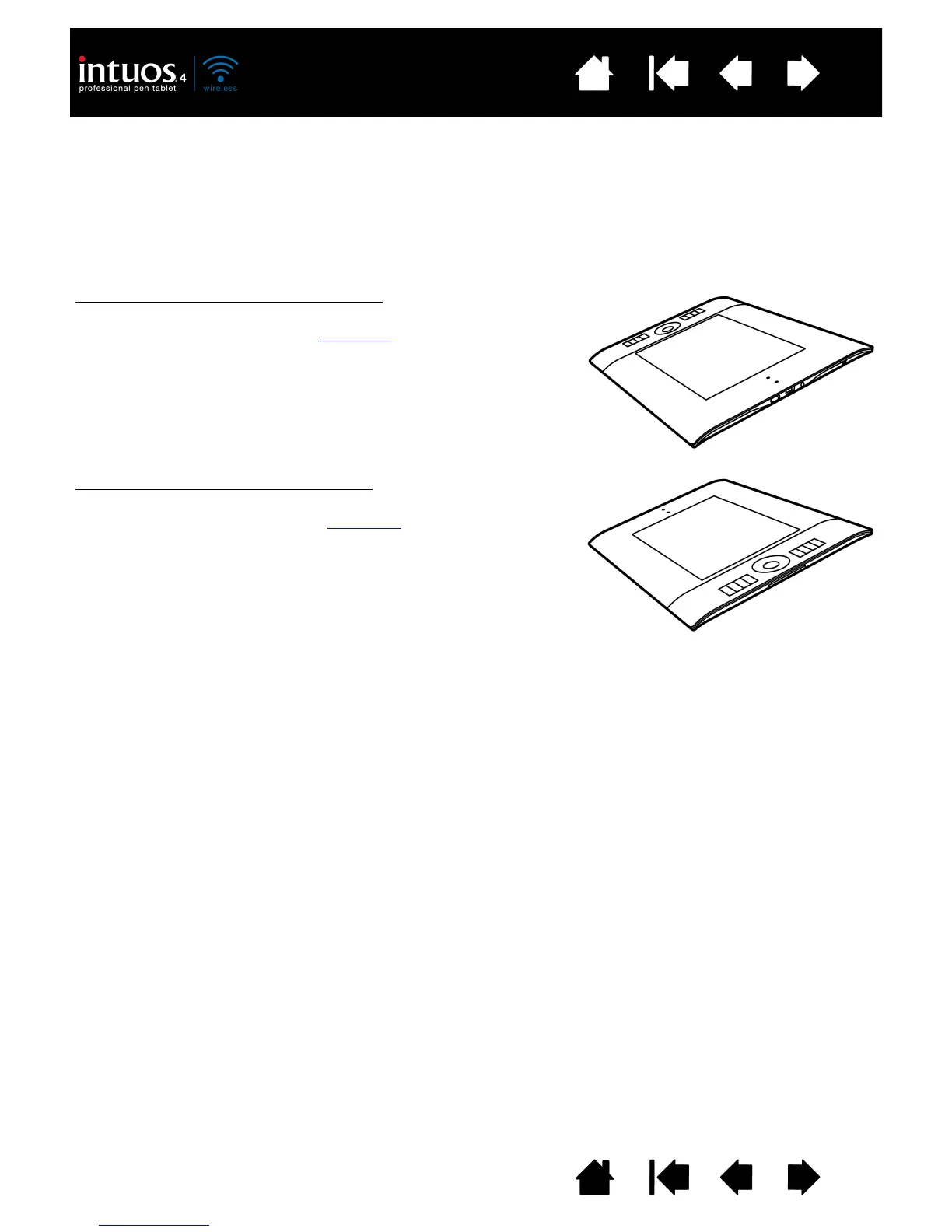
To set up Intuos4 for left-handed operation:
• Open the Wacom Tablet control panel and select the M
APPING tab.
Choose the E
XPRESSKEYS RIGHT orientation option. The tablet
driver automatically configures all aspects of the tablet (including
the Wacom Tablet control panel options) for correct left-handed
use.
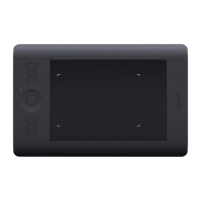
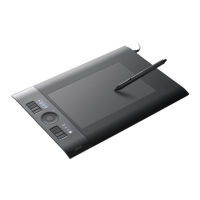
• Next, physically rotate your tablet so the tablet ExpressKeys are
positioned to the right.
To set up Intuos4 for right-handed operation
:
• Open the Wacom Tablet control panel and select the M
APPING tab.
Choose the E
XPRESSKEYS LEFT orientation option. The tablet
driver automatically configures all aspects of the tablet (including
the Wacom Tablet control panel options) for correct right-handed
use.
• Next, physically rotate your tablet so the tablet ExpressKeys are
positioned to the left.










 To Next Page