41
Index
Contents
41
Index
Contents
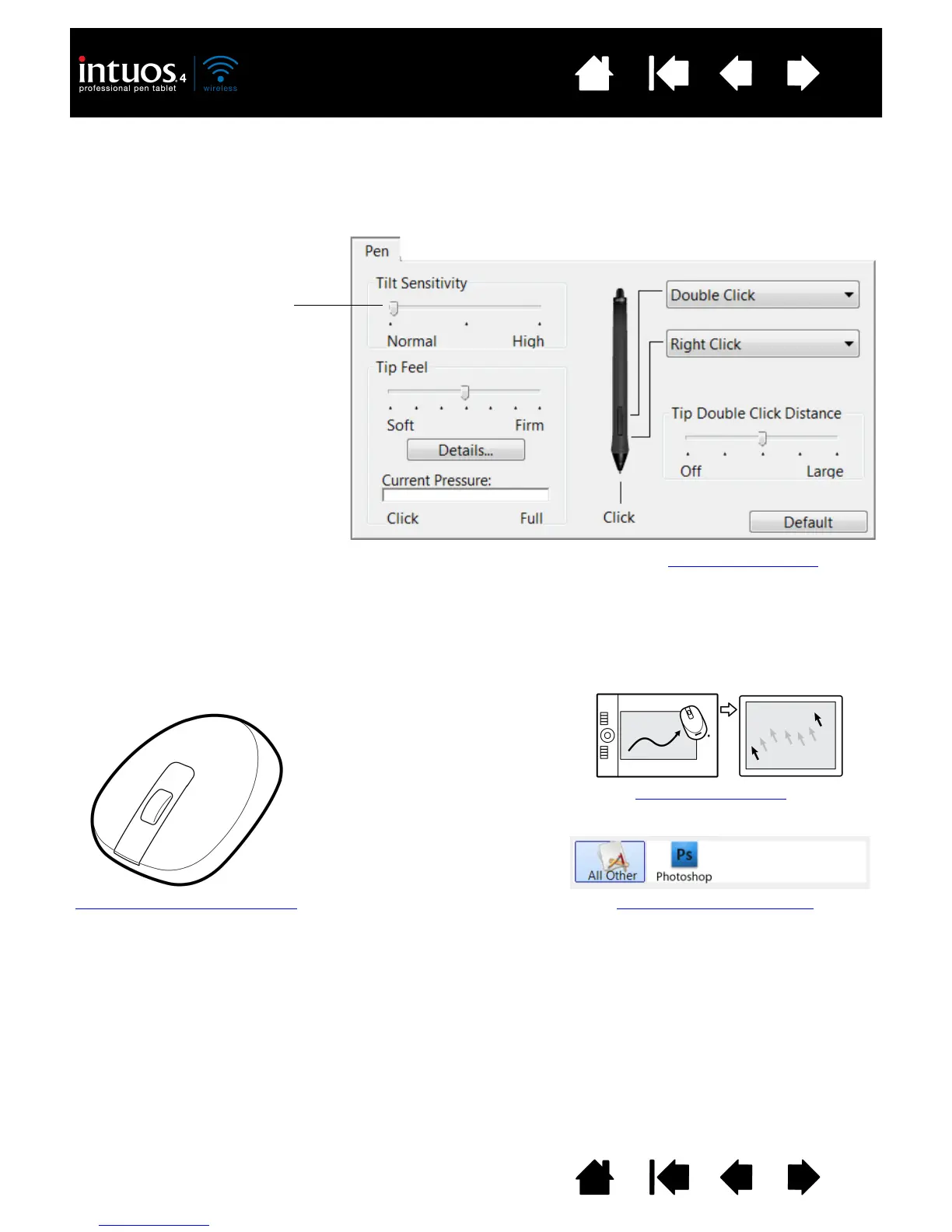
CUSTOMIZING TILT SENSITIVITY
Select the PEN tab.
Visit Wacom’s web site for a list of applications that currently support tilt. See product information
.
CUSTOMIZING THE OPTIONAL MOUSE
Use the Intuos4 Mouse to open the Wacom Tablet control panel. The MOUSE tool will be selected in the
T
OOL list and the appropriate tabs will be displayed. If the mouse is not automatically selected, choose it
from T
OOL list. Select a tab and choose from the available options. The mouse is an optional accessory,
and product configurations may vary.
Drag the slider to increase or
decrease T
ILT SENSITIVITY. Then test
the new setting in an application
that supports tilt. The tilt setting
applies to both the tip and eraser of
your tool.
Note: Tilt is direction-sensitive and
can be used in some
applications to control brush
orientation or other
characteristics.
Tilt sensitivity determines how far you must tilt the tool to produce the maximum tilt effect; you need to tilt the pen
less at high sensitivity than at low sensitivity.
Customizing the mouse buttons
Mouse mode settings
Application-specific settings










 To Next Page