61
Index
Contents
61
Index
Contents
APPLICATION-SPECIFIC SETTINGS
You can customize your Intuos4 tools for use with a particular application. For example, you may prefer a
firm pen tip pressure setting in one application and a soft pressure setting in another. The A
PPLICATION list
enables you to add an individual application to the list and then customize your tool settings for that
application.
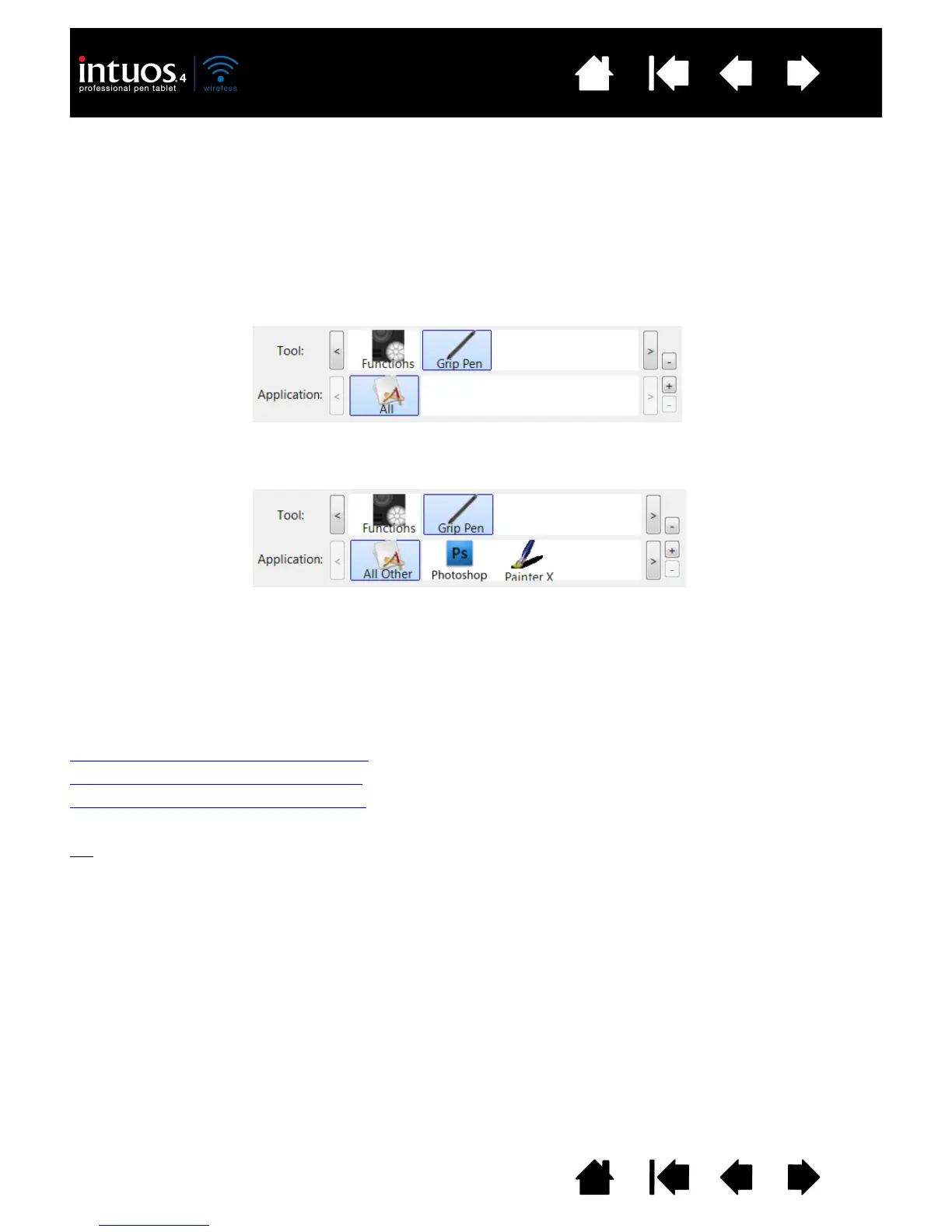
• When no application-specific settings have been created and a tool is selected from the T
OOL list, the
A
PPLICATION list displays the ALL icon which contains tool settings that apply to all of your applications.
In the example below, no application-specific settings have been added for the G
RIP PEN. The ALL icon
is displayed and the G
RIP PEN will have the same settings in all applications.
• When application-specific settings are added to the A
PPLICATION list, the ALL icon changes to ALL
O
THER, and an application icon is displayed for the newly added application(s).
In the above example, application-specific settings have been added for the G
RIP PEN. If you select the
A
LL OTHER icon and make changes to the tab settings, your changes will apply to the GRIP PEN in all
applications except those which you have added to the A
PPLICATION list. If you select an application
icon and make changes to the tab settings, your changes will apply to the G
RIP PEN only while you are
using that application.
When you create application-specific settings, you are creating a separate group of settings for the
selected tool and application. See the following sections for more details:
Creating an application-specific setting
Changing application-specific settings
Removing application-specific settings
Tip: To review the ExpressKeys or Touch Ring function settings for the current front-most application, set
an ExpressKey to S
HOW SETTINGS and press the key at any time.










 To Next Page