102 CHAPTER 9 CLICK 110
Note
Some of the parameters mentioned below can only be configured in Click Supervi-
sor. Others can be configured by the front panel menu and/or the DIP switches. In
the case of the DIP switches, if that parameter is set to Hardware mode, it will be
grayed out in Click Supervisor, meaning you can view but not change the setting. If
you would like to set it using Click Supervisor, you will have to flip those switches on
the device.
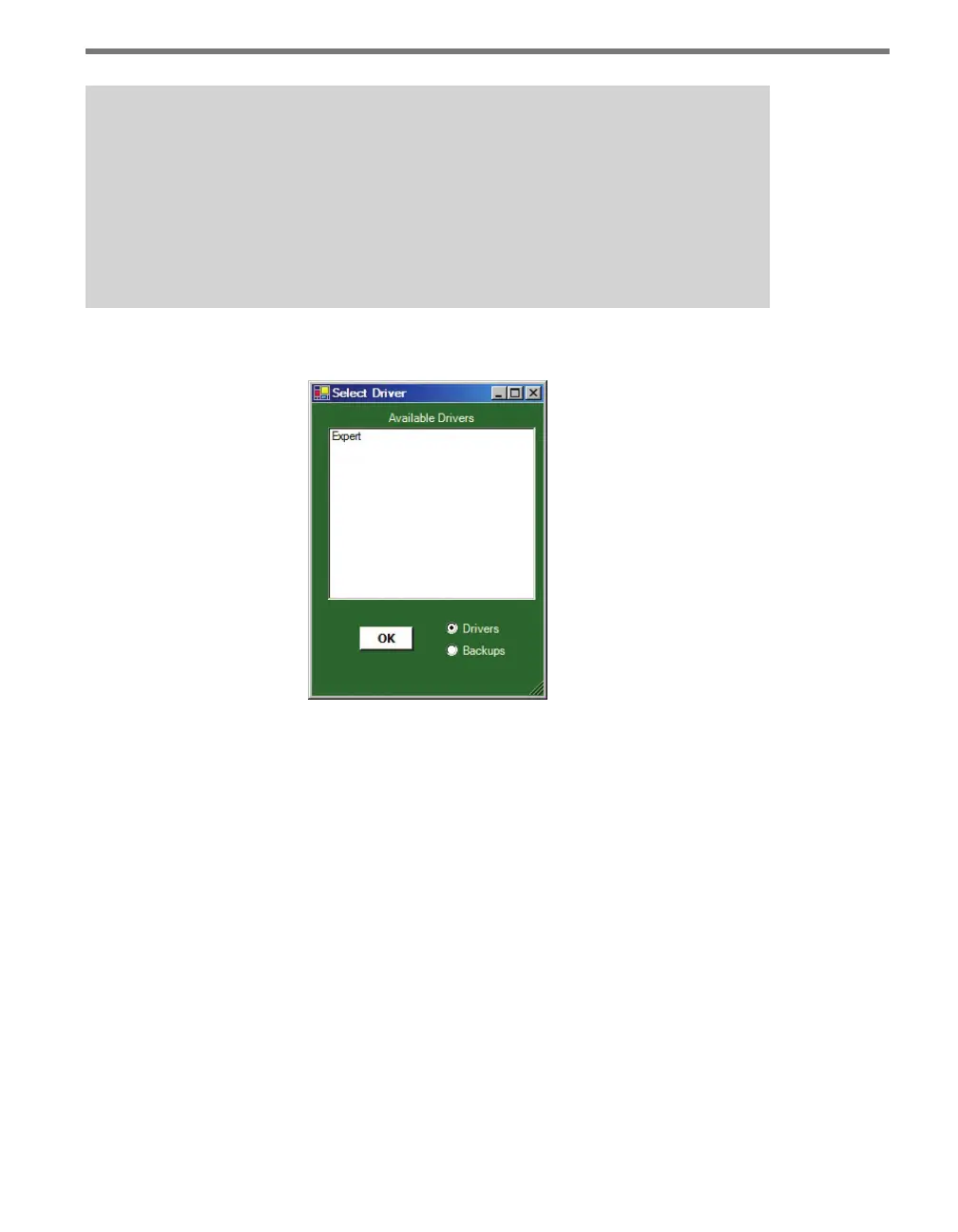
e Click 110 can be congured using the Expert driver (see Figure 9.9).
Figure 9.9 – Selecting a Driver
Aer you have made conguration changes on the driver and saved it to the Click device,
the word “current” will appear aer it to indicate the driver is currently loaded onto the
device.
e Backups option can be used to read congurations that have previously been saved to
le. See Chapter 5 for more information.
Expert Driver
e Expert driver contains two tabs, System and Diagnostics; the System tab is then sub-
divided further.
e System > General tab lets you change general information about your device. e tab
has the following parameters (see Figure 9.10 and Table 9.15):



 To Next Page