CHAPTER 4 CLICK 104 65
change the amount of time that must elapse without the device receiving a pertinent data-
gram before the device enters fail-safe mode.
Configuration
e Click 104 can be congured in three ways: the rotary switch (which can only change
one parameter), the front panel menu, and Click Supervisor.
ese three conguration methods can congure dierent sets of parameters; some of these
parameters can be set using multiple conguration methods, and some of them can only be
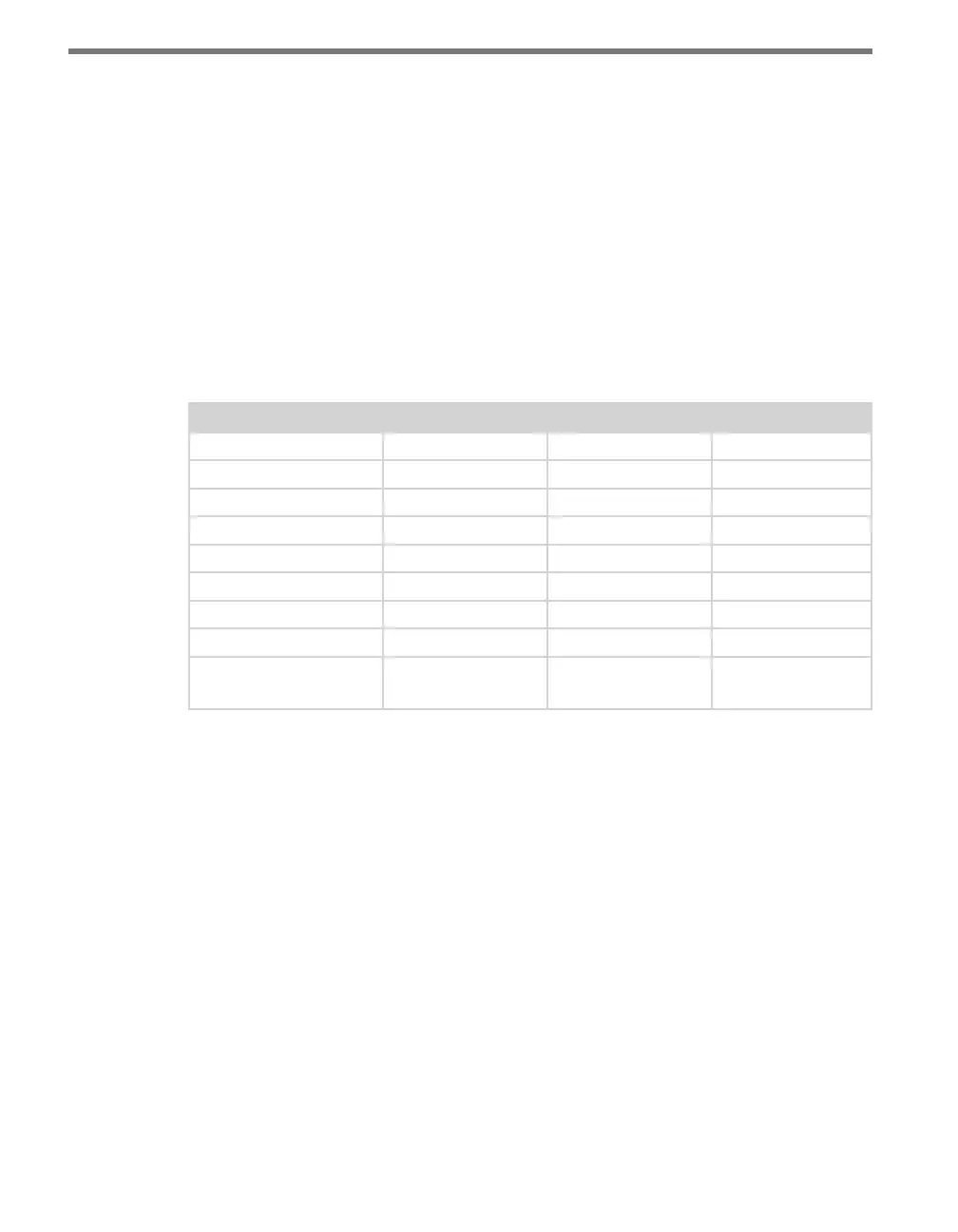
set using one particular method. Table 8.1 lists how each parameter may be accessed and
congured.
Rotary Switch Front Panel Menu Click Supervisor
Baud Rate No Yes Yes
Channel Input Map Yes Yes Yes
Autobaud No Yes No
Reset to Default No Yes Yes
Description No No Yes
Location No No Yes
Device ID No No Yes
Fail-safe Settings No No Yes
To use this
configuration option:
Hardware mode Software mode Software mode
Table 8.1 – Click 104 Configuration Options
Configuration Modes
e nal row on the table refers to conguration modes. Hardware mode means a par-
ticular parameter is set by the rotary switch; Soware mode means that parameter is set by
either the front panel menu or Click Supervisor. However, this is only applicable for channel
input mapping, since that is the only parameter that can be set by the rotary switch.
e position of the rotary switch determines whether the device is in Hardware or Soware
mode:
If the switch is set to 0, the device is in Soware mode. is means that all parameters
are set by the front panel menu or Click Supervisor.
If the switch is set to any other number, the device is in Hardware mode, meaning that
the channel input mapping is set by the rotary switch. If this is set, you will not be able
to change the channel input mapping any other way; in Click Supervisor the option
will be grayed out, and the front panel menu will only allow to view, not change, this
setting. However, even when the rotary switch is set in Hardware mode, you will still be



 To Next Page