126 CHAPTER 10 CLICK 112/114
Input Mapping
Lets you assign input datagram channels received from the sensor
to the two or four output channels on the device. The outputs are
mapped sequentially—that is, they can only be mapped in numerically
ordered groups of two (Click 112) or four (Click 114). See Input Map-
ping in either the DIP Switches or Front Panel Menu sections in this
chapter for more information.
Table 10.13 – Expert Driver Settings Tab
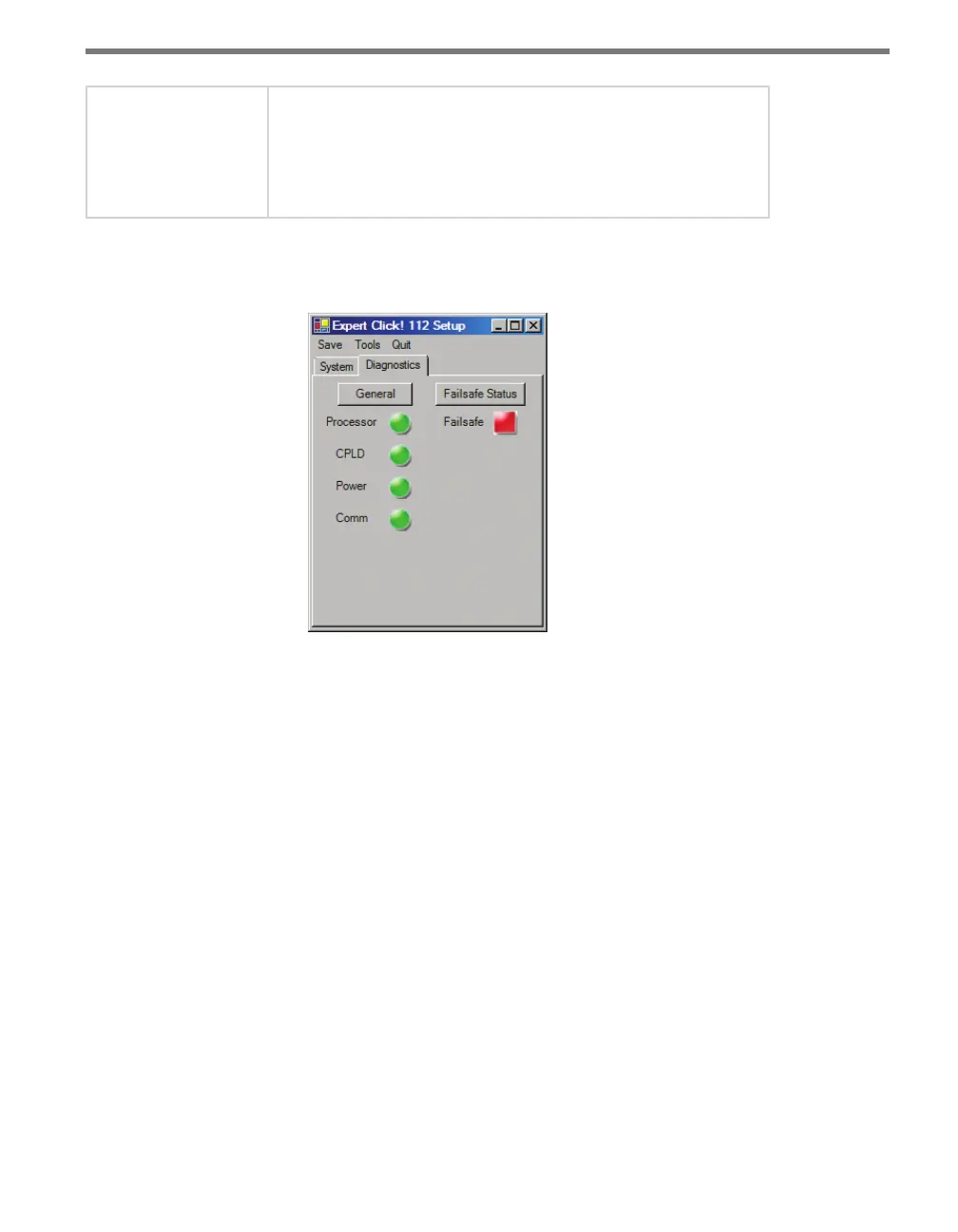
Under the Diagnostics tab, you can run diagnostics on your device (see Figure 10.10).
Figure 10.10 – Expert Driver Diagnostics Tab
Click the General button to run diagnostics on the items listed below the button. If a prob-
lem is detected, the program will display a red square next to the item in question. If no
problems are detected, a green circle will appear.
Click Failsafe Status to check whether any of the channels are in fail-safe mode. If a fail-safe
condition is detected, a red square will be displayed below the button. If no problems are
detected, a green circle will appear.
Once you have nished, use the menu bar at the top of the screen to save your settings,
return to the Select Driver screen, and more.
e Save menu allows you to save your settings. Select Save to File to save your settings
to a le. Selecting this will open a directory box, allowing you to name your settings
le. is le will always be saved in the Wavetronix folder created when you installed
Click Supervisor, under Wavetronix > ClickHome > Drivers > 112 > User (or Wavetro-
nix > ClickHome > Drivers > 114 > User). You can also select Save to Device to save
your settings to your Click 112/114.



 To Next Page