138 CHAPTER 12 CLICK 172/174
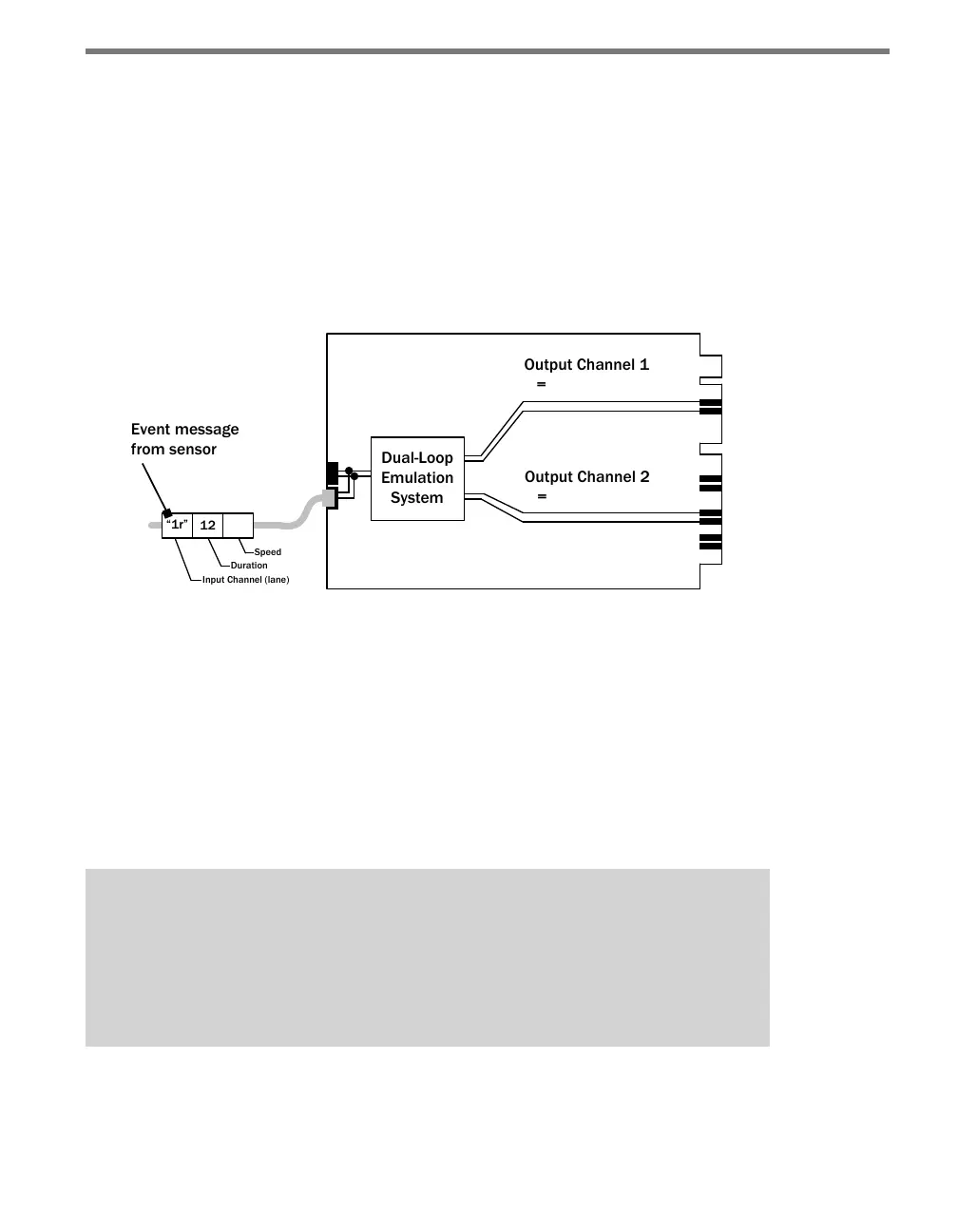
In order to mimic a traditional system, the rack card’s processor will sequence activation of
the primary and secondary outputs to signal the speed and duration detected by the radar
sensor. e duration of both outputs will be exactly the same.
With a 4-channel card, output channels 1 & 2 are paired to form one dual-loop emulation
system. Channel 1 is the primary channel for this pair, and channel 2 is the secondary. (e
other dual-loop emulation system is formed using output channels 3 & 4. Channel 3 is the
primary channel for this pair, and channel 4 is the secondary.) If any input channel (e.g.
lane 1) is assigned to both a primary and a secondary output channel, then the rack card is
automatically congured to provide dual loop-emulation (see Figure 12.6).
Primary Channel
Secondary Channel
55
Figure 12.6 – Dual-Loop Emulation System
Aer you have congured the sensor using SmartSensor Manager, assign lane numbers to
each lane. e Click 172/174 cards will read the assigned lane numbers and display this
information during the conguration of the cards. e Click 172/174 card reads the rst
character of the lane name that can take on a value of 0 to 9 and the direction the trac is
owing. For instance, if the innermost lane is named “1NB” and the direction of travel in
SmartSensor Manager is shown going from le to right, then the Click 172/174 will display
this lane as “1r.” If the inside lane on the other side of the median is named “1SB” and is
congured in SmartSensor Manager as going from right to le, the Click 172/174 will dis-
play this lane as “1L.”
Note
Lane names do not automatically contain a number as the first character. You must
change the lane name in SmartSensor Manager from “Lane_01” to “1Lane_01” or
“1NB.” In SmartSensor Manager HD, it is easiest to rename the lanes starting at the
lane furthest away from the sensor.



 To Next Page