214 CHAPTER 24 CLICK 304
the SmartSensor driver and those available only through this driver. e driver is divided
into two tabs—System and Diagnostics—which are then subdivided further.
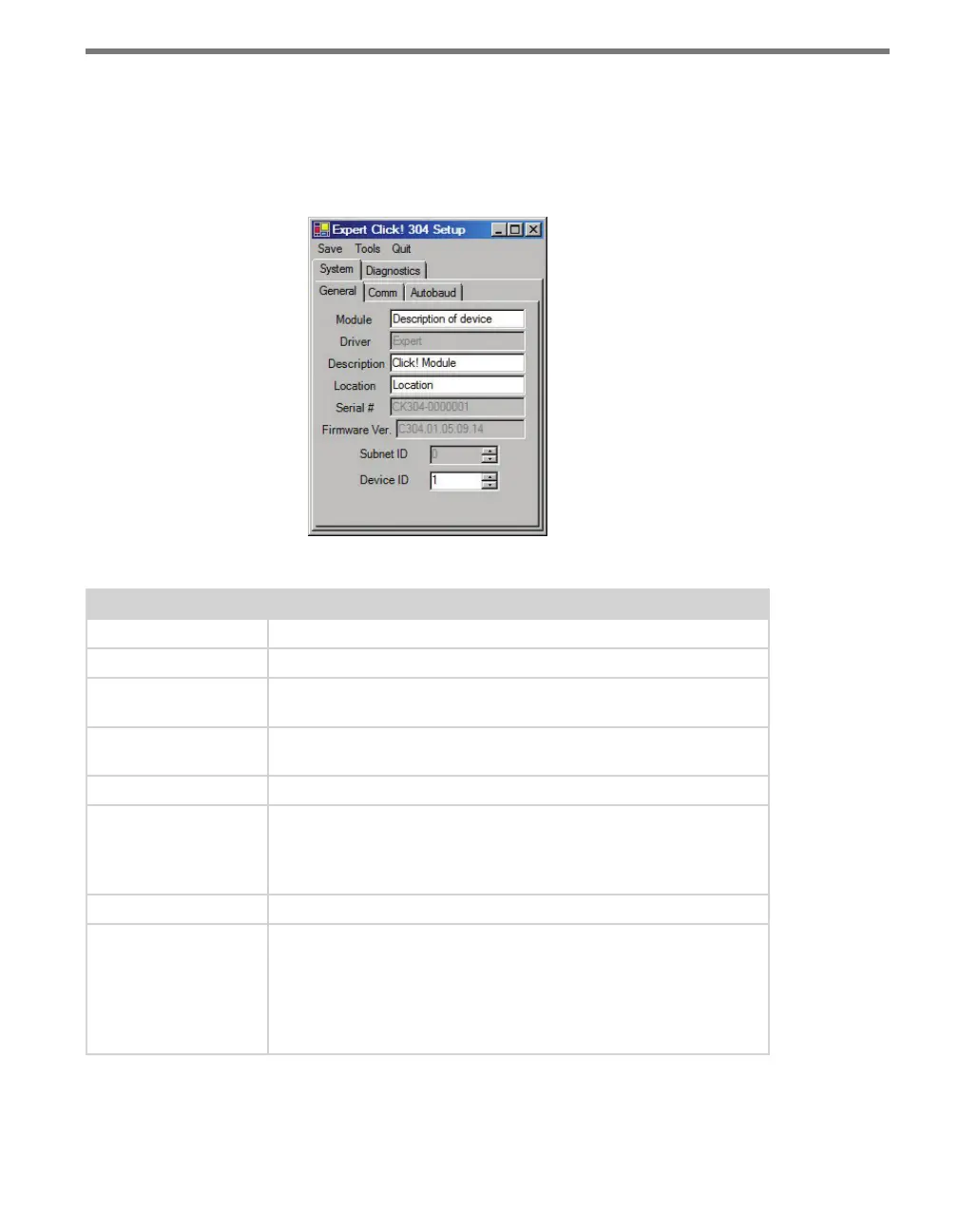
e System > General tab combines elements of the Setup and About tabs from the other
drivers (see Figure 24.7 and Table 24.4).
Figure 24.7 – Expert Driver General Tab
Setting Description
Module
Allows you to enter a name for the device.
Driver
Names the driver you are currently working with.
Description
Shows a description of the device being configured. This is only for
your information and does not aect the operation of the device.
Location
Displays the location of the device being configured. This is only for
your information and does not aect the operation of the device.
Serial Number
Displays the serial number of your device.
Firmware Version
Shows the version of firmware your device currently has installed. If
Click Supervisor detects a discrepancy between this version and the
most current version it currently has access to, you will be prompted
to upgrade when you connect to the device.
Subnet ID
Shows the subnet ID number. This option is currently not available.
Device ID
Gives the ID number of the device being configured, which is used
to identify the device when you are connecting to it. By default, this
number is the last five digits of the serial number, which can be found
under the About tab or on the barcode sticker on the bottom of the
device. It is recommended that you do not change this number unless
another device on your network has the same ID number.
Table 24.4 – Expert Driver General Tab
e System > Comm tab allows you to congure Click device communication (see Figure



 To Next Page