CHAPTER 28 CLICK 400 237
Note
If you do not save your settings to your Click 400, they will be lost the next time you
power the device down.
e To ol s menu contains ve options for working with your device. Reset > System
power cycles your device, while Reset > Factory Default restores your device to the
settings with which it was shipped. Restore will restore the driver to the settings cur-
rently saved on the Click 400, erasing any unsaved changes. Upgrade can be used to
manually upgrade to the most current rmware for your device. Hex View changes the
view of certain settings in the driver to hexadecimal.
Clicking the Quit menu exits the driver and returns you to the Click Supervisor main
page.
Expert Driver
e Expert driver allows you to see all possible settings and elds, both those available in
other drivers and those available only through this driver. e driver is divided into three
tabs—System, 900 MHz and Diagnostics—which are then subdivided further.
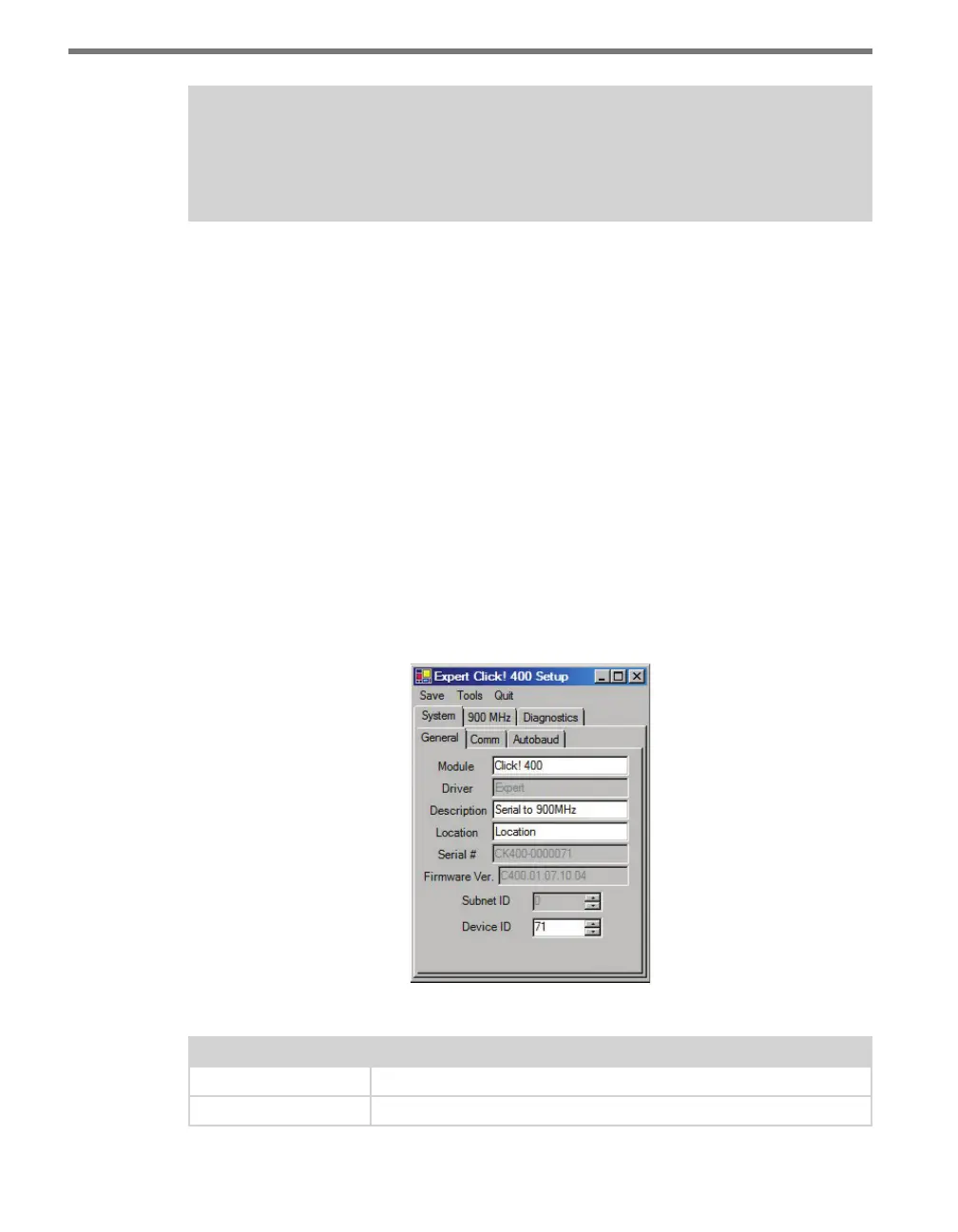
e System > General tab combines elements of the Setup and About tabs from the other
drivers (see Figure 27.7 and Table 27.4).
Figure 27.7 – Expert Driver General Tab
Setting Description
Module
Allows you to enter a name for the device.
Driver
Names the driver you are currently working with.



 To Next Page