CHAPTER 5 USING CLICK SUPERVISOR 35
Serial Communication
e rst section on the Communication screen is Serial Communication. Here you can
connect to a Click device through an RS-232 cable.
Changing Settings
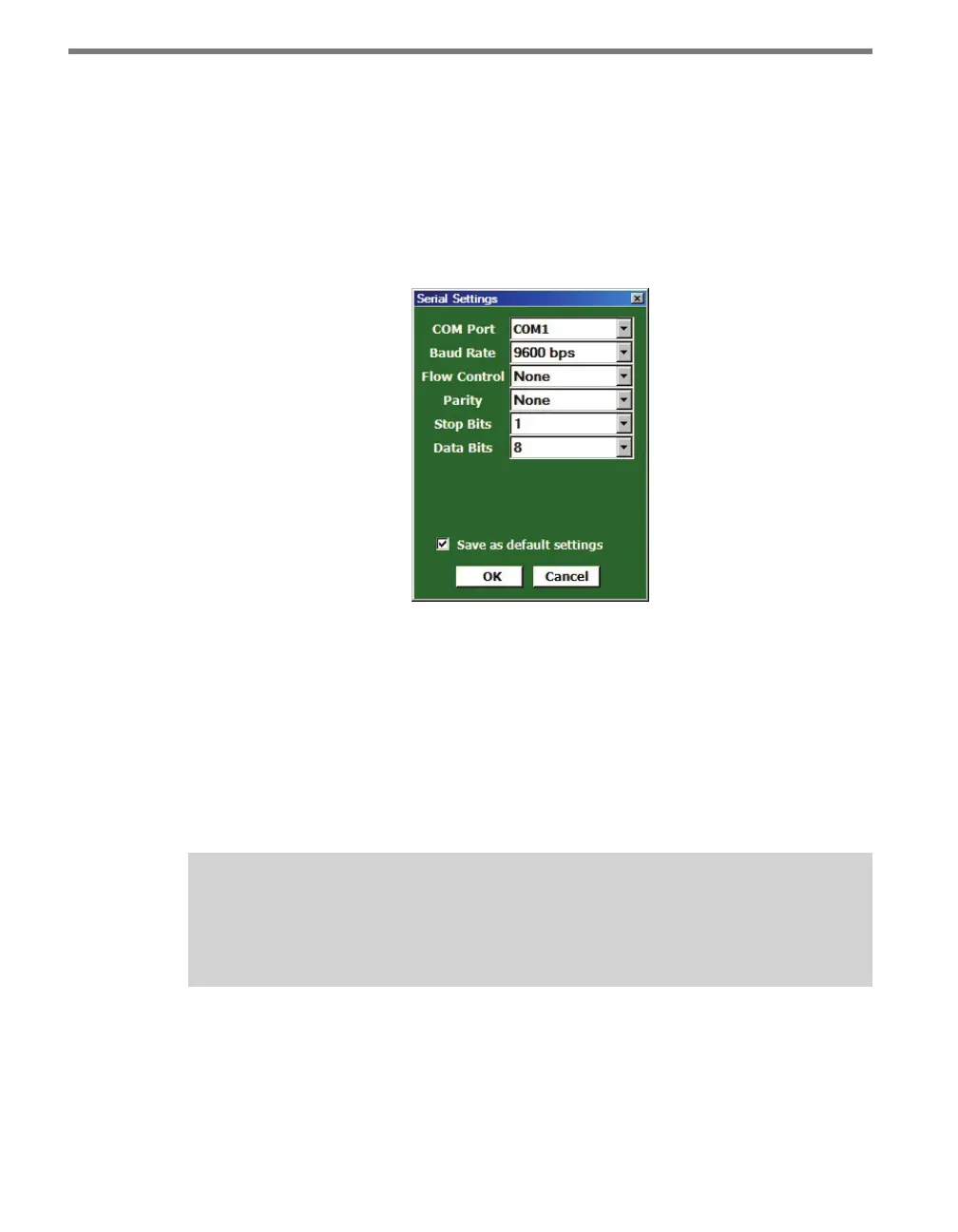
Click Settings to bring up the Serial Settings screen (see Figure 5.3).
Figure 5.3 – Serial Settings Screen
COM Port – Allows you to change the serial connection port.
Baud Rate – Allows you to change the baud rate or set it to auto-detect.
Flow Control – Is usually only used if you are connecting your computer to an RS-232
device that requires hardware handshaking.
Parity – Allows you to set parity error checking.
Stop Bits – Allows you to set the number of stop bits.
Data Bits –Allows you to set the number of data bits being sent.
Note
The flow control, parity, stop bits and data bits settings should not be changed un-
less you have been instructed to do so by Wavetronix Technical Services.
Click the Save as default settings checkbox to tell the soware to remember your setup. Click
OK to return to the Communication screen or Cancel to exit without saving your settings.
On the Communication screen, you can see the settings reected in the Port: and Baud:
entries. Port: shows the port you’ve set the program to communicate through, and Baud:
shows the baud rate, as set under Settings or as automatically detected.



 To Next Page