CHAPTER 4 CLICK 104 75
Firmware Version
Shows the version of firmware your device currently has installed. If
Click Supervisor detects a discrepancy between this version and the
most current version it currently has access to, you will be prompted
to upgrade when you connect to the device. This information cannot
be changed.
Subnet ID
Shows the subnet ID number. This option is currently not available.
Device ID
Gives the ID number of the device being configured, which is used
to identify the device when you are connecting to it. By default, this
number is the last five digits of the serial number, which can be found
under the About tab or on the barcode sticker on the bottom of the
device. It is recommended that you do not change this number unless
another device on your network has the same ID number.
Table 8.8 – Expert Driver General Tab
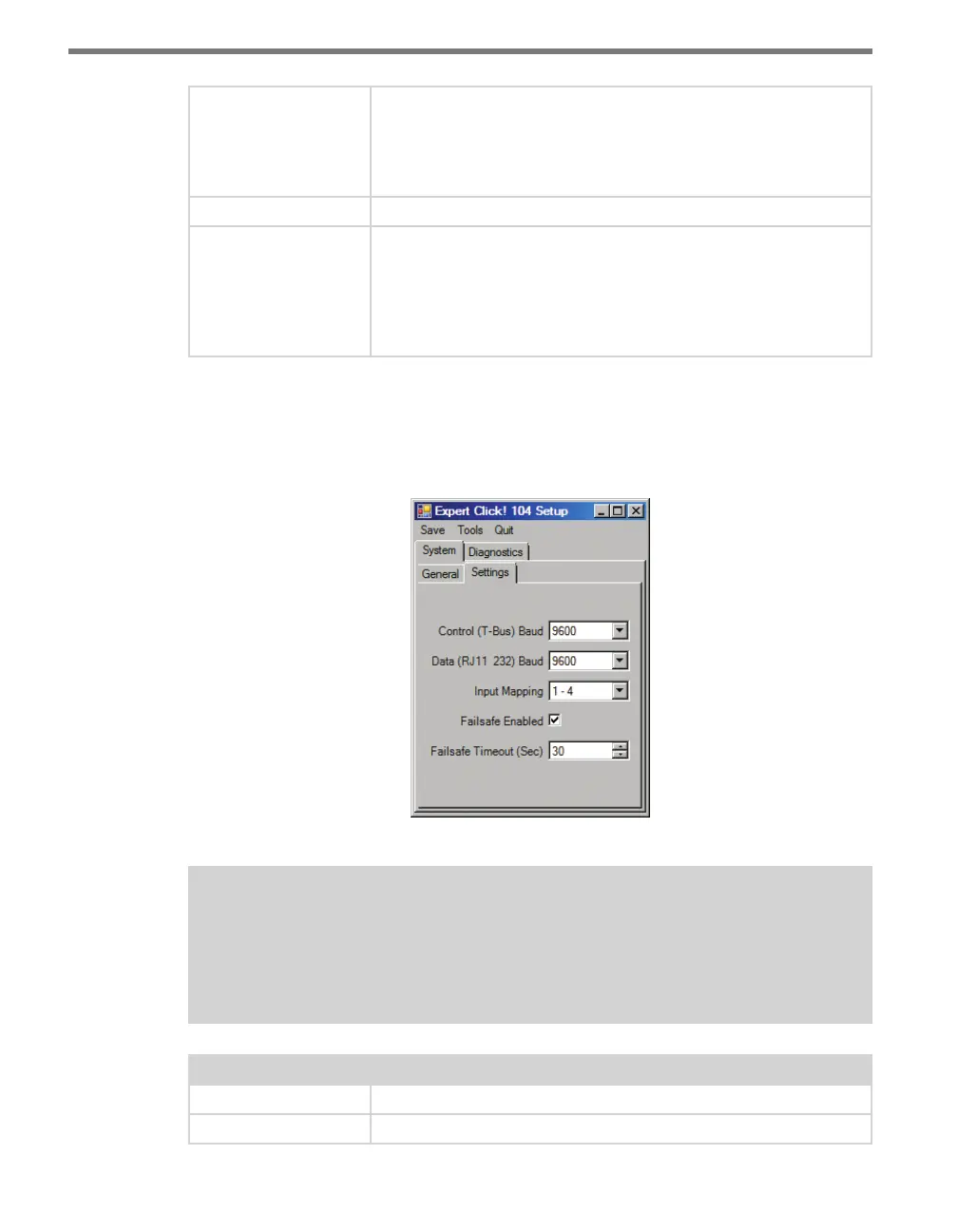
e System > Settings tab lets you congure and view many of the parameters that are also
available elsewhere on the device (see Table 8.1 earlier in this chapter for more informa-
tion). e tab has the following parameters (see Figure 8.8 and Table 8.9):
Figure 8.8 – Expert Driver Settings Tab
Note
These parameters can also be configured using the front panel menu. Also, chan-
nel input mapping can be set using the rotary switch; if the rotary switch is set to
anything but 0, the input mapping drop-down will appear grayed out on this screen.
Setting Description
Control (T-Bus) Baud
Lets you change the baud rate, in bps, of the control bus (bus 2).
Data (RJ11 _232) Baud
Lets you change the baud rate, in bps, of the data bus (bus 1).



 To Next Page