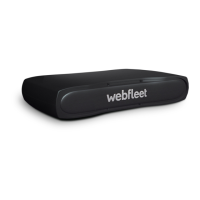
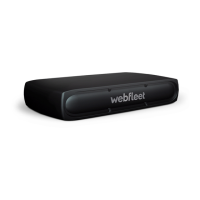
Switching on and off
Turning on the display
To turn on the display, press the On/Off button on the top left of your PRO 2020 once
or tap the display.
Turning off the display
To turn off the display of your PRO 2020, press the On/Off button once.
Note: The display turns off automatically, when the ignition of the vehicle is
switched off for more than 30 seconds.
Setting up
Note: The language you choose will be used for all text on the screen. You can always
change the language later in the Settings menu.
When you first switch on your PRO 2020, you have to answer a few questions to set it
up. Answer the questions by touching the screen.
Restarting the device
In rare cases, your PRO 2020 may not start correctly or may stop responding to your
taps.
In those cases you can perform a reset. To do this, press and hold the On/Off button
until your PRO 2020 begins to restart.
Caring for your PRO 2020
It is important to take care of your device:
▪ Do not open the casing of your device under any circumstances. Doing so may be
dangerous and will invalidate the warranty.
▪ Wipe or dry the screen of your device using a soft cloth. Do not use any liquid
cleaners.
Help
You can get help by going to
www.webfleet.com/support.
For warranty and privacy information go to www.webfleet.com/legal.
10



 To Next Page