What's on the screen
Driving view
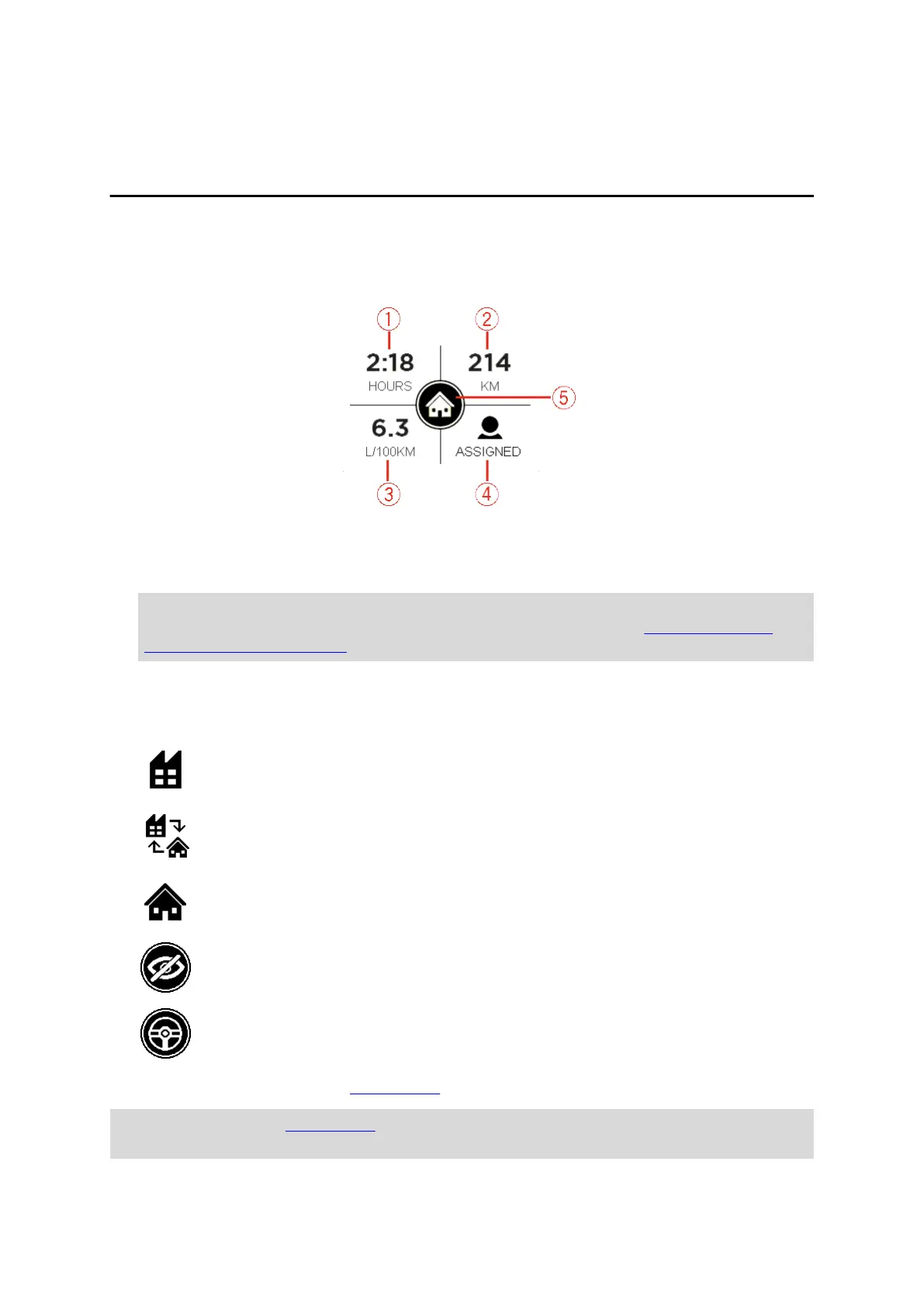
The Driving view is shown when you are driving. In the Driving view you can see and
do the following:
1. The duration driven during the current trip.
2. The distance driven during the current trip.
3. The average fuel consumption during the current trip.
This information is only available when you have a LINK 105 installed which is
connected to a LINK device, as listed in this document under Accessories not
supplied with this device, installed in your vehicle.
4. Icon to show if a driver is assigned to the vehicle.
5. The icon representing your current logbook mode. The following trip modes and
states can be shown.
Business – You are on a business trip.
Commute – You are commuting.
Private – You are on a private trip.
Vehicle position is not shown
Logbook is disabled on your device
Tap the display to access the main menu.
When you are in the main menu while you are driving and you do not use the device,
the Driving view will be automatically shown after 30 seconds.
11



 To Next Page