22
January, 2017
LAUNCHER
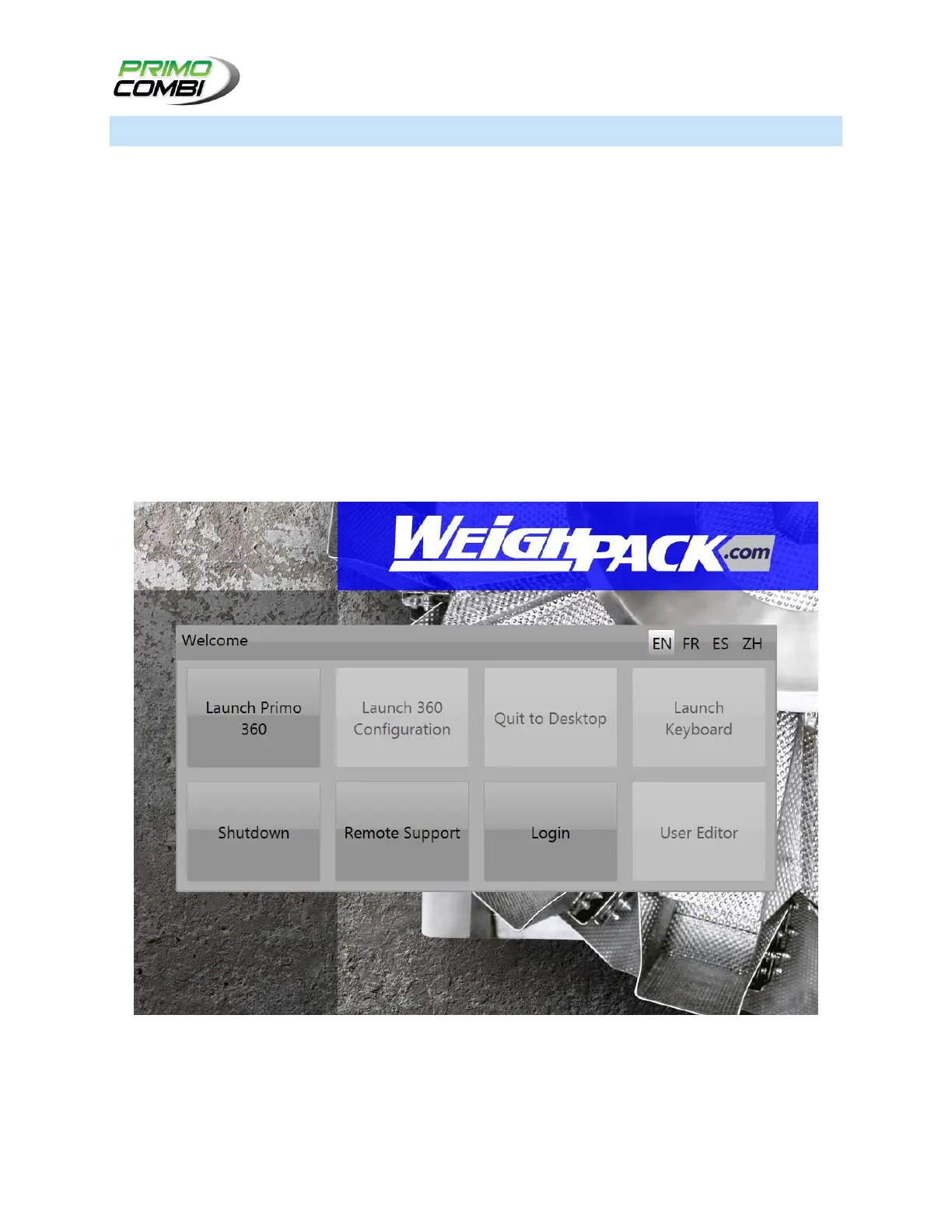
Upon starting up the PC panel, the launcher screen will appear. The ‘Launcher’ page has eight different
buttons as well as the option to switch between four different languages.
1. ‘Launch Primo 360’ will launch the Primo 360 program and open the main navigation page.
2. ‘Shutdown’ will shut down the software and the PC panel.
3. ‘Remote Support’ gives the option of accessing the system from a remote computer.
4. ‘Login’ logs the user into the system and gives them access to the remaining buttons on the
screen.
5. ‘Launch 360 Configuration’ (requires login) is for advanced operators only, and gives access to
advanced configuration settings.
6. ‘Quit to Desktop’ (requires login) quits the program and navigates to the desktop.
7. ‘Launch Keyboard’ (requires login) opens an on-screen keyboard.
8. ‘User Editor’ (requires login) allows users and passwords to be edited.


 To Next Page