MANAGING SAFEPOINTS
95
WD MY CLOUD PERSONAL CLOUD STORAGE
USER MANUAL
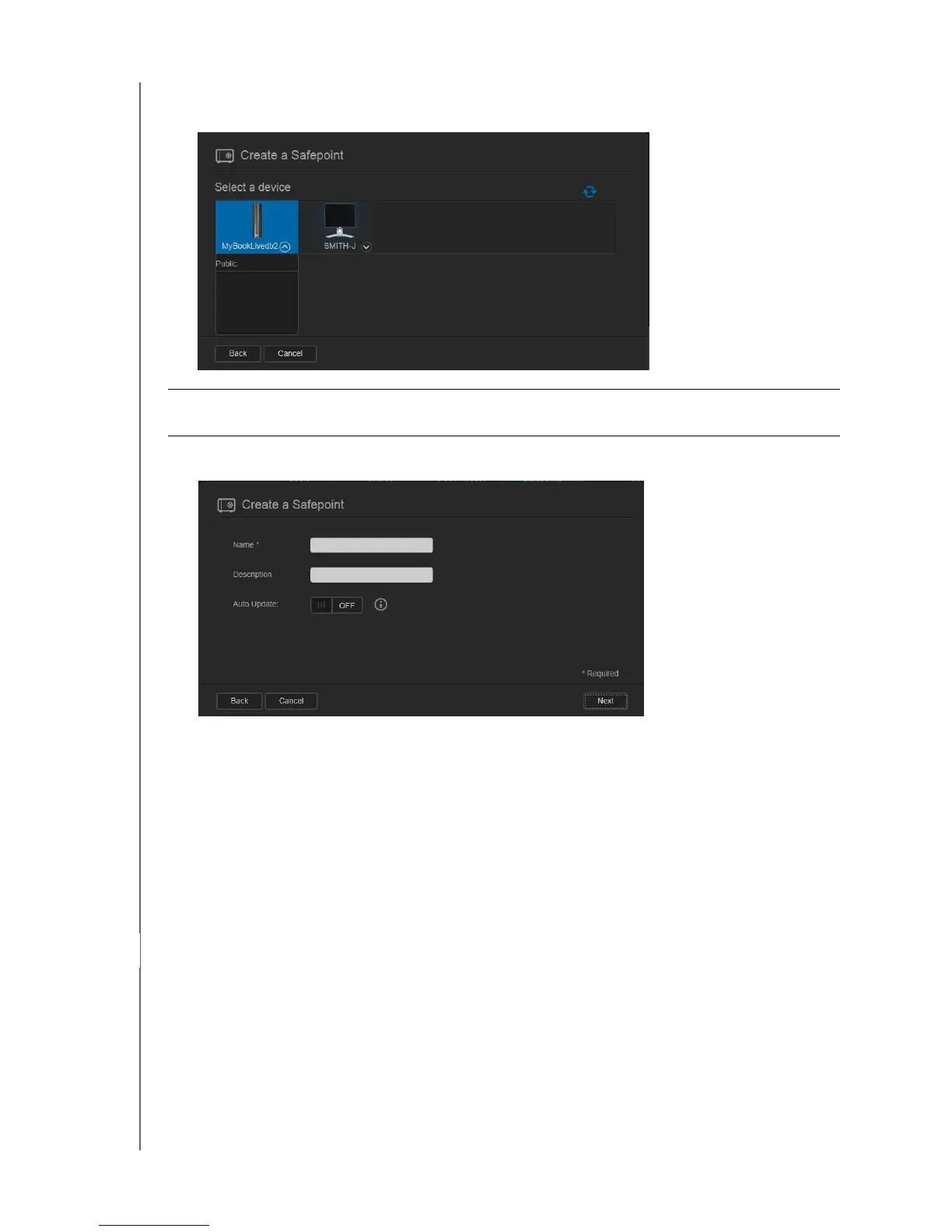
4. Select the target device and the share for the operation and click Next. If the share is
password protected, enter appropriate credentials.
The Create a Safepoint dialog box displays.
5. Enter a name and description for the safepoint.
Note: The name must include 1-32 characters and cannot contain spaces or
symbols except underscores. It is case sensitive.
Auto updates help keep your safepoint up to date with the content on your
WD My Cloud device by copying changes since the last update. If you want the new
safepoint to be updated automatically:
a. Turn Auto Update on.
b. Indicate the Frequency, Day, and Time to automatically update the safepoint.
Note: You may choose to enable auto updates at another time. See “Updating a
Safepoint” on page 98).
6. Click Next. The Create now or later dialog box displays:
Important: If you create a safepoint with shares you wish to keep private, create the
safepoint on a private share.




 To Next Page