EasyManua.ls Logo

Winegard ConnecT 2.0 WF2-435 - User Manual

Winegard ConnecT 2.0 WF2-435
12 pages
Print Icon
To Next Page IconTo Next Page
Loading...
Place label here
Register your product at winegard.com/myantenna
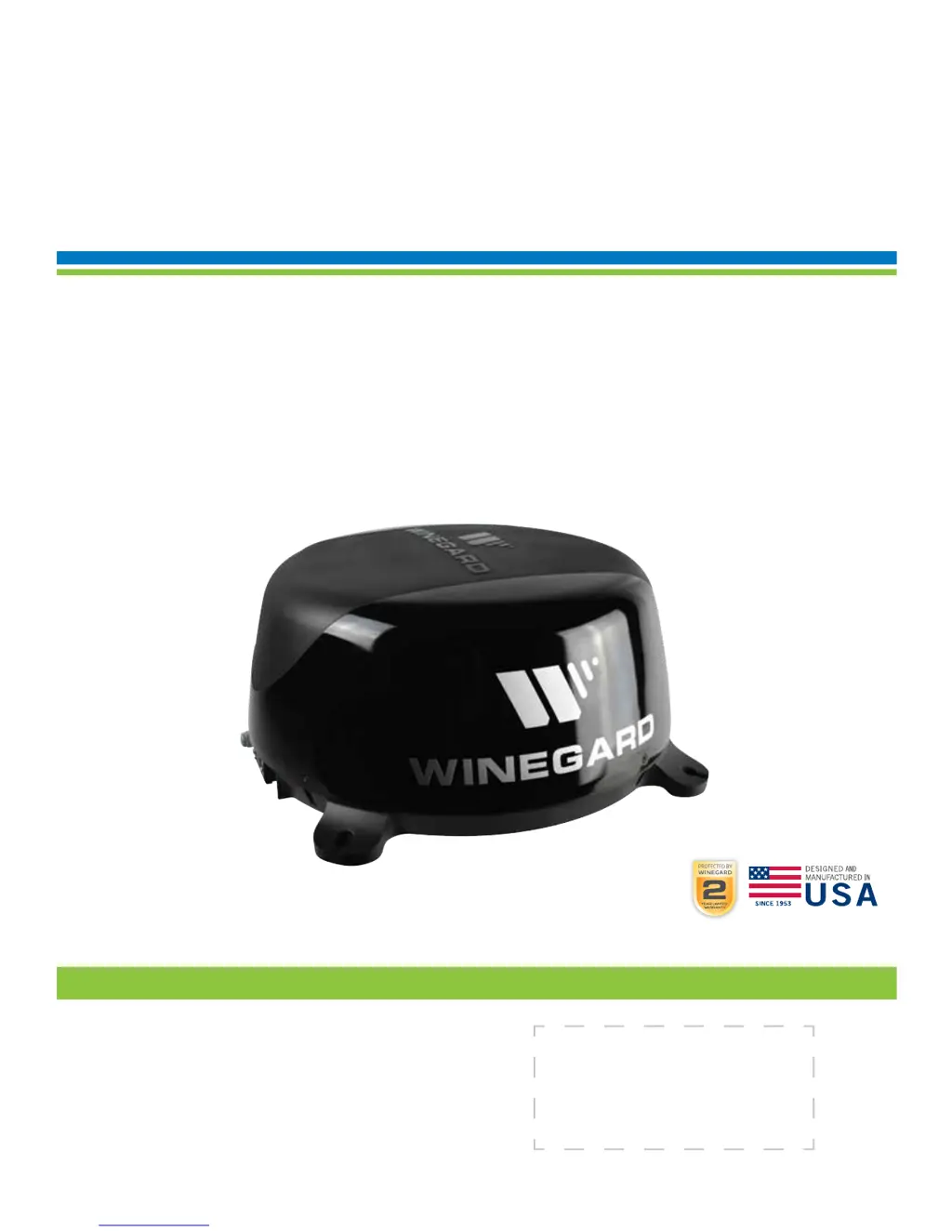
WINEGARD
®
ConnecT
2.0
WF2-435
LONG RANGE, HIGH PERFORMANCE 4G LTE + WIFI EXTENDER
WF2-335
LONG RANGE, HIGH PERFORMANCE WIFI EXTENDER
Installation / Operation Manual
www.winegard.com/connect
Manuel disponible en français au www.winegard.com/connect
For help, email help@winegard.com
or call 1-800-320-9992
2452399
Rev0 10 /17

Questions and Answers

  • M
    Miguel JonesJul 27, 2025
    Why aren't web pages loading even though Winegard ConnecT 2.0 WF2-435 Extender is connected to WiFi?
    • D
      daniellebrownJul 27, 2025
      If web pages aren't loading even though your system software indicates a WiFi connection, it might be because the WiFi source requires an action before granting network access, even without a password. These pages might open in your device's default browser instead of your selected browser. Try browsing to a webpage to see if a splash page appears.
  • R
    Rebecca PetersenAug 2, 2025
    How to fix Winegard ConnecT 2.0 WF2-435 if SSID is not showing up?
    • B
      Bonnie KimAug 2, 2025
      If you are not seeing the SSID for your Winegard ConnecT system, first check if the LED under the SIM card cover entry plate is lit. If it's not, use a voltage meter to check if 12V is getting from the vehicle power to the dome. If the LED is lit but you still don't see the SSID, reset the unit by holding the reset button under the SIM Card Cover Plate for 30 seconds.
  • J
    johnsonvictoriaAug 8, 2025
    What to do if 10.11.12.1 does not bring up the Winegard ConnecT 2.0 WF2-435 Extender login screen?
    • P
      Paul HernandezAug 8, 2025
      If 10.11.12.1 does not bring up the login screen for your Winegard Extender, first check the WiFi signal your device is connected to. If it's not the Winegard ConnecT SSID, this address won’t work. If you are connected to the correct network, the address may have been changed; perform a factory reset to resolve this.
  • Y
    ypowersAug 14, 2025
    Why won't Winegard ConnecT 2.0 WF2-435 Extender connect after switching from WiFi to 4G?
    • M
      Michelle HowardAug 14, 2025
      If the Internet Status field won't connect after switching from WiFi to 4G or vice versa on your Winegard Extender, verify that your device is still connected to the ConnecT. When switching between 4G and WiFi, your device might lose the connection. To prevent this, set your device to auto-connect to the ConnecT when nearby.
  • J
    James KelleyAug 20, 2025
    How to find the default SSID and password for Winegard Extender?
    • N
      Nicole SmithAug 20, 2025
      To recover your Winegard Extender SSID or password: 1. Check the white label inside the SIM card/LED cover plate on the side of the dome for your factory preset SSID and password. 2. Contact Winegard at 1-800-320-9992. If you've changed your password: 1. Press and hold the reset button inside the SIM card/LED cover plate for 30 seconds to restore the unit to factory settings, then use the factory SSID and password. 2. Power cycle the unit to restore factory defaults. 3. Contact Winegard at 1-800-320-9992.

Summary

Parts List and Related Information

Warnings and Safety Precautions

Essential warnings and safety guidelines for installation and operation.

Tools and Materials Required

List of tools and materials needed for unpacking and installation.

Exterior Installation Guide

Steps for mounting the antenna unit on the exterior of a vehicle.

Product Specifications

Key physical dimensions and weight of the Winegard Connect 2.0.

Installing the Power Switch

12 V Wiring Requirements

Specifies voltage, current, temperature, and cable length for 12V power.

Operating the Winegard Connect 2.0

Initial Device Connection and Login

Steps to connect a device and access the admin login screen.

Network Connection Modes

Explains connecting via Wi-Fi Only or 4G/LTE Only.

Data Plan Management

How to view and manage the 4G LTE data plan.

Operating Features and Settings

Network Name and Password Configuration

How to change the Wi-Fi SSID and password for security.

Security Type Settings

Details on the WPA2-PSK (AES) security type.

Guest Network Setup

Steps to create a separate guest network for visitors.

Advanced Settings and Reset Options

Managing Connected Devices and Passwords

Viewing connected devices and changing admin passwords.

Factory Reset Procedures

How to reset the unit to factory default settings.

Software Update Procedures

Checking for Software Updates

How to check for and initiate software updates.

Verifying Software Installation

Process for verifying the integrity of installed software.

Swapping the SIM Card (4 G LTE)

SIM Card Information and Requirements

Details on SIM card types and provider information needed.

SIM Card Swapping Procedure

Step-by-step guide to replace the existing SIM card.

Configuring 4 G;LTE Data Provider

Connecting to a Wi-Fi Network for Setup

Steps to connect to Wi-Fi to access settings.

Changing Cellular Provider and APN Settings

How to set the cellular provider and Access Point Name (APN).

Troubleshooting and Support

LED Indicator Definitions

Explains the meaning of different LED status lights.

Common Troubleshooting Questions

Answers to frequently asked questions and common issues.

Support and Status Screen Explanations

4 G;LTE Data Plan Issues

Solutions for common problems with the 4G/LTE data plan.

Understanding Status Screen Messages

Explanations of various status messages displayed by the unit.

Legal, Warranty, and Compliance

FCC Compliance Statement

Information regarding FCC rules, interference, and exposure limits.

Limited Product Warranty

Details of the 2-year parts, 1-year labor warranty.

Return Authorization Policy

Procedure for obtaining a Return Material Authorization (RMA).

Winegard ConnecT 2.0 WF2-435 Specifications

General IconGeneral
BrandWinegard
ModelConnecT 2.0 WF2-435
CategoryExtender
LanguageEnglish

Related product manuals