MRK16 16 channels ultra-wideband rack unit
6
To enter the MRK16 main menu, press and hold the headphone encoder for two seconds.
The MRK16 menu will appear on the display of the furthest receiver to the right. If no receiv-
ers are inserted, you cannot access the MRK16 menu unless the device is connected to the
Wisycom Manager.
Once inside the menu, use the same knob to scroll through the menu. Select and edit param-
eters by pressing the encoder to confirm your choices.
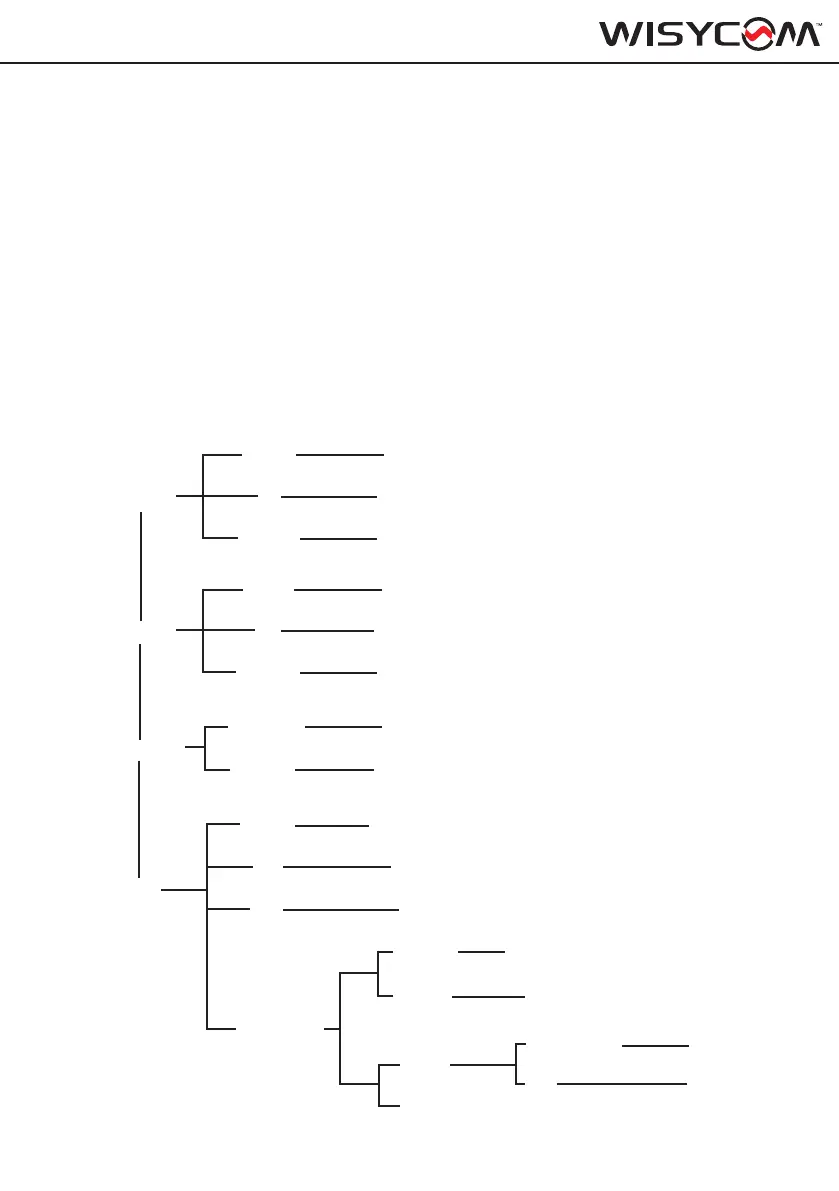
Zone 1
Zone 2
Network
Info
Status
On/O
On/O
A-/B-/AB
A-/B-/AB
O/ A-/B-/AB
O/ A-/B-/AB
Status
SERIAL
12345678
V x.y
xy
Booster
RF V1-A,RF V1-B, RF I1-A, RF I1-B, RF V2-A,
RFV2-B, RF I2-A, RF I2-B
...
Main board
45°
50%
Fan
Temp
Power
Alarms
RF
RF
FW
Booster
Booster
HW
Diagnosc
IP Cong.
DHCP/Stac
XXX.XXX.XXX.XXX
IP Addr.
MENU AND CONFIGURATION
Main menu
Front panel audio monitoring
Press the headphone encoder once to enter the RX audio monitor selection mode. In this
mode, the monitored receiver will start blinking on the MCR54 display. Scroll left or right to
change the monitored receiver, or press the encoder again to exit the monitor selection mode.
Once you exit this mode, you can use the headphone encoder to adjust the headphone
output volume.


 To Next Page