Tutorials
13
4. Press to activate the highlighted button.
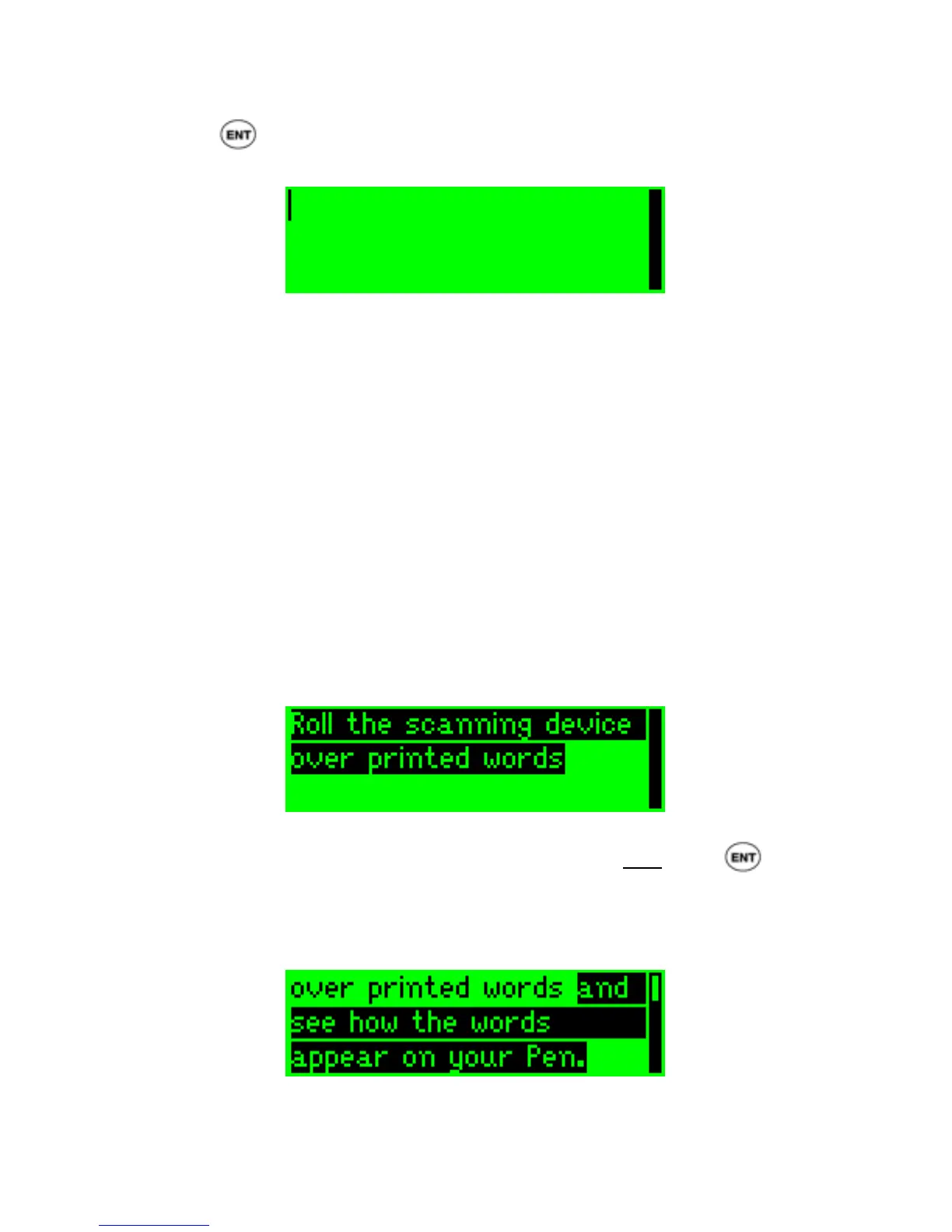
The Pen display will show:
A file, open and ready for editing, in the Notes screen
A new file named note001* is created, opened and ready for editing.
*Note: if you have already used this application the file name will contain a
different suffix (e.g., note004).
Step 5: Scan a sentence into the open file
Following is a sentence spread over 2 lines:
Roll the scanning device over printed words
and see how the words appear on your Pen.
To scan this whole sentence you will need to scan the first line and then scan
the second line:
1. Please scan the first line.
The Pen display will show:
The first line you have scanned appears highlighted
Note: If the scanned line was not recognized correctly, long press to
delete the highlighted text – and scan again.
2. Now, continue and scan the second line.
The Pen display will show:
The whole sentence appears, the second line you have just scanned is
highlighted


 To Next Page