ENGLISH
8
Running a Program WitH the Standard Beat
PARK
SINGLE CHASE
MIX CHASE
RECORD
0
2
4
6
8
10
0
2
4
6
8
10
RECORD
FLAHS 5 ó 10
Setting MIDI IN
0
2
4
6
8
10
0
2
4
6
8
10
RECORD
FLAHS 1
0
2
4
6
8
10
0
2
4
6
8
10
FLAHS 1 - 16
SPEED
.1 SEG
.2 S
.5 S
1 S
2 S
5 S
10 S
30 S
1 MIN
2 MIN
5 MIN
MINS
SHOW
MODE
.1 SEG
MINS
SHOW
MODE
10 MIN
1 MIN
2 MIN
5 MIN
20 S
10 S
5 S
2 S
1 S
.5 S
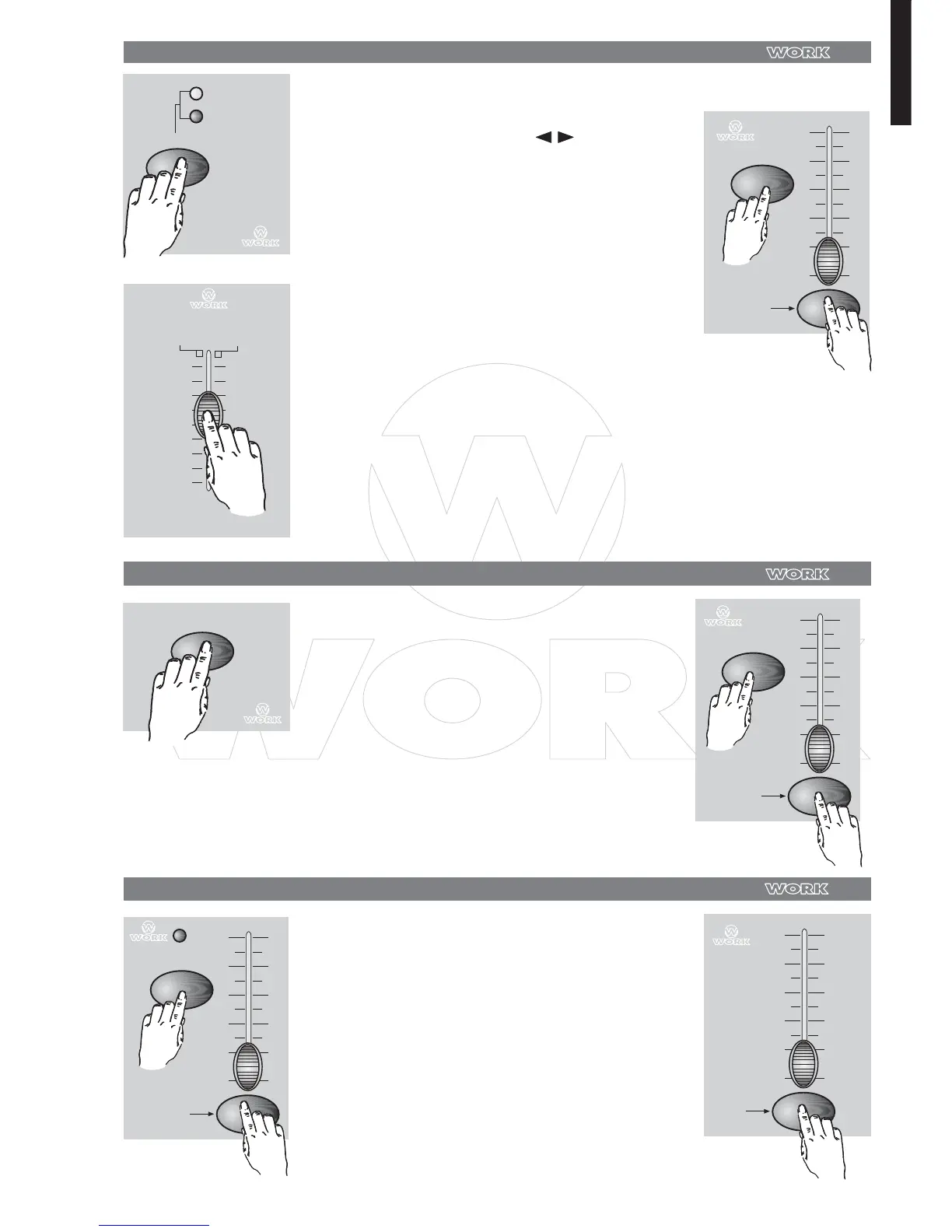
Be sure the Audio is disengaged. Tap the Mode
Select button to select
mode.
CHNS SCENES
1 .
Tap the Park button to select Mix Chase mode,
the LED lights indicating this selection.
2 .
Select your program as described above.
3 .
Move the Speed slider until the Segment Display
reads your desired value.
4 .
5 . While pressing and holding down the Rec Speed button,
tap the Flas button (25 - 48) (*13 - 24) that stores the program.
6 . The program will then run with the set time or beat when
engaged.
7 .
Repeat steps 4 and 5 to set a new beat time.
Change the Speed Mode between 5 Minutes and 10 Minutes
0
2
4
6
8
10
0
2
4
6
8
10
REC SPEED
FLAHS 25 - 48
(*FLAHS 13 - 24)
1 .
Press and hold the Record button.
2 .
Tap the Flash button 5 or 10 three times while
holding down the Record button.
3 .
The 5 MIN or 10 MIN should light up indicating
the Speed slider is set to run in the 5 or 10
minute mode.
Tap this button
three times
Tap this button
three times
1 .
Tap the Flash button 1 three times while
holding down the Record button, the
Segment Display reads "CHI" indicating
MIDI IN channel setup is available.
2 . Tap the Flash button numbered from 1-16
to assing MIDI IN channel 1-16, the relevant
channel LED lights indicating MIDI IN
channel is set



 To Next Page