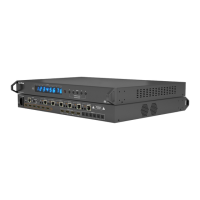
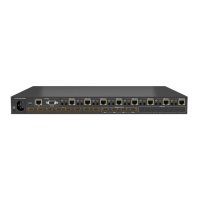
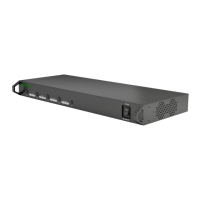
Device: change name of matrix
If the default setting reflects an 8x8 matrix model, use this
page to manually change name of your matrix to better
reflect the model you have.
iv. EDID DIP Switch setting
Distribution of HD signals through the matrix requires
mutual communication or ‘handshake’ between source
and display. If there is any disparity between the two,
successful transmission becomes problematic.
This matrix comes equipped with an EDID DIP switch
for manual adjustment of matrix settings to encourage
communication between INPUT and OUTPUT devices. If
installation compatibility issues arise, check the settings
on your connected devices and adjust the DIP settings as
required.
Attention Changes to the DIP switch settings
should be made with the matrix OFF, ideally with
all power cables and HDMI leads and UTP cables
removed to guard against electrostatic build up that
may damage your system. DO NOT HOTSWAP your
cables when changing DIP SETTINGS.
ALL changes to the DIP settings become effective
upon powering ON the matrix.
EDID Copy from Output display to Input
port (Force Signal Output mode)
To copy the EDID from an OUTPUT display
to a specific INPUT port, first set the DIP
switch to this position. Then select the INPUT by pressing
and holding the chosen OUTPUT SELECT button for 3
seconds for the EDID to be copied from the DISPLAY to
the INPUT port.
AVR 7.1 Audio EDID COPY to Blu-ray source (AV
Receiver copy)
For users who wish to copy EDID from an AV Receiver
with 7.1 channel audio to a specific input port containing
a Blu-ray player, follow a variation on the instructions
above:
1. Set the DIP switch to the above position with the matrix
in the OFF position.
2. Connect the AVR to your desired OUTPUT port on the
matrix (for example, OUTPUT 2)
3. Power ON the matrix and select your INPUT on the
AVR, making sure your chosen SOURCE is connected
to (for example, INPUT 3 – Blu-ray)
4. Press and hold the OUTPUT SELECT button for 3
seconds for the EDID data to be copied from OUTPUT
2 (AVR) to INPUT 3 (Blu-ray).
1080p 3D Video / Stereo Audio
Setting the DIP switch to this position will
instruct the matrix to use embedded 1080p
3D video and Stereo audio to encourage
communication between the matrix and 3D sources/3D
displays if handshake problems are encountered.
After setting the DIP switch, reconnect and turn on for the
changes to take effect.
ADVANCED OPERATION


 To Next Page
 Loading...