04 05
Method 1 Network Configuration via Xiaomi Home App
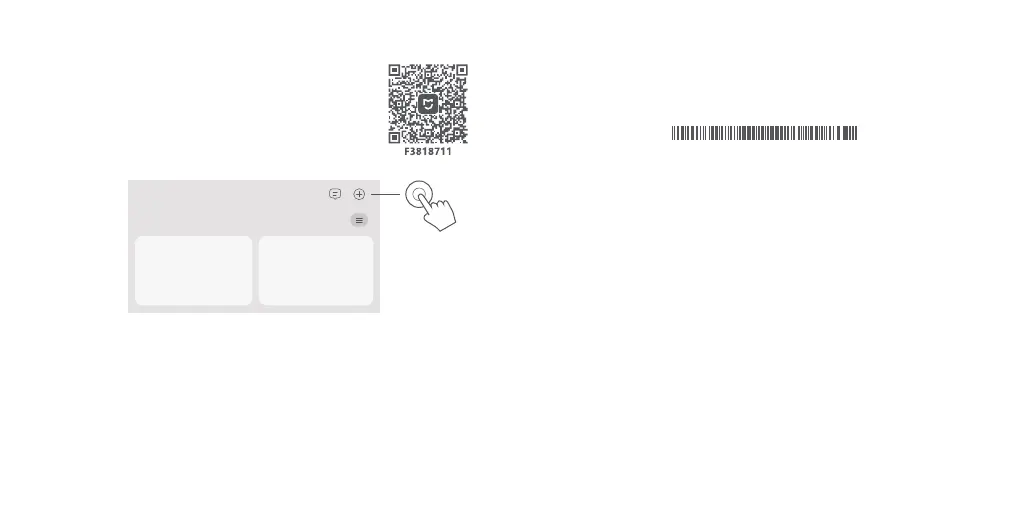
1. Scan QR code to download Xiaomi Home app*. Or search for "Xiaomi
Home" in the app store to download and install it.
2. Open Xiaomi Home app, tap "+" on the upper right, choose the right
product model, and then follow the instructions to complete the network
configuration.
The version of the app might have been updated, please follow the instructions based on the
current app version.
Notes:
Method 2 Network Configuration via Web Browser
1. Check the Wi-Fi name on the label at the bottom of the router and then connect your phone
or computer to the Wi-Fi.
2. Then an automatic redirection will take you to the network setup page. If not, open the web
browser and enter miwifi.com or 192.168.31.1.
Note: When using the HTTPS protocol, a warning message may be promoted on the webpage.
However, the connection between the browser and the Xiaomi router's settings page
(miwifi.com) is safe.
3. Follow the instructions on the setup page to complete the network configuration.
Note: Contact your Internet service provider to get the details if you are not familiar with the
Internet connection type.
4. After the configuration of the router is completed, the Wi-Fi module will restart. Try to search
the Wi-Fi again later.
Notes:
Wi-Fi Name: rn06_minet_xxxx
MAC: XX:XX:XX:XX:XX:XXSN: XXXXX/XXXXXXXXXX
Smart home
·
·
After completing the network configuration, you can also add the router via the Xiaomi Home
app.
Refer to the QR code in the Method 1 to download and install the Xiaomi Home app. Make
sure that the settings of country or region in Xiaomi Home app is not Chinese mainland;
otherwise, adding the router will be failed.









 To Next Page