06 07
Mesh network devices
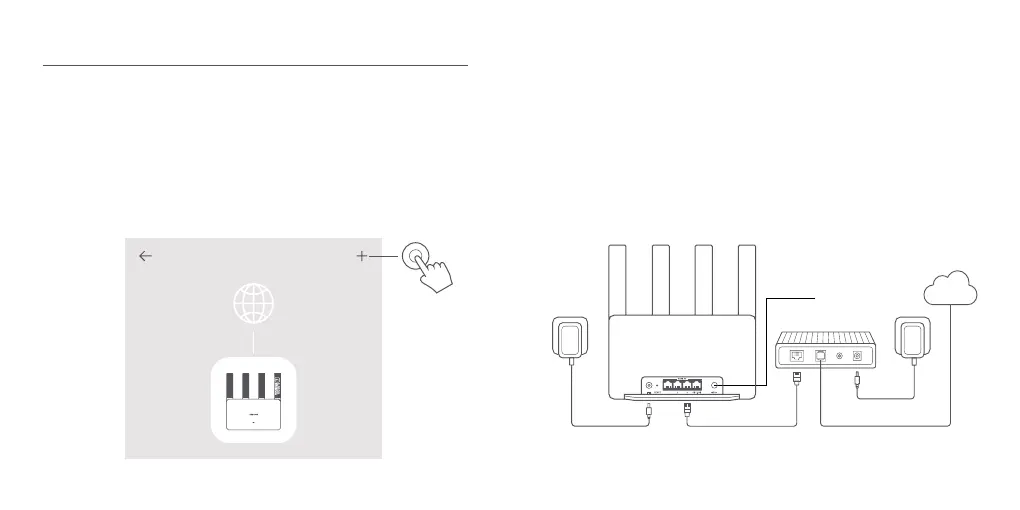
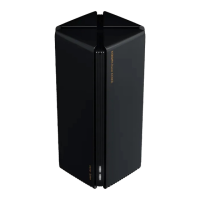
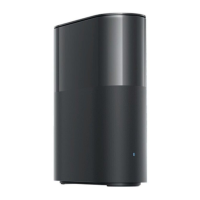
1. Make sure the main router is connected to the network. Connect the satellite router to power
and place it near but at least one meter away from the main router. Otherwise, they will interfere
with each other and affect the networking.
2. After the satellite router powers on, the main router will automatically discover it, and the
indicator of the main router will start breathing blue.
Note: If the satellite router is already configured, press its reset button to restore it to the
factory settings first.
3. Press the mesh button on the main router, and the indicators of the main router and satellite
router will start blinking. It will take about 2 minutes to complete the Mesh networking.
4. When the Mesh networking is completed, the indicator of the satellite router turns into blue.
Method 2 Mesh Networking via Mesh Button
Xiaomi Mesh Networking
Xiaomi Mesh networking technology supports Mesh networking of up to 10 routers to achieve
broader network coverage. Follow the steps below to configure the Mesh networking.
Note: Go to www.mi.com to check the product model and version of the routers that support
the Xiaomi Mesh networking function.
1. Open the Xiaomi Home app.
2. Go to the “Mesh network devices” page of the main router.
3. Tap “+” on the upper right corner of the page.
4. Follow the instructions to complete Mesh networking.
5. When the Mesh networking is completed, the indicator of the satellite router turns into blue.
Method 1 Mesh Networking via Xiaomi Home App
Internet
Mesh button









 To Next Page