27
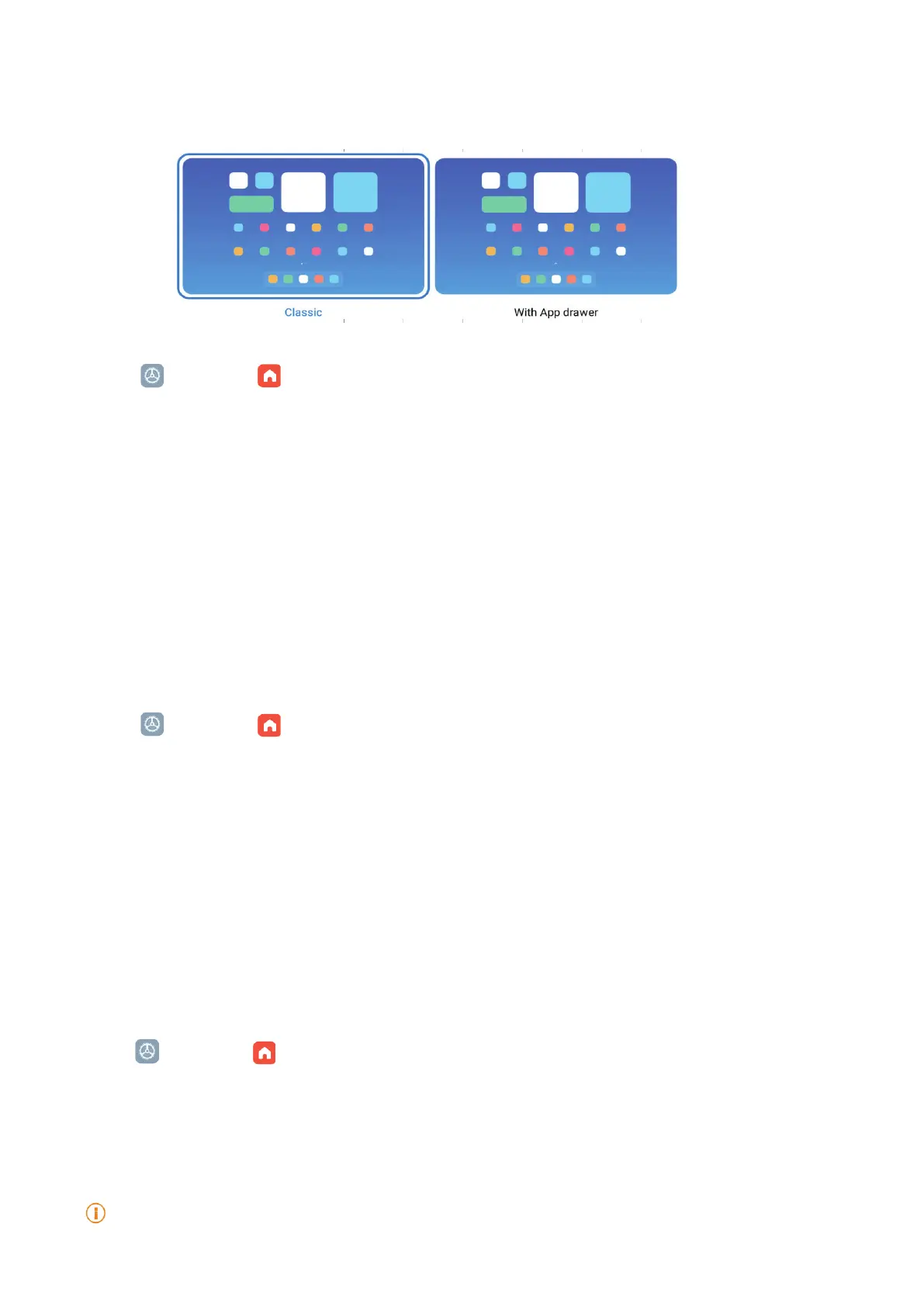
You can choose not to display apps or display the used apps in the app drawer or display bigger
UI elements�
1� Go to
Settings > Home screen
�
2� Tap Home screen to choose App display on Home screen�
• Tap Classic to not to display Apps�
• Tap With App drawer to display the used Apps in the drawer when you swipe up on Home
screen�
Set system navigation buttons
You can interact with your tablet with system navigation buttons�
1� Go to
Settings > Home screen�
2� Tap System navigation to select system navigation methods�
3� Choose Buttons to use system navigation buttons� See System navigation buttons for
more information�
Set full screen gestures
You can interact with your tablet with full screen gestures to quickly navigate, multitask, and
access features�
1� Go to
Settings > Home screen�
2� Tap System navigation to select system navigation methods�
3� Choose Gestures to use full screen gestures� See Full screen gestures for more information�
Note


 To Next Page