29
1� Go to
Settings > Notications & Control center�
2� Tap Floating notications in NOTIFICATIONS�
3� Tap
beside an app to enable Floating notications�
Hide oating notications
You can swipe up on a oating notication to temporarily hide upcoming ones.
1� Go to
Settings > Notications & Control center�
2� Tap Floating notications in NOTIFICATIONS�
3� Tap
beside an app to enable Floating notications�
4� Tap Hide temporarily to set hide time for oating notications.
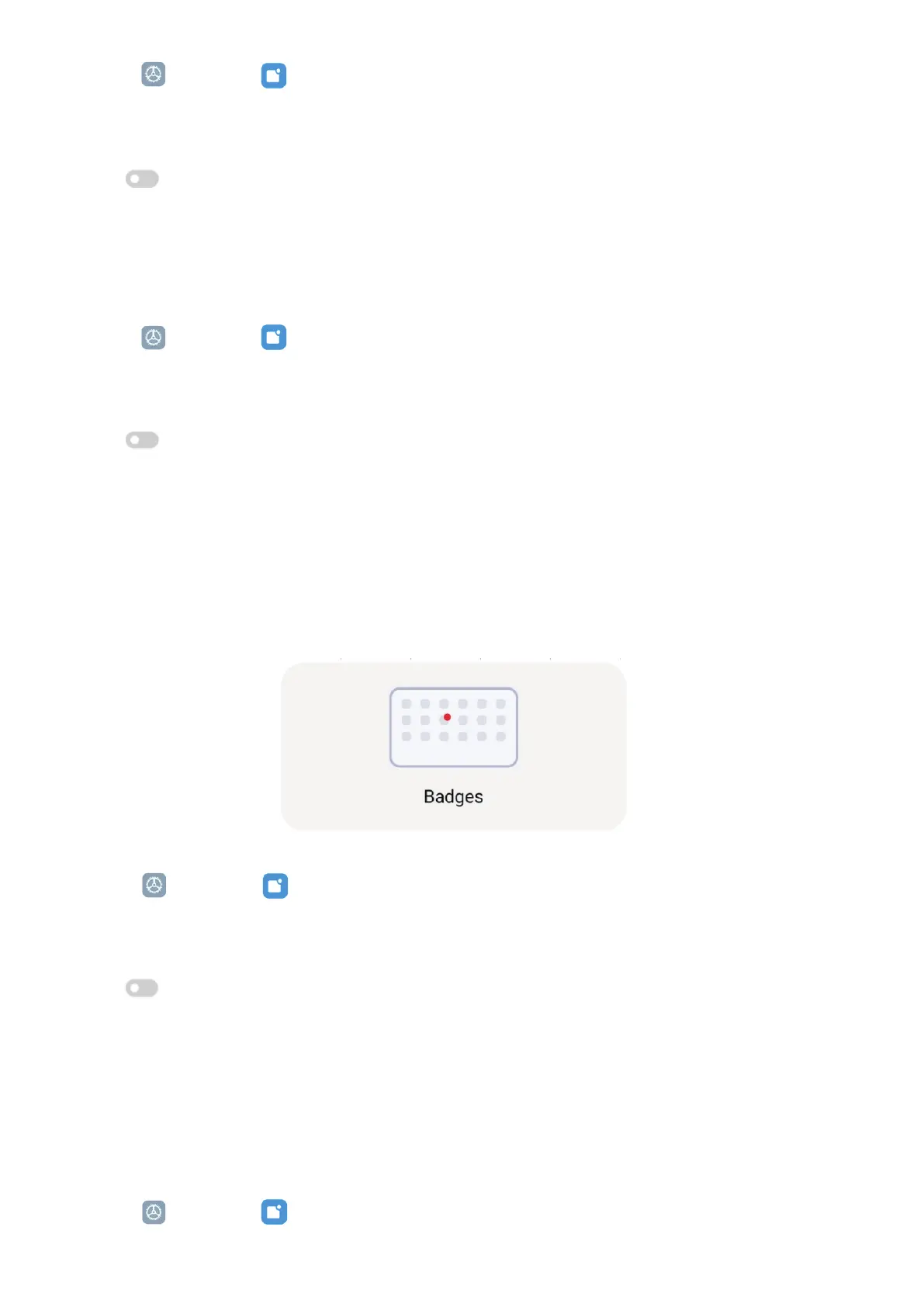
Enable app notication badges
Allow the app notication numbers to show on the badges. A notication badge is a red circle
with a number in it. The number shows how many notications you receive.
1� Go to
Settings > Notications & Control center�
2� Tap Badges in NOTIFICATIONS�
3� Tap
beside an app to enable the notication badges.
Items shown on the Lock screen after swiping down
You can swipe down the notification panel on the Lock screen� If you use the new version of
Control center, you can also swipe down the Control center on the right part of the Lock screen
and set the Smart home�
1� Go to
Settings > Notications & Control center > Items shown on the Lock screen


 To Next Page