http://xim.tech
XIM NEXUS
PS4 Connection
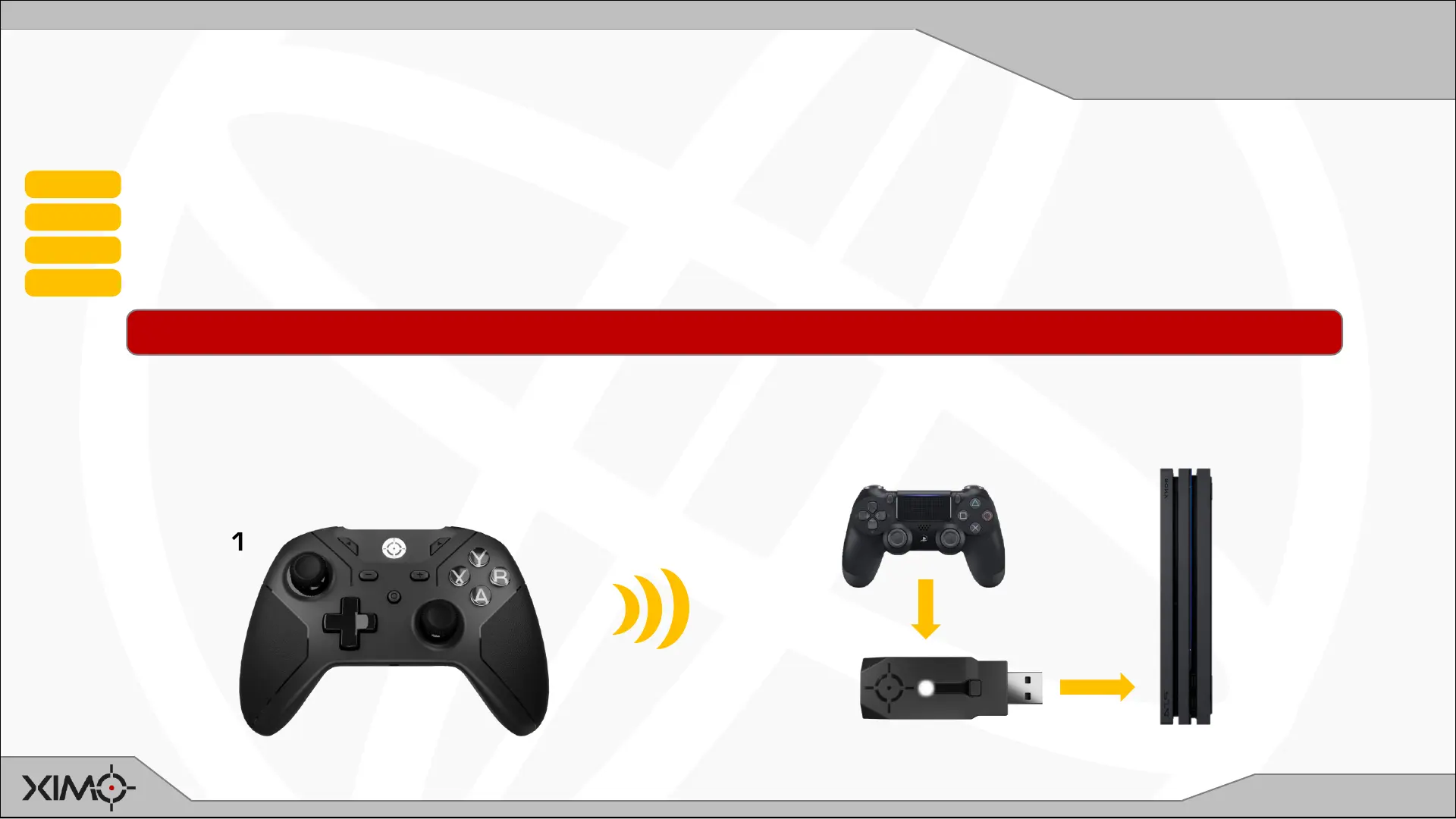
Use on a PlayStation 4 REQUIRES a genuine Sony PlayStation 4 controller be connected to Adapter at all times.
STEP 1 Ensure Controller and Console are powered ON
STEP 2 Connect your PlayStation 4 controller to Adapter using the supplied USB cable
STEP 3 Connect your Adapter to your PlayStation 4
STEP 4 Press the PS button on the PlayStation controller
1
2
3
Connecting to your PlayStation 4
Adapter will:
• Notify you that it successfully connected to your PS4 by flashing GREEN quickly 4 times
• Flash RED while is not connected Controller and is waiting to connect
• Flash WHITE while it’s wirelessly connected to Controller
IMPORTANT: If you are using a DualShock 4 Gen2 console controller, you must enable Wired Communication in your PS4’s Device Settings.


 To Next Page