GETTING STARTED
25 En
PREPARATION
3
English
■ Setting language preferences
You can select your preferred language settings so that
this controller will automatically switch to your preferred
language whenever you load a disc. If the language
selected is not available on the disc, the disc’s default
setting language will be used instead. The OSD (on-screen
display) language for the DVD setup menu will remain as
you set it, regardless of various disc languages.
On-screen display (OSD) language
1 Press SETUP on the remote control.
DVD setup menu appears on the screen.
2 Press / / / on the remote control to
highlight [Initial Settings], and then press ENTER.
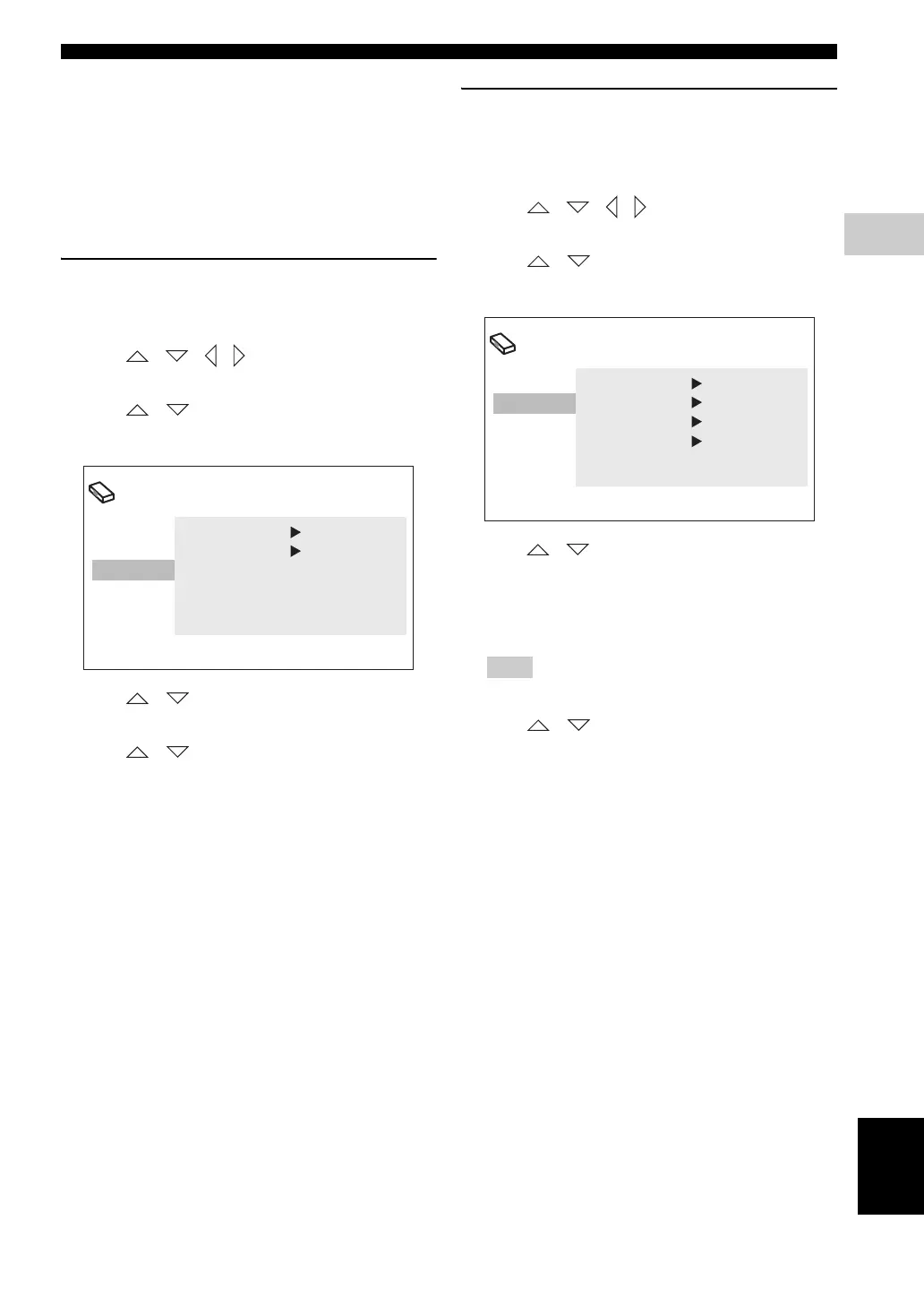
3 Press / on the remote control to highlight
[Display], and then press ENTER.
4 Press / on the remote control to highlight
[OSD Language], and then press ENTER.
5 Press / on the remote control to select a
language, and then press ENTER.
Audio, Subtitle and Disc menu
languages
1 Press SETUP on the remote control.
DVD setup menu appears on the screen.
2 Press / / / on the remote control to
highlight [Initial Settings], and then press ENTER.
3 Press / on the remote control to highlight
[Language], and then press ENTER.
4 Press / on the remote control to highlight the
item below, and then press ENTER.
– Audio Language
– Subtitle Language
– DVD Menu Language
Hint
Refer to page 40 for the other items.
5 Press / on the remote control to select a
language, and then press ENTER.
Initial Setting
Video Output
Language
Display
Options
OSD Language English
Angle Indicator
On
Initial Setting
Video Output
Language
Display
Options
Audio Language English
Subtitle
L
anguage
English
DVD Menu Lang. English
Subtitle Display On





 To Next Page