EasyManua.ls Logo

Yamaha DVX-700 - User Manual

Yamaha DVX-700
86 pages
Print Icon
To Next Page IconTo Next Page
Loading...
©
2008 All rights reserved.
UC
OWNER’S MANUAL
MODE D’EMPLOI
DVX-700
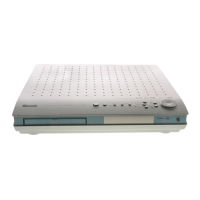
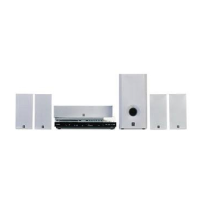
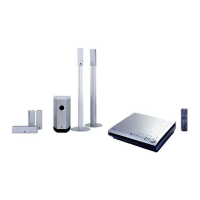
(DVR-700 + NS-PSW700 + NS-P700)
DVD HOME THEATER SYSTEM
SYSTEME HOME CINEMA AVEC LECTUER DVD
DVX-700
Printed in China WQ33520
LASER INFORMATION
INFORMATION LASER
The name plate is located on the rear panel of the DVD
controller.
La plaque signalétique se trouve sur le panneau arrière du
lecteur de DVD.
Without top cover
Sans couvercle supérieur

Table of Contents

Questions and Answers

  • J
    Jessica KiddSep 12, 2025
    What does “CHECK ANTENNA” mean on Yamaha Home Theater System?
    • J
      james38Sep 12, 2025
      If your Yamaha Home Theater System displays “CHECK ANTENNA”, the XM antenna is not connected to the XM Mini-Tuner Home Dock, or the XM antenna cable has become damaged. Check that the XM antenna is securely connected to the XM Mini-Tuner Home Dock and check the antenna cable for damage. Replace the XM antenna if the cable is damaged.
  • V
    villaandreaAug 25, 2025
    Why does my Yamaha DVX-700 Home Theater System power on and then immediately shut off?
    • S
      Sherry PriceAug 25, 2025
      This issue might occur due to several reasons: * The power cable might not be firmly plugged into the outlet. Ensure it is properly connected. * A speaker cable could be shorted. Check that all speaker cables are correctly connected. * The system may have experienced a strong electrical shock. In this case, set the system to standby mode, disconnect the power cable, wait about 30 seconds, reconnect the power cable, and then turn the system back on.
  • R
    ryangrayAug 25, 2025
    What to do if Yamaha DVX-700 Home Theater System speakers make no sound?
    • A
      Angel FaulknerAug 26, 2025
      If your speakers aren't producing any sound, here are a few things to check: * Ensure the volume isn't set to the minimum level. Adjust the volume accordingly. * Verify that the mute function is not activated. If it is, cancel it. * Confirm that you've selected the correct input source or input setting. * Check that all cables are properly connected.
  • S
    Sheri WestSep 23, 2025
    What does “NO USB” or “USB ERROR” mean on Yamaha Home Theater System?
    • B
      bcampbellSep 23, 2025
      If your Yamaha Home Theater System displays “NO USB” or “USB ERROR”, the USB device is not compatible, or this unit cannot supply enough power to the device for it to function properly. Turn this unit off and on again. Set this unit to standby, disconnect the USB storage device, and then reconnect it. Select the USB input source, and then connect the USB device. Select a different input source and select USB again. If the USB storage device came with its own power adapter, use it to power the USB storage device while connecting to this unit.
  • R
    rhodeskevinSep 12, 2025
    What does “CHECK SR TUNER” mean on Yamaha DVX-700?
    • L
      Lance GutierrezSep 12, 2025
      If your Yamaha Home Theater System displays “CHECK SR TUNER”, the SiriusConnect tuner is not connected to the SIRIUS terminal of this unit correctly. Check the connection of the SiriusConnect tuner and this unit. Also, the SiriusConnect tuner may not be connected to the AC wall outlet, so connect the power cable of the SiriusConnect tuner to the AC wall outlet.
  • B
    Barry WuSep 16, 2025
    Why Yamaha DVX-700 cannot play some files?
    • J
      jenkinsashleySep 17, 2025
      If your Yamaha Home Theater System cannot play some files, only MP3, WMA, MPEG-4 AAC, and JPEG files with no copy protection (DRM) can be played, so use files with no copy protection. Also, the file may not be supported, so use only supported file format.
  • D
    Denise KingSep 5, 2025
    What to do if Yamaha Home Theater System sound is poor (noisy)?
    • S
      Scott GonzalezSep 5, 2025
      If the sound from your Yamaha Home Theater System is poor and noisy, a speaker cable may be shorted. Make sure all cables are connected properly.
  • S
    Samuel WalterSep 6, 2025
    What to do if Yamaha Home Theater System picture is not displayed on the TV screen correctly?
    • T
      Thomas ButlerSep 6, 2025
      If the picture is not displayed correctly on the TV screen with your Yamaha Home Theater System, the Video Output settings may be incorrect, so check the Video Output settings and correct as necessary. If the Component Out setting is set to Progressive, but the TV connected to the COMPONENT VIDEO OUTPUT may not support progressive scanning, change the Component Out setting to Interlace. If the TV connected to the HDMI OUTPUT terminal may not support the selected resolution, change the HDMI Resolution setting to a resolution supported by the HDMI TV.
  • J
    Julia WrightSep 18, 2025
    Why Yamaha DVX-700 Home Theater System cannot record a DVD?
    • L
      lawrencebryantSep 18, 2025
      If your Yamaha Home Theater System cannot record a DVD, the DVD may be copy protected. Most DVD-Video discs are copy protected and cannot be recorded.
  • T
    Tracy KelleyAug 30, 2025
    Why do speaker channels other than the front ones make no sound on my Yamaha DVX-700?
    • W
      walkerrobertAug 30, 2025
      If only the front speakers are producing sound, you may be listening to stereo sounds without surround mode enabled. Press a surround mode button to enable the sound field effect.

Summary

IMPORTANT SAFETY INSTRUCTIONS

Graphical Symbols Explanation

Explains graphical symbols used for safety warnings on the unit.

OPERATING PRECAUTIONS

LASER SAFETY INFORMATION

DANGER: Laser Radiation Hazard

Warns of potential eye injury from direct laser beam exposure when unit is open.

CAUTION: Laser Product Handling

Advises against unauthorized adjustments to prevent hazardous radiation exposure.

INTRODUCTION

FUNCTIONAL OVERVIEW

Front Panel Controls and Indicators

Details the buttons, display, and indicators on the front panel of the DVD controller.

Remote Control Operation Details

Provides detailed explanations of remote control functions for playback and system control.

FUNCTIONAL OVERVIEW

FUNCTIONAL OVERVIEW

Remote Control Layout and Buttons

Identifies and explains the function of each button on the remote control.

CONNECTIONS

SYSTEM CONNECTIONS

SYSTEM CONNECTIONS

Connecting Speakers and Subwoofer

Step-by-step guide to connecting speakers and the subwoofer for audio output.

OTHER CONNECTIONS

GETTING STARTED

DISC OPERATION

Playing Various Disc Types

Covers playing DVDs, CDs, DivX, and WMV files, including important notes.

DISC OPERATION

PLAYING OTHER DISCS

DVD SETUP MENU OPTIONS

Menu Overview and Initial Settings

Introduces the setup menus and default settings for various options.

VIDEO ADJUST MENU

Picture Quality Adjustments

Explains how to adjust sharpness, brightness, contrast, gamma, hue, and chroma.

INITIAL SETTINGS MENU

INITIAL SETTINGS MENU

Parental Lock Management

Instructions for changing passwords, levels, country codes, and DivX VOD registration.

OTHER FUNCTIONS

AIR SURROUND XTREME Explained

Introduces AIR SURROUND XTREME technology for virtual surround sound.

AIR SURROUND XTREME

LISTENING TO FM BROADCASTS

LISTENING TO XM SATELLITE RADIO BROADCASTS

XM Satellite Radio Overview and Setup

Introduces XM Satellite Radio service and connecting the Mini-Tuner.

XM Satellite Radio Channel Search Modes

Explains searching channels by all, category, preset, or direct number access.

LISTENING TO XM SATELLITE RADIO BROADCASTS

LISTENING TO SIRIUS SATELLITE RADIO BROADCASTS

LISTENING TO SIRIUS SATELLITE RADIO BROADCASTS

SIRIUS Satellite Radio Channel Search Modes

Covers searching SIRIUS channels via all, category, preset, or direct number access.

Setting and Managing Parental Lock

Details setting a parental lock PIN and locking/unlocking channels.

USING OPTIONAL EQUIPMENT

iPod Playback and Controls

Instructions for playing music from an iPod connected via the universal dock.

Bluetooth Pairing and Connection

Step-by-step instructions for pairing and connecting Bluetooth components.

USING OPTIONAL EQUIPMENT

USEFUL OPERATION

Audio Delay and Night Listening Modes

Adjusting audio delay for video sync and using night listening mode for clearer audio.

Remote Control Preset Code Setup

Instructions for setting preset codes to control TVs and STBs with the remote.

USEFUL OPERATION

TROUBLESHOOTING

General System Issues

Troubleshooting common problems like power issues, no sound, and improper operation.

TROUBLESHOOTING

Video and FM Tuner Issues

Addresses problems with picture display, video output, and noisy FM stereo reception.

XM Satellite Radio Errors

Guides on resolving status messages like CHECK XM TUNER and NO SIGNAL.

SIRIUS Satellite Radio and iPod Issues

Troubleshoots SIRIUS tuner errors and unrecognized iPod devices.

Bluetooth and Disc Playback Problems

Addresses Bluetooth connection errors and issues with disc playback.

TROUBLESHOOTING

Disc Compatibility and Playback Errors

Troubleshoots issues with foreign language tracks, subtitles, camera angles, and file playback.

USB Device Errors

Provides solutions for "NO USB" or "USB ERROR" messages and device compatibility.

SPECIFICATIONS

LASER INFORMATION

Yamaha DVX-700 Specifications

General IconGeneral
BrandYamaha
ModelDVX-700
CategoryHome Theater System
LanguageEnglish

Related product manuals