EasyManua.ls Logo

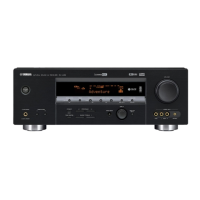
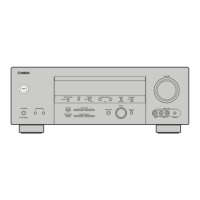
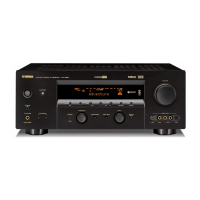
Yamaha HTR-5960 - User Manual

Yamaha HTR-5960
128 pages
Print Icon
To Next Page IconTo Next Page
Loading...
YAMAHA ELECTRONICS CORPORATION, USA
6660 ORANGETHORPE AVE., BUENA PARK, CALIF. 90620, U.S.A.
YAMAHA CANADA MUSIC LTD.
135 MILNER AVE., SCARBOROUGH, ONTARIO M1S 3R1, CANADA
YAMAHA ELECTRONIK EUROPA G.m.b.H.
SIEMENSSTR. 22-34, 25462 RELLINGEN BEI HAMBURG, GERMANY
YAMAHA ELECTRONIQUE FRANCE S.A.
RUE AMBROISE CROIZAT BP70 CROISSY-BEAUBOURG 77312 MARNE-LA-VALLEE CEDEX02, FRANCE
YAMAHA ELECTRONICS (UK) LTD.
YAMAHA HOUSE, 200 RICKMANSWORTH ROAD WATFORD, HERTS WD18 7GQ, ENGLAND
YAMAHA SCANDINAVIA A.B.
J A WETTERGRENS GATA 1, BOX 30053, 400 43 VÄSTRA FRÖLUNDA, SWEDEN
YAMAHA MUSIC AUSTRALIA PTY, LTD.
17-33 MARKET ST., SOUTH MELBOURNE, 3205 VIC., AUSTRALIA
©
2006 All rights reserved.
HTR-5960
Printed in Malaysia WG73830
HTR-5960
AV R e c e i ve r
OWNER’S MANUAL
U
HTR-5960_U_cv.fm Page 1 Friday, December 2, 2005 1:57 PM

Table of Contents

Questions and Answers

  • J
    John GreenSep 3, 2025
    How to fix Yamaha HTR-5960 Receiver not playing Dolby Digital or DTS?
    • V
      Victoria ClarkSep 3, 2025
      If you're unable to play Dolby Digital or DTS sources on your Yamaha Receiver, and the corresponding indicator isn't lighting up, there are a couple of things to check. First, ensure that the connected component is set to output Dolby Digital or DTS digital signals by adjusting its settings according to its operating instructions. Second, verify that the “INPUT MODE” on your Yamaha Receiver is set to “AUTO” or “DTS,” rather than “ANALOG.”
  • V
    Veronica RamirezSep 18, 2025
    What to do if Optimizer microphone was unplugged during setup of my Yamaha HTR-5960?
    • B
      brittany50Sep 18, 2025
      Connect the supplied optimizer microphone to OPTIMIZER MIC jack on the front panel.
  • L
    lewismichaelSep 16, 2025
    How to fix no sound from surround back speakers on Yamaha HTR-5960 Receiver?
    • D
      Deanna OwensSep 16, 2025
      To resolve the issue of no sound from the surround back speakers of your Yamaha Receiver, check the “SUR. B L/R SP” setting in the “SET MENU”. Ensure it is set to a setting other than “NONE”.
  • S
    sarahrobertsonSep 14, 2025
    How to turn on surround sound on Yamaha HTR-5960 Receiver?
    • M
      Mary HernandezSep 14, 2025
      If you are not hearing sound from the surround speakers connected to your Yamaha Receiver, check the “SUR. L/R SP” setting in the “SET MENU.” If it is set to “NONE,” change it to “SML” or “LRG.” Also note that “SUR. B L/R SP” is automatically set to “NONE” when “SUR. L/R SP” is set to “NONE”.
  • T
    Tracey KellySep 12, 2025
    Why is sound only coming from one speaker on my Yamaha Receiver?
    • S
      samantha07Sep 12, 2025
      To resolve the issue where sound is heard from the speaker on one side only, when playing a monaural source with a CINEMA DSP program, remember that the source signal is directed to the center channel, and the front and surround speakers output effect sounds.
  • R
    Ryan ShieldsSep 12, 2025
    Why is the volume so low when playing records on my Yamaha Receiver?
    • T
      Tommy PhillipsSep 12, 2025
      If you are experiencing low volume while playing a record on your Yamaha Receiver, it might be because the record is being played on a turntable with an MC cartridge. Connect your turntable to the unit through an MC head amplifier.
  • A
    Ariel RaymondSep 9, 2025
    How to improve FM stereo reception on Yamaha HTR-5960?
    • P
      Patty BrownSep 9, 2025
      If FM stereo reception is noisy on your Yamaha Receiver, it may be due to the characteristics of FM stereo broadcasts, especially when the transmitter is far away or the antenna input is poor. Check the antenna connections to ensure they are properly connected.
  • C
    Christina MckaySep 7, 2025
    How to stop humming sound from Yamaha HTR-5960?
    • Z
      zjohnsonSep 7, 2025
      If you are experiencing a humming sound from your Yamaha Receiver, the issue might be due to incorrect cable connections. Ensure that the audio cables are firmly connected. If the problem continues, the cables may be defective and need replacement.
  • W
    Wesley MontgomerySep 5, 2025
    What does 'Check SP Wires' mean on my Yamaha Receiver?
    • A
      agibsonSep 5, 2025
      If the message “CHECK SP WIRES” appears on the front panel display of your Yamaha Receiver, it indicates that the speaker cables are short-circuited. Ensure that all speaker cables are connected correctly.
  • Y
    Yvonne JuarezAug 21, 2025
    Why does my Yamaha HTR-5960 Receiver turn off immediately?
    • T
      Tina YoungAug 21, 2025
      If your Yamaha Receiver fails to turn on or enters standby mode shortly after being powered on, there might be several reasons. First, ensure the power cable is firmly connected. Second, verify that the speaker impedance setting matches your speakers. Third, check all speaker wire connections to ensure they are secure and not touching anything else. Finally, if the unit has experienced a strong electric shock, put it in standby mode, disconnect the power cable, wait 30 seconds, and then reconnect it.

Summary

IMPORTANT SAFETY INSTRUCTIONS

Safety Precautions (1-9)

Covers critical safety advice from point 1 to 9 regarding product operation and handling.

IMPORTANT SAFETY INSTRUCTIONS (Continued)

Safety Precautions (10-19)

Covers safety advice from point 10 to 19 regarding ventilation, power, and servicing.

CAUTION: READ THIS BEFORE OPERATING YOUR UNIT.

Installation and Operation Precautions (1-18)

Provides essential guidelines for safe installation and operation of the unit.

CONTROLS AND FUNCTIONS

Front Panel Overview

Introduces the layout and main controls on the front panel.

Front Panel Controls (1-K)

Details the function of each button and jack on the front panel.

CONTROLS AND FUNCTIONS (Continued)

Remote Control Functions (1-7)

Explains the operation of the remote control buttons for unit functions.

Remote Control Functions (8-K)

Continues the explanation of remote control button operations.

Rear Panel Connections

Details all input/output jacks and terminals on the rear panel.

CONNECTIONS

Placing Speakers

Provides guidelines for optimal placement of different speaker types.

CONNECTIONS (Continued)

Connecting Speakers

Step-by-step guide for connecting speaker cables to terminals.

Speaker Terminals

Details connections for front, center, surround, and presence speakers.

Connecting Speaker Cables

Explains how to prepare and connect speaker cables to terminals.

Connecting a TV

Instructions for connecting the unit to a television for display.

Connecting Video Sources (DVD, VCR, STB)

Guides on connecting various video playback devices.

Connecting Audio Sources (CD, MD, Tape, Turntable)

Instructions for connecting various audio playback devices.

Connecting an External Amplifier

How to connect external amplifiers to the PRE OUT jacks.

Connecting Multi-channel Sources

Guide for connecting multi-channel players or decoders.

Setting Speaker Impedance

How to configure speaker impedance settings for optimal performance.

AUTO SETUP

Connecting the Optimizer Microphone

Guide on connecting the microphone for automatic setup.

AUTO SETUP (Continued)

Using AUTO SETUP

Step-by-step instructions for performing the automatic speaker setup.

Handling AUTO SETUP Errors and Warnings

Procedures to follow when encountering errors or warnings during setup.

PLAYBACK

Basic Playback Operations

Steps to turn on monitor, select speakers, input source, and start playback.

PLAYBACK (Continued)

ENJOYING SURROUND SOUND

Enjoying Multi-channel Sources in Surround

Setup for 6.1/7.1 channel playback with surround speakers.

ENJOYING SURROUND SOUND (Continued)

FM;AM TUNING

FM;AM TUNING (Continued)

XM SATELLITE RADIO TUNING

XM SATELLITE RADIO TUNING (Continued)

Activating XM Satellite Radio

Steps to sign up and activate the XM Satellite Radio service.

SOUND FIELD PROGRAMS

Selecting Sound Field Programs

Guides on choosing and activating different sound field effects.

SOUND FIELD PROGRAMS (Continued)

Changing Sound Field Parameter Settings

How to customize parameters for sound field programs.

SET MENU

Auto Setup

Feature for automatic speaker and system parameter adjustment.

Manual Setup

Allows manual adjustment of speaker and system parameters.

SET MENU (Continued)

Using SET MENU

How to navigate and use the various setup menus.

Speaker Settings

Configuration options for speaker size, level, distance, and impedance.

Speaker Settings (Center, Surround, Presence)

Specific settings for center, surround, and presence speaker configurations.

Speaker Level Adjustment

Manually balances the output level of each speaker.

Speaker Distance Adjustment

Adjusts speaker distance and delay for proper timing.

ADVANCED SETUP

Factory Presets (Reset Unit)

Resets all unit parameters to initial factory settings.

REMOTE CONTROL FEATURES

REMOTE CONTROL FEATURES (Continued)

Setting the Remote Control Code

How to assign remote control codes to components.

USING iPod

USING iPod (Continued)

RESETTING THE SYSTEM

Resetting the System to Factory Defaults

Step-by-step guide to perform a full system factory reset.

TROUBLESHOOTING

General Troubleshooting

Addresses common problems like unit not turning on or no sound.

TROUBLESHOOTING (Continued)

Sound Issues (One Side, Muted, Speaker Specific)

Solves problems related to sound output from specific speakers or muting.

Signal and Recording Issues

Addresses problems with signal reproduction, recording, and picture disturbance.

Tuner Reception Issues

Solves problems related to FM/AM radio reception.

Remote Control and iPod Issues

Solves problems related to remote control functionality and iPod connectivity.

AUTO SETUP Errors and Warnings

Details common error and warning messages during automatic setup.

XM Satellite Radio Issues (U.S.A. Model)

Troubleshoots common XM radio operational errors and messages.

APPENDIX-i

List of Remote Control Codes

Comprehensive list of remote control codes for various brands and devices.

Yamaha HTR-5960 Specifications

General IconGeneral
Channels6.1
Frequency Response10 Hz - 100 kHz
Response Bandwidth10 Hz - 100 kHz
Surround DecodingDolby Digital, DTS, Dolby Pro Logic II
Weight22.5 lbs
Signal-To-Noise Ratio100 dB
Input Sensitivity200 mV
Surround Sound EffectsYes
Sound EffectsYes
Tuner Presets40
HDMI SwitchingYes
Total Power Output600 W
Total Harmonic Distortion (THD)0.06 %
Input Impedance47 kOhm
Audio D/A Converter192 kHz/24-bit
Built-in DecodersDolby Digital, DTS
Tuning RangeFM: 87.5 - 108 MHz, AM: 530 - 1700 kHz
ConnectivityS-video
Digital Audio Inputs2 x optical, 1 x coaxial
Inputs4 x composite video, 4 x S-video, 4 x audio (RCA), 2 x component video, 2 x digital optical, 1 x digital coaxial
Video Inputs/Outputs4 x HDMI inputs, 2 x HDMI outputs

Related product manuals