PSR-E283 YPT-280 Reference Manual
10
Basic Operations and Display Items
Basic Operations
This instrument features three basic functions: Voice, Style, and Song. To use the instrument, select a basic function first, and
then select the desired data to use for your performance.
1
Select a basic function.
2
Select data to use.
3
Start playback.
4
Play the keyboard.
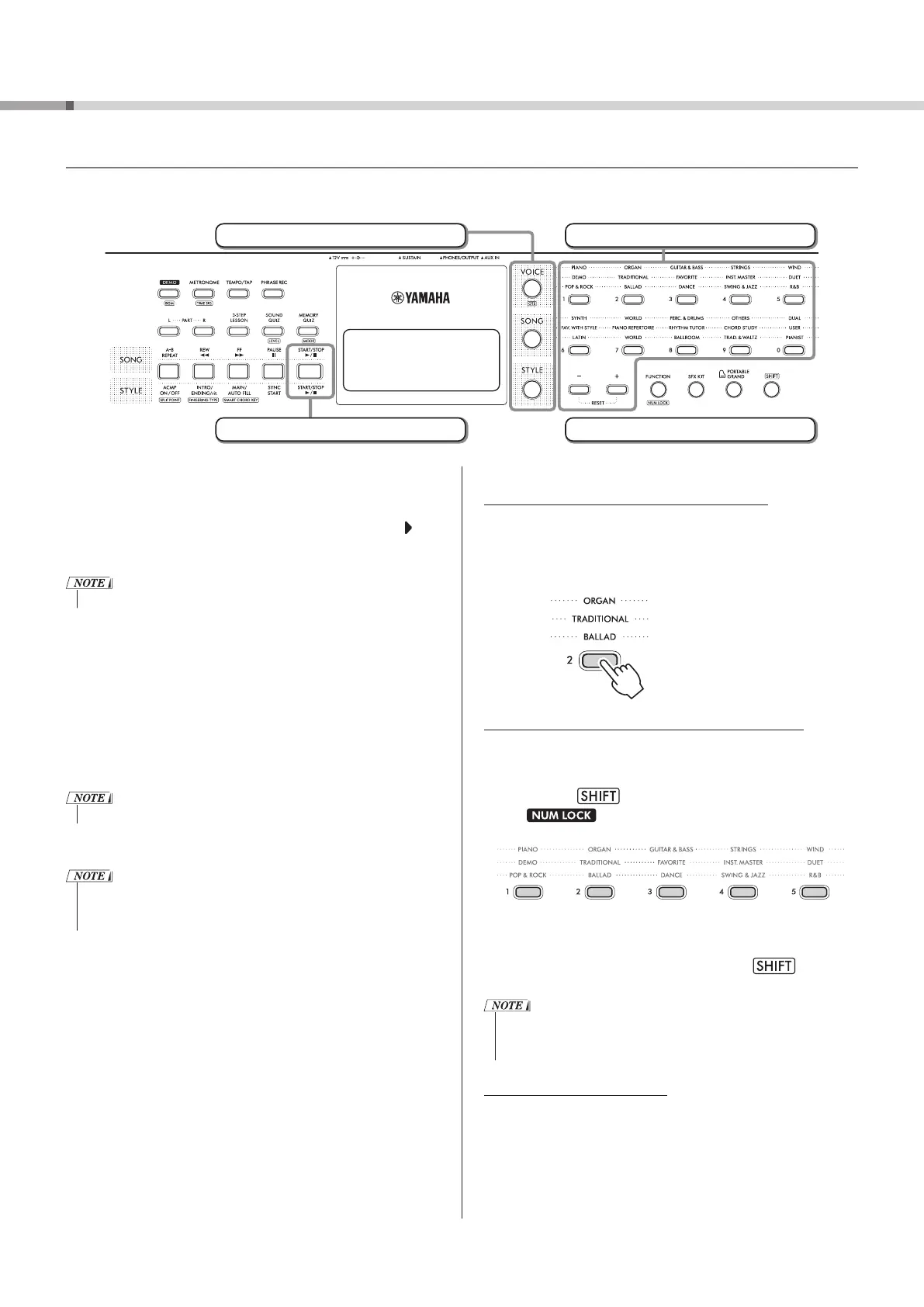
1 Select the desired function by pressing [VOICE],
[SONG], or [STYLE] !3.
When you select a basic function, the current setting value
for the selected function is shown on the display. Also, is
displayed next to the currently selected mode, indicating the
mode of the content shown on the display.
• Only one of the Songs or Styles can be used.
2 Select the desired data.
Data can be selected by one of the following methods.
• By selecting a category
• By inputting the number directly
• By pressing [+] or [-] !5
For details on each operation, see “How to select Voices, Songs,
or Styles” on the right.
3 Press [START/STOP] !1.
The Song or Style will start playing.
• Press [START/STOP] !1 again to stop playback.
4 Play the keyboard with the selected Voice.
• You can also use the One Touch Setting (OTS) function
(page 14) to call up the optimum panel settings (Voice, etc.)
for the selected Song or Style.
■ How to select Voices, Songs, or Styles
Selecting with the Category buttons !4
The top of the panel display is the VOICE category, the
middle is the SONG category, and the bottom is the STYLE
category.
Each time you press the button, the items change in
numerical order within that category.
← SONG category
← VOICE category
← STYLE category
Selecting by entering numbers (NUM LOCK)
Enter the data number directly. For data numbers, see the
Voice List, Song List, and Style List (pages 38–46) at the
end of the document.
1 Hold down !9 and press [FUNCTION] !6.
The icon will appear on the display, and the
Category buttons !4 can then be used as Number buttons.
2 Press the number of your desired Voice, Song, or
Style.
3 To stop entering numbers, hold down !9 and
press [FUNCTION] !6 again.
• If you keep pressing [+] or [-] !5, the numbers will change
continuously. Press [+] and [-] !5 at the same time to return to
the initial settings.
Selecting with [+] or [-] !5
Press [+] to select the next Voice, Song, or Style, and press
[-] to select the previous Voice, Song, or Style.


 To Next Page