EasyManua.ls Logo

Yamaha PSR-S970 - User Manual

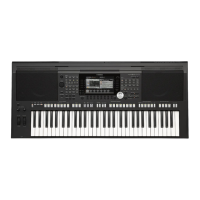
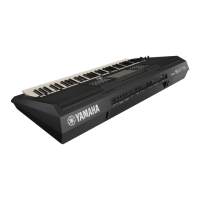
Yamaha PSR-S970
118 pages
Print Icon
To Next Page IconTo Next Page
Loading...
FR
EN
Thank you for purchasing this Yamaha Digital Workstation!
We recommend that you read this manual carefully so that you can fully take advantage of
the advanced and convenient functions of the instrument. We also recommend that you
keep this manual in a safe and handy place for future reference.
Before using the instrument, be sure to read “PRECAUTIONS” on pages 5 – 6.
Merci d'avoir choisi ce Clavier Arrangeur Professionnel Yamaha !
Nous vous conseillons de lire attentivement ce mode d'emploi afin de tirer pleinement profit
des fonctions avancées et très utiles de votre instrument. Nous vous recommandons
également de garder ce manuel à portée de main pour toute référence ultérieure.
Avant d'utiliser l'instrument, lisez attentivement la section « PRÉCAUTIONS
D'USAGE » aux pages 5 et 6.
English
Français
Digital Workstation
Clavier Arrangeur Professionnel
Owners Manual
Mode d'emploi

Table of Contents

Other manuals for Yamaha PSR-S970

Questions and Answers

  • M
    Meagan ArnoldAug 19, 2025
    How to stop noise from Yamaha PSR-S970 Synthesizer speakers?
    • P
      Pamela RichardsAug 20, 2025
      To address noise from the Yamaha Synthesizer's speakers, try turning off nearby mobile phones or moving them further away. If using an iPhone/iPad app with the instrument, enable Airplane Mode to prevent communication-related noise.
  • G
    Gregory MannAug 22, 2025
    Why is the volume too low or no sound from my Yamaha PSR-S970?
    • D
      Deborah BrownAug 22, 2025
      If the Yamaha Synthesizer's overall volume is too low or no sound is heard, first, adjust the master volume using the [MASTER VOLUME] dial. Ensure all keyboard parts are activated using the PART ON/OFF [RIGHT 1]/ [RIGHT 2]/[LEFT] buttons. Check and raise the volume levels in the BALANCE display. Verify the desired channel is set to ON. If headphones are plugged in, unplug them to enable speaker output. Also, confirm the Speaker setting is ON in the UTILITY menu: [FUNCTION] ? TAB [E] MENU 1 ? [J] UTILITY ? TAB [E][F] CONFIG 2. Finally, if the [FADE IN/OUT] button is active, press it to deactivate the mute function. Depending on the LIVE CONTROL knob settings, sound may be affected, so check and reset if necessary.
  • C
    colemancharlesAug 25, 2025
    What to do if Yamaha PSR-S970 sound is distorted?
    • T
      tammy95Aug 25, 2025
      If the Yamaha Synthesizer's sound is distorted or noisy, ensure all volume settings are appropriate. The distortion could also be caused by certain effects or filter settings; check these settings and adjust them as needed.
  • T
    Tara SerranoAug 26, 2025
    Why Yamaha PSR-S970 style does not start?
    • S
      Samuel AndersonAug 26, 2025
      If the Style on your Yamaha Synthesizer doesn't start when you press the [START/STOP] button, it might be because the Rhythm channel of the selected Style doesn't contain any data. To solve this, turn the [ACMP] button on and play the left-hand section on the keyboard to activate the accompaniment part of the Style.
  • C
    christine60Aug 28, 2025
    Why does my Yamaha Synthesizer have a flanging sound?
    • J
      juangarciaAug 28, 2025
      If you are experiencing a strange “flanging” or “doubling” sound on your Yamaha Synthesizer, or the sound changes slightly each time you play the keys, it's likely that the RIGHT 1 and RIGHT 2 parts are both set to “ON” and playing the same Voice. To fix this, either turn off the RIGHT 2 part or select a different Voice for one of the parts.
  • B
    brianaustinAug 30, 2025
    Why Vocal Harmony effect sounds bad on Yamaha (PSR-S970) Synthesizer?
    • S
      Sandra Andrade DDSAug 30, 2025
      If the Vocal Harmony effect on your Yamaha (PSR-S970) Synthesizer sounds distorted or out-of-tune, it could be that your vocal microphone is picking up extraneous sounds, like the Style sound from the instrument. To fix this: * Sing as closely to the microphone as possible. * Use a unidirectional microphone. * Turn down the Master volume, Style volume, or Song volume control.
  • J
    Joseph ZavalaSep 1, 2025
    Why Yamaha PSR-S970 doesn't play all notes?
    • A
      Amanda MarquezSep 1, 2025
      If your Yamaha Synthesizer doesn't play all simultaneously played notes, it's likely that you're exceeding the instrument's maximum polyphony. When this happens, the earliest played notes will stop sounding to allow the latest notes to be heard.
  • B
    Bryan MillerSep 2, 2025
    Why Main display does not appear on Yamaha PSR-S970 Synthesizer?
    • D
      dtorresSep 2, 2025
      If the Main display of your Yamaha Synthesizer does not appear when you turn the power on, it might be due to a USB flash drive being connected. To resolve this, disconnect the USB device before turning the power on.
  • A
    Ashley MckinneySep 5, 2025
    Why Yamaha PSR-S970 file names are garbled?
    • K
      Keith LowerySep 5, 2025
      If some characters of the file/folder name on your Yamaha Synthesizer appear garbled, it's possible that the language settings have been changed. To correct this, set the appropriate language for the file/folder name.
  • C
    christine02Sep 6, 2025
    Why Yamaha PSR-S970 Synthesizer voice selected does not sound?
    • A
      Alexis SuttonSep 7, 2025
      If the Voice selected from the Voice Selection display on your Yamaha Synthesizer does not produce any sound, check if the selected part is turned on. If it's not, press the appropriate PART ON/OFF button to activate the part.

Summary

Important Safety Instructions

General Safety Precautions

Lists essential safety instructions for using the instrument safely and preventing hazards.

Precautions for Instrument Use

Instrument Safety Precautions

Covers power, water, fire hazards, and actions to take in case of abnormality.

Instrument Panel Controls and Terminals

Setting Up Your Instrument

Power Requirements and Connection

Instructions for connecting the AC adaptor and power requirements.

Turning the Instrument Power On and Off

Step-by-step guide on how to power the instrument on and off safely.

Basic Operations and Display Navigation

Understanding Display Controls

Explanation of buttons [A]-[J] and their relation to the LCD screen.

Advanced Character Entry and Resetting

Restoring Factory Default Settings

Instructions on resetting the instrument to its original factory settings.

Data Backup and Restoration

Performing Data Backup

How to back up instrument settings and USER drive data to a USB flash drive.

Restoring Data from Backup

Procedure for restoring backed-up settings and data to the instrument.

Chapter 1: Voices - Playing the Keyboard

Playing and Layering Voices

How to play single or multiple voices across the keyboard using PART ON/OFF.

Selecting and Using Instrument Voices

Selecting Preset Voices

Guide on selecting voices by category and viewing voice characteristics.

Keyboard Pitch Adjustment

Transpose, Octave Shift, and Fine Tuning

How to adjust the keyboard's pitch using Transpose, Upper Octave, and Master Tune.

Keyboard Performance Control Wheels

Pitch Bend and Modulation Wheel Usage

Using the Pitch Bend and Modulation wheels for expressive performance control.

Live Control Knobs for Performance Variation

Assigning and Using Live Control Knobs

How to assign functions to LIVE CONTROL knobs for real-time performance control.

Applying Voice Effects

Overview of Voice Effects

Describes effects like Harmony, Arpeggio, Touch Response, Sustain, Mono, and DSP.

Echo and Arpeggio Performance Effects

Using the Arpeggio Function

How to trigger arpeggios (broken chords) for musical phrases.

Customizing Organ Flutes Voices

Steps to Create Original Organ Flutes Voices

Guide on editing preset Organ Flutes Voices by adjusting flute footages.

Chapter 2: Styles - Playing Rhythm and Accompaniment

Playing Styles with Auto Accompaniment

How to play styles with automatic chord-based accompaniment.

Controlling Style Playback

Starting, Stopping, and Navigating Styles

How to start, stop, use intros, and endings for style playback.

Dynamic Style Playback Control

Changing Style Sections and Tempo

How to change main variations, use auto fill, breaks, and adjust tempo.

Keyboard Split Point Settings

Configuring Left and Style Split Points

Setting the split points to divide the keyboard into left/right and chord sections.

Creating and Editing Styles

Introduction to the Style Creator Function

Overview of the Style Creator for making original styles from keyboard patterns.

Chapter 3: Songs - Playing, Practicing, and Recording

Song Playback

How to select and play back preset, recorded, or commercial MIDI songs.

Controlling Song Playback

Playback Operations and Song Queuing

Using playback controls, synchro start, pause, rewind, and queuing next songs.

Song Repeat Playback

A-B Repeat Functionality

Repeating specific sections (A-B range) of a song for practice.

Recording Your Performances as Songs

Recording Methods Overview

Explains Quick Recording and Multi Track Recording for creating songs.

Detailed Song Recording Techniques

Multi-Track Recording Process

Recording performances channel by channel to create multi-part songs.

Chapter 4: USB Audio Player;Recorder

Playing Back Audio Files from USB

How to play back WAV and MP3 audio files from a USB flash drive.

Audio File Playback Operations

Playback Controls and Functions

Details playback controls, volume, time stretch, pitch shift, and vocal cancel.

Recording Performances as Audio Files

Recording Performances as Audio Files

How to record instrument performance or audio input as WAV files.

USB Audio Recording Process

Steps for Recording and Playing Back Audio

Detailed steps for starting, stopping, and playing back recorded audio performances.

Chapter 5: Multi Pads - Adding Musical Phrases

Playing and Managing Multi Pads

How to select, play, and manage Multi Pad banks and phrases.

Creating Custom Multi Pads with Audio

Audio Link Multi Pad Creation Process

Steps to create new Multi Pads by linking them with audio files (WAV).

Chapter 6: Music Finder - Ideal Panel Setups

Selecting and Sorting Music Finder Records

How to select desired panel setups and sort records by music piece, style, or tempo.

Chapter 7: Registration Memory - Saving and Recalling Setups

Registering and Saving Panel Setups

How to register panel settings to memory buttons and save them as a bank file.

Recalling Registered Panel Setups

Chapter 8: Microphone;Guitar Input

Connecting Microphones and Guitars

Instructions for connecting microphones and guitars to the instrument's input jack.

Microphone;Guitar Input Settings and Talk Function

Using the Talk Function

How to use the Talk function for speaking between songs during a performance.

Vocal Harmony Features (PSR-S970)

Applying Vocal Harmony Effects

How to apply Vocal Harmony effects to your voice using a microphone.

Synth Vocoder Effects (PSR-S970)

Chapter 9: Mixing Console - Volume and Tonal Balance

Basic Mixing Console Operations

How to use the Mixing Console to adjust volume, panning, and effects for parts.

Chapter 10: Connections - Using with Other Devices

Connecting USB Devices

Chapter 11: Other Functions - Settings and Advanced Features

Troubleshooting Common Issues

Overall Instrument Problems

Addresses common issues like power, noise, display problems, and volume issues.

Troubleshooting Specific Issues

File, Voice, and Style Troubleshooting

Solutions for problems related to file names, voice selection, and style playback.

Song Playback Troubleshooting

Addresses issues with song selection, playback, notation, and channel playback.

Troubleshooting Advanced Features

USB Audio Player;Recorder Issues

Solutions for problems with USB audio playback, recording, and file selection.

Mixing Console and Mic;Guitar Issues

Troubleshooting for mixing console sound and microphone/guitar input problems.

Product Specifications

Limited Warranty Information

Warranty Coverage and Service Procedures

Explains what the warranty covers and the process for obtaining service.

Yamaha PSR-S970 Specifications

General IconGeneral
Polyphony128 notes
Voices989 Voices + 41 Drum/SFX Kits + 480 XG Voices
FingeringSingle Finger, Fingered, Fingered On Bass, Multi Finger, AI Fingered, Full Keyboard, AI Full Keyboard
Music FinderYes
One Touch Setting (OTS)4 for each style
Display7-inch TFT Color Wide VGA LCD
Keyboard61 keys
EffectsReverb, Chorus, DSP, Master EQ
Styles450
Style ControlINTRO, MAIN VARIATION x 4, FILL x 4, BREAK, ENDING
Audio Recorder/PlayerRecording: WAV (44.1kHz, 16bit, stereo); Playback: WAV (44.1kHz, 16bit, stereo), MP3
Internal MemoryApprox. 13 MB
External DrivesUSB Flash Memory
ConnectivityHeadphones, MIDI In/Out, USB to Device, USB to Host, AUX In
Speakers13 cm x 2 + 5 cm x 2
Power SupplyPA-300C or an equivalent recommended by Yamaha

Related product manuals