EasyManua.ls Logo

Yamaha R-N500 - User Manual

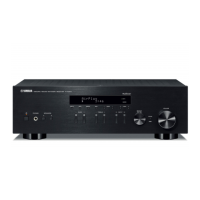
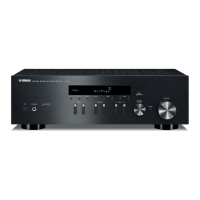
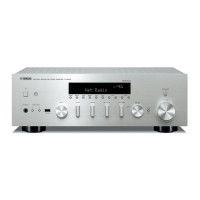
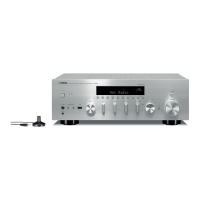
Yamaha R-N500
420 pages
Print Icon
To Next Page IconTo Next Page
Loading...
Printed in Malaysia ZH44740
© 2013 Yamaha Corporation
Network Receiver
Réseau Ampli-Tuner
OWNER’S MANUAL
MODE D’EMPLOI
BEDIENUNGSANLEITUNG
BRUKSANVISNING
MANUALE DI ISTRUZIONI
MANUAL DE INSTRUCCIONES
GEBRUIKSAANWIJZING
ИНСТРУКЦИЯ ПО ЭКСПЛУАТАЦИИ
G
_R-N500_G_cv.fm Page 1 Tuesday, July 30, 2013 10:47 AM

Table of Contents

Other manuals for Yamaha R-N500

Questions and Answers

  • K
    Kimberly GarrettAug 18, 2025
    Why is there no sound coming from my Yamaha R-N500?
    • J
      Joshua DeleonAug 18, 2025
      Several factors could be the reason for the lack of sound from your Yamaha Receiver. Ensure that all input and output cables are correctly connected; if the issue remains, the cables might be faulty. Verify that you've selected the appropriate input source using the INPUT selector on the front panel or the remote control. Also, check that the SPEAKERS A/B switches are correctly set. Confirm that your speaker connections are secure and that the output isn't muted. Finally, ensure that the Max or Initial volume settings aren't set too low. Also, confirm that the component corresponding to the selected input source is turned on and playing. If you're using a digital audio input (COAXIAL 1-2/ OPTICAL 1-2 jacks), ensure the connected device's audio output is set to PCM.
  • S
    Stephanie PetersonAug 20, 2025
    What to do if my Yamaha R-N500 Receiver fails to turn on?
    • K
      kelly05Aug 20, 2025
      If your Yamaha Receiver isn't turning on, first ensure the power cable is firmly connected. If that doesn't work, check that the speaker wires are not touching each other. If the protection circuitry has been activated because of a short circuit, turn the power off and back on. If the unit has been exposed to a strong external electric shock, set it to standby mode, disconnect the power cable, plug it back in after 30 seconds, and then use it normally. Also, ensure the impedance setting matches your speakers.
  • M
    Mrs. Amanda Howard DVMAug 22, 2025
    Why does the sound on my Yamaha R-N500 suddenly go off?
    • B
      brendanmeadowsAug 23, 2025
      The sound on your Yamaha Receiver might suddenly cut off due to several reasons. The protection circuitry might have been activated because of a short circuit. In this case, set the speaker impedance to match your speakers. Another possibility is that the unit has become too hot; ensure that the openings on the top panel are not blocked. Finally, the auto power standby function might have turned the unit off. You can change the auto power standby setting to a longer duration or disable it in the SETUP menu.
  • A
    Andrea GreeneAug 26, 2025
    How to fix noisy FM stereo reception on Yamaha R-N500?
    • L
      Leroy CooperAug 26, 2025
      Noisy FM stereo reception on your Yamaha Receiver can often be improved. First, check the antenna connections. If the transmitter is too far away or the antenna input is poor, try using a high-quality directional FM antenna. Alternatively, switch to monaural mode.
  • M
    Maria FernandezAug 27, 2025
    What to do if only one speaker works on my Yamaha Receiver?
    • L
      lfieldsAug 27, 2025
      If you're only hearing sound from one speaker on your Yamaha Receiver, start by checking the cable connections to ensure they are properly connected. If the problem persists, the cables may be defective. Also, verify the BALANCE control is set to the appropriate position.
  • T
    taylor69Aug 30, 2025
    Why is the network feature not working on my Yamaha R-N500?
    • J
      Jessica DavisAug 30, 2025
      If the network feature on your Yamaha Receiver isn't functioning, it might be due to improperly obtained network parameters (IP address). Enable the DHCP server function on your router and set 'DHCP' in the 'SETUP' menu to 'On' on the unit. If you want to configure the network parameters manually, check that you are using an IP address which is not used by other network devices in your network.
  • K
    Kirsten HuynhSep 1, 2025
    What to do if Yamaha R-N500 Receiver cannot tune in station automatically?
    • Y
      ywilsonSep 1, 2025
      If your Yamaha Receiver cannot tune in the desired station automatically, the signal might be too weak. Try using a high-quality directional FM antenna. Alternatively, try using the manual tuning method.
  • K
    Kimberly HurleySep 4, 2025
    What to do if firmware update fails on Yamaha R-N500 Receiver?
    • J
      John ShafferSep 4, 2025
      If a firmware update fails via the network on your Yamaha Receiver, try updating the firmware via the network again or use a USB memory device.
  • S
    Shelby MccartySep 7, 2025
    Why Yamaha R-N500 Receiver does not detect USB device?
    • G
      Gregory MeyerSep 7, 2025
      If your Yamaha Receiver isn't detecting the USB device, first turn off the unit, reconnect your USB device securely, and turn the unit on again. If that doesn't work, ensure the file system of the USB device is FAT16 or FAT32.
  • P
    pmclaughlinSep 9, 2025
    How to eliminate humming sound from Yamaha R-N500 Receiver?
    • D
      Danielle TorresSep 9, 2025
      To eliminate a humming sound from your Yamaha Receiver, first ensure the audio plugs are firmly connected; if the problem continues, the cables may be defective. If you're using a turntable, make the GND connection between the turntable and the unit.

Summary

Safety and General Information

Safety Precautions Before Operation

Important safety instructions and precautions for unit operation.

Useful Features Overview

Overview of the R-N500's key features and capabilities.

Supplied Accessories and Controls

Supplied Accessories and Battery Notes

List of included accessories and notes on remote control and battery handling.

Front Panel Overview

Description of the front panel controls, jacks, and indicators.

Rear Panel Connections

Description of the various input/output jacks and terminals on the rear panel.

Remote Control Functions

Detailed explanation of the functions of each key on the remote control.

Remote Control Usage and Setup

Instructions for installing batteries and information on remote control operation range.

Connections and Setup

Connecting Audio Sources and Speakers

Guidance for connecting speakers, turntables, CD players, and other audio components.

Network and Power Cable Connections

Instructions for connecting the unit to a network and the power cable.

Audio Playback Operations

Playing Sources and Adjusting Tone

Steps for selecting audio sources, playing music, and adjusting tone controls.

Using the Sleep Timer

How to set the unit to automatically switch to standby mode after a specified time.

Radio Operations

FM;AM Tuning and Presets

Instructions for tuning FM/AM radio stations and managing preset stations.

Radio Data System (RDS) Features

Information on RDS data display and traffic information reception setup.

Digital Music Playback

iPod, USB, and Media Server Playback

Connecting and playing music from iPod, USB devices, and PCs/NAS.

Internet Radio and AirPlay Playback

Listening to Internet radio stations and playing music via AirPlay.

Switching Front Display Information

How to cycle through different playback information displayed on the unit.

Settings and Configuration

Playback Settings (OPTION Menu)

Customizing playback settings like Volume Trim and Vol.Interlock.

Unit Functions (SETUP Menu)

Modifying unit settings like Network Setup, Initial Volume, and ECO Mode.

Network Setup Configuration

Setting up network parameters, MAC filtering, DMC control, and network standby.

Volume, Power, and Firmware Settings

Configuring volume limits, power saving modes, and firmware updates.

Advanced System Settings

Speaker Impedance and Remote ID Settings

Adjusting speaker impedance settings and remote control ID.

Firmware Updates and Defaults

Restoring factory default settings and updating firmware.

Controlling External Devices

Registering and Resetting Remote Control Codes

Registering and resetting remote control codes for TVs and playback devices.

Troubleshooting and Error Handling

General and Tuner Troubleshooting

Resolving common issues with power, sound, and radio reception.

USB, Network, and Remote Troubleshooting

Diagnosing problems with USB, network connectivity, and remote control.

Front Display Error Indications

Explanation of error messages displayed on the front panel and their remedies.

Product Information

Technical Specifications

Detailed technical specifications for the unit's audio, FM, AM, and general parameters.

Disposal and Warranty Information

User guidelines for product disposal and guarantee information.

Yamaha R-N500 Specifications

General IconGeneral
Receiver typestereo
Audio output channels2.0 channels
Total Harmonic Distortion (THD)0.015 %
Dynamic power per channel (4 Ohm)150 W
Dynamic power per channel (8 Ohm)105 W
Power output per channel (1KHz@8 Ohm)115 W
Power output per channel (20-20KHz@8 Ohm)80 W
HDMI in0
Line-inYes
Digital audio optical in2
Ethernet LAN (RJ-45) ports1
Connectivity technologyWired
Speakers connectivity typeRCA
Audio formats supportedAAC, FLAC, MP3, WAV, WMA
Video formats supportedMPEG4
Wi-Fi-
AM band range530 - 1710 kHz
FM band range87.5 - 107.9 MHz
Supported radio bandsAM, FM
Preset stations quantity40
Optical drive includedNo
Sample rate192 kHz
Product colorSilver
Damping factor150
Volume controlRotary
Apple docking compatibilityNot supported
Power consumption (standby)0.1 W
Power consumption (typical)190 W
Weight and Dimensions IconWeight and Dimensions
Depth387 mm
Width435 mm
Height151 mm
Weight9800 g

Related product manuals