EasyManua.ls Logo

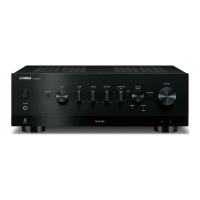
Yamaha R-N402D - User Manual

Yamaha R-N402D
64 pages
Print Icon
To Next Page IconTo Next Page
Loading...
EN
OWNER’S MANUAL
B
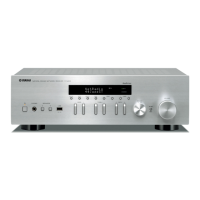
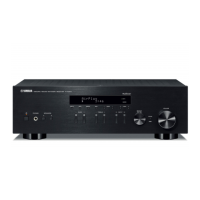
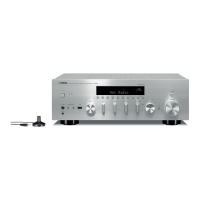
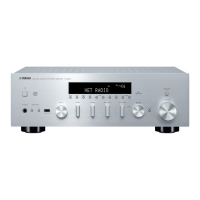
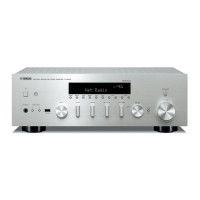
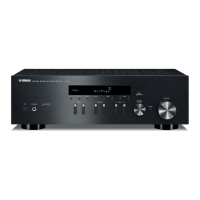
Network Receiver
R-N402/R-N402D

Table of Contents

Other manuals for Yamaha R-N402D

Questions and Answers

  • D
    dlewisNov 23, 2025
    What to do if my Yamaha Receiver has no sound?
    • S
      samantha42Nov 23, 2025
      If your Yamaha Receiver has no sound, consider the following: * Check that the input or output cable connections are correct. If the issue continues, the cables could be defective. * Ensure an appropriate input source is selected using the INPUT l / h on the front panel or the input selection key on the remote control. * Verify that the SPEAKERS A/B switches are properly set by turning on the corresponding SPEAKERS A or SPEAKERS B. * Make sure the speaker connections are secure. * Confirm that the output is not muted by turning off the mute. * Check the “Max Volume” and “Initial Volume” settings in the “SETUP” menu, as they might be set too low. * Ensure the component corresponding to the selected input source is turned on and playing. * If a device connected to a digital ...
  • V
    Victoria VasquezAug 27, 2025
    Why does the sound on my Yamaha Receiver suddenly go off?
    • C
      Chelsea FernandezAug 27, 2025
      The sound on your Yamaha Receiver might suddenly go off due to these reasons: * The protection circuitry may have been activated because of a short circuit. Set the speaker impedance to match your speakers. * The unit may have become too hot. Ensure the openings on the top panel are not blocked. * The auto power standby function may have turned the unit off. Change the auto power standby setting (“AutoPowerStby” in the “SETUP” menu) to turn off.
  • S
    Samantha KellyAug 27, 2025
    Why can't my Yamaha R-N402D Receiver connect to the Internet via a wireless router?
    • T
      Teresa ForbesAug 27, 2025
      If your Yamaha Receiver cannot connect to the Internet via a wireless router, consider the following: * Ensure the wireless router (access point) is turned on. * Verify that the unit and the wireless router (access point) are not too far apart. Place them closer to each other. * Make sure there are no obstacles between the unit and the wireless router (access point).
  • C
    Candice AndersonAug 28, 2025
    What to do if firmware update via the Internet failed on Yamaha R-N402D Receiver?
    • A
      Anthony JamesAug 28, 2025
      If the firmware update via the Internet failed on your Yamaha Receiver, update the firmware via the Internet again or use a USB memory device.
  • C
    cantrellsavannahAug 29, 2025
    Why is my Yamaha Receiver not finding my wireless network?
    • B
      Barbara HernandezAug 30, 2025
      If your Yamaha Receiver is not finding your wireless network: * Microwave ovens or other wireless devices in your neighborhood might be interfering with the wireless communication. Turn off these devices. * Access to the network may be restricted by the firewall settings of the wireless router (access point). Check the firewall setting of the wireless router (access point).
  • E
    Elizabeth ThompsonSep 16, 2025
    How to fix lack of bass on Yamaha R-N402D?
    • J
      Jennifer PerrySep 16, 2025
      To fix a lack of bass and no ambience on your Yamaha Receiver, connect the speaker wires to the correct + and – phase.
  • S
    Scott CowanSep 13, 2025
    How to stop a humming sound from my Yamaha R-N402D?
    • P
      Patricia FarmerSep 13, 2025
      To stop a humming sound from your Yamaha Receiver, connect the audio plugs firmly. If the problem persists, the cables may be defective.
  • J
    john11Sep 15, 2025
    Why can't I play Internet radio on my Yamaha R-N402D?
    • A
      Anthony ChurchSep 15, 2025
      If you cannot play Internet radio on your Yamaha Receiver, it may be because the selected Internet radio station is currently not available. There may be a network problem at the radio station, or the service may have been stopped. Try the station later or select another station.
  • M
    Melissa MartinezSep 7, 2025
    Why can't I tune into any DAB stations on my Yamaha R-N402D?
    • W
      watsonrobertSep 7, 2025
      To resolve the issue of not being able to tune into any DAB stations on your Yamaha Receiver: * Perform the initial scan operations. * Change the height, direction, or placement of the antenna.
  • N
    nbrownSep 4, 2025
    How to improve noisy FM stereo reception on Yamaha Receiver?
    • T
      Tyler GreenSep 4, 2025
      Noisy FM stereo reception on your Yamaha Receiver can be improved by checking the antenna connections and trying a high-quality directional FM antenna. You can also switch to monaural mode.

Summary

Introduction and Basic Operations

Product Overview and Capabilities

Overview of the unit's functions, supported sources, and key features like MusicCast.

Unit Controls and Indicators

Detailed description of front panel, display, rear panel jacks, and remote control functions.

Device Connections

Step-by-step guide for connecting speakers, antennas, network, and power.

Basic Playback Functions

How to select sources, play audio, view information, and use the sleep timer.

Audio Source Operations

FM;AM Radio Operation

Tuning, reception improvement, presets, and RDS features for FM/AM radio.

DAB Radio Operation (R-N402 D)

Setup, tuning, presets, and information display for DAB radio on the R-N402D model.

Bluetooth Audio Playback

Pairing, playback, and disconnection procedures for Bluetooth audio streaming.

Network Music Playback (PC;NAS)

Setting up media sharing and playing music files from PCs or NAS devices.

AirPlay Music Playback

Instructions for playing music from Apple devices and iTunes using AirPlay.

Internet Radio Listening

How to access and register favorite stations for Internet radio playback.

USB Music Playback

Connecting USB devices and playing music files, including playback settings.

System Configuration and Settings

Playback Settings (OPTION Menu)

Configuring source-specific playback adjustments using the OPTION menu.

General Setup Menu (SETUP Menu)

Navigating and adjusting network, Bluetooth, audio, and power settings via the SETUP menu.

Advanced System Settings

Configuring remote ID, tuner frequency, defaults, and performing firmware updates.

Troubleshooting and Support

Common Troubleshooting Steps

Solutions for general problems, remote control, radio, Bluetooth, USB, and network issues.

Error Indications and File Support

Interpreting front display errors and understanding supported audio file formats.

Technical Specifications

Detailed technical data and performance specifications of the unit.

Trademarks and Compliance

Information on product trademarks, logos, and disposal guidelines.

Yamaha R-N402D Specifications

General IconGeneral
DAB/DAB+ TunerYes
Dimensions435 x 141 x 340 mm
Audio Channels2.0
Signal-to-Noise Ratio100 dB (CD)
Bluetooth ProfilesA2DP, AVRCP
Bluetooth Audio CodecSBC, AAC
EthernetYes
Internet RadioYes
Speaker Impedance8 ohms
Network FeaturesWi-Fi, AirPlay, MusicCast
Inputs1 x Digital Coaxial, 1 x Digital Optical, 1 x Ethernet
OutputsSpeaker Out, Headphone Out, Subwoofer Out
Input Sensitivity/Impedance200 mV / 47 kOhms
Bluetooth VersionVer. 2.1 + EDR
Frequency Response10 Hz-100 kHz
Tuner TypeFM, DAB/DAB+
FM Tuning Range87.5-108 MHz
AM Tuning Range531-1, 611 kHz
Phono InputYes

Related product manuals