Need help?
Do you have a question about the Yealink T43 and is the answer not in the manual?
Guides for initiating calls using handset, speakerphone, or headset, including multiple call handling.
Instructions on how to answer incoming calls using either the handset or speakerphone.
Procedures for terminating calls when using the handset, speakerphone, or headset.
Steps to redial the last dialed number or select from the call history list.
How to mute the microphone during a call and adjust receiver or ringer volume.
Procedures for placing calls on hold and parking them for later retrieval.
Guides for performing both blind and attended call transfers.
Instructions for enabling, disabling, updating, and toggling call forwarding.
Steps to create and manage conference calls by adding multiple parties.
How to check and listen to new voice messages on the phone.
Instructions for adding new contacts and modifying existing entries in the directory.
Procedure for removing contacts from the phone's directory.
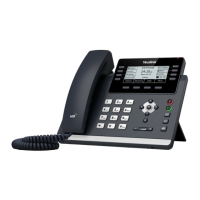
The Yealink T43 is a sophisticated IP phone designed for clear and efficient communication, offering a wide range of features for both basic and advanced telephony needs. Its user-friendly interface and robust functionality make it suitable for various professional environments.
The device facilitates straightforward call management. To make a call using the handset, simply pick it up, dial the desired number using the keypad, and press the "Send" soft key. For speakerphone calls, ensure the handset is on-hook, press the speakerphone key, dial the number, and then press "Send." If a headset is connected, pressing the headset key activates headset mode, allowing you to dial and send calls similarly. A convenient feature allows users to switch between headset, hands-free speakerphone, and handset modes during an active call by pressing the respective keys or picking up the handset. It's important to note that headset mode requires a headset to be physically connected to the phone.
Answering calls is equally simple. For handset calls, just pick up the handset. For speakerphone calls, press the speakerphone key. If using a headset, press the headset key to answer. The phone also provides the option to ignore an incoming call by pressing the "Reject" soft key. Ending a call is intuitive: hang up the handset or press the "End Call" soft key for handset calls, press the speakerphone key or "End Call" soft key for speakerphone calls, and press the "Cancel" soft key for headset calls.
The Yealink T43 supports multiple calls simultaneously. When an active call is in progress, pressing a line key places the current call on hold. You can then dial a new number and press "Send" to initiate a second call. To switch between active calls, use the scroll keys (up or down) and then press "HOLD" again to resume the desired conversation.
Muting a call is achieved by pressing the mute key, which silences the microphone. Pressing it again un-mutes the call. Volume adjustment is available during a call to control the receiver volume for the handset, speakerphone, or headset. When the phone is idle, the volume keys adjust the ringer volume.
The device offers customizable ring tones. Users can access the "Menu" soft key, navigate to "Settings" > "Basic Settings" > "Sound" > "Ring Tones," select their preferred tone using the scroll keys, and then press "Save" to apply the change.
Putting a call on hold is managed by pressing the "Hold" soft key during an active call. To resume a held call, press the "Resume" soft key. If multiple calls are on hold, the scroll keys can be used to select the desired call before pressing "Resume."
The Yealink T43 supports two types of call transfers: Blind Transfer and Attended Transfer. For a Blind Transfer, during an active call, press the "Transfer" soft key. The caller will hear hold music. Dial the number to which you want to transfer the call, wait for at least one ring, and then press "Transfer" again to complete the transfer. For an Attended Transfer, press the "Transfer" soft key during an active call. The caller will hear hold music. Dial the number of the person you want to transfer to, wait for them to answer, inform them of the transfer, and then press "Transfer" again to complete the process.
Conference calls are initiated by pressing the "Conf" soft key during an active call, which places the current call on hold. Dial the second party's number and press "Send." Once the second party answers, press the "Conf" soft key again to join all parties in the conference. If the initiator hangs up, all other parties will be disconnected. The "Split" soft key allows users to separate a conference call into two individual calls.
Call forwarding can be enabled by dialing *72, pressing "Send," entering the forwarding number followed by #, and confirming. To disable call forwarding, dial *73 and press "Send." To update the forwarding number, dial *56, press "Send," enter the new number followed by #, and confirm. A toggle feature for call forwarding is available by dialing *74 and pressing "Send."
The phone features a Message Waiting Indicator (MWI) on the idle screen, which illuminates in red when new voice messages are available. To listen to voicemail, press the message key and follow the voice prompts. For first-time access, the password is typically the extension number, which users are advised to change to a memorable 4-digit number.
The device includes a contact directory for easy management of frequently called numbers. To add a contact, press the "Directory" soft key when the phone is idle, select the desired group, and then press "Add." Enter a unique contact name and corresponding numbers in the designated fields, then press "Add" to save. It's important to note that contacts entered in this manner may be lost if the phone's firmware is updated.
Editing a contact involves pressing the "Directory" soft key, selecting the desired group, using the scroll keys to select the contact, pressing the "Option" soft key, and choosing "Detail." After updating the information, press "Save." To delete a contact, press the "Directory" soft key, select the group, use the scroll keys to select the contact, press the "Option" soft key, choose "Delete," and then confirm by pressing "OK" when prompted.
Redialing is made simple. Pressing the redial key accesses the "Placed Calls" list. Users can scroll through the list to select a desired call and then press the redial key or "Send" soft key to dial. Alternatively, pressing the redial key twice when the phone is idle will call the last dialed number.
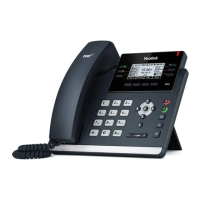
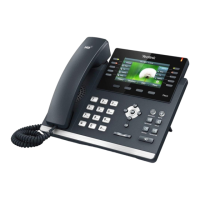
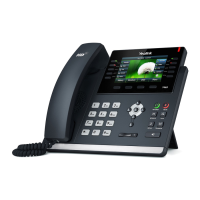
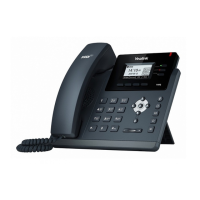
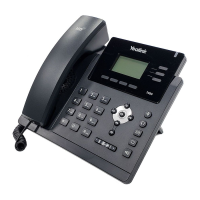
The Yealink T43 features an LCD screen for displaying information, a Power LED to indicate power status, and Line Keys for managing multiple lines. A dedicated Message key with an LED indicates new voicemail. The Hold key, Redial key, Transfer key, and Speakerphone key are all easily accessible. The Keypad is standard for dialing, and Scroll keys allow for navigation through menus and lists. Soft Keys provide context-sensitive options displayed on the screen. The Volume Key controls audio levels.
Overall, the Yealink T43 is a comprehensive communication tool, designed with a focus on user convenience and efficiency, offering a full suite of features for modern business communication.
 General
| Opus Codec | Yes |
|---|---|
| Wall Mountable | Yes |
| Bluetooth | No |
| Wi-Fi | No |
| PoE Support | Yes (802.3af) |
| USB Port | Yes, 1 x USB 2.0 port |
| Local Phonebook | 1000 entries |
| HD Voice | Yes |
| Supported Protocols | SIP |
| Headset Support | Yes (EHS) |
| Compliance | FCC, CE, RoHS |
| Ethernet Ports | Dual-port Gigabit Ethernet |

 To Next Page