28
V
V
iewing a JPEG files
iewing a JPEG files
This unit can play JPEG files. Before playing JPEG
recordings, read “Photo file requirement” on page 29.
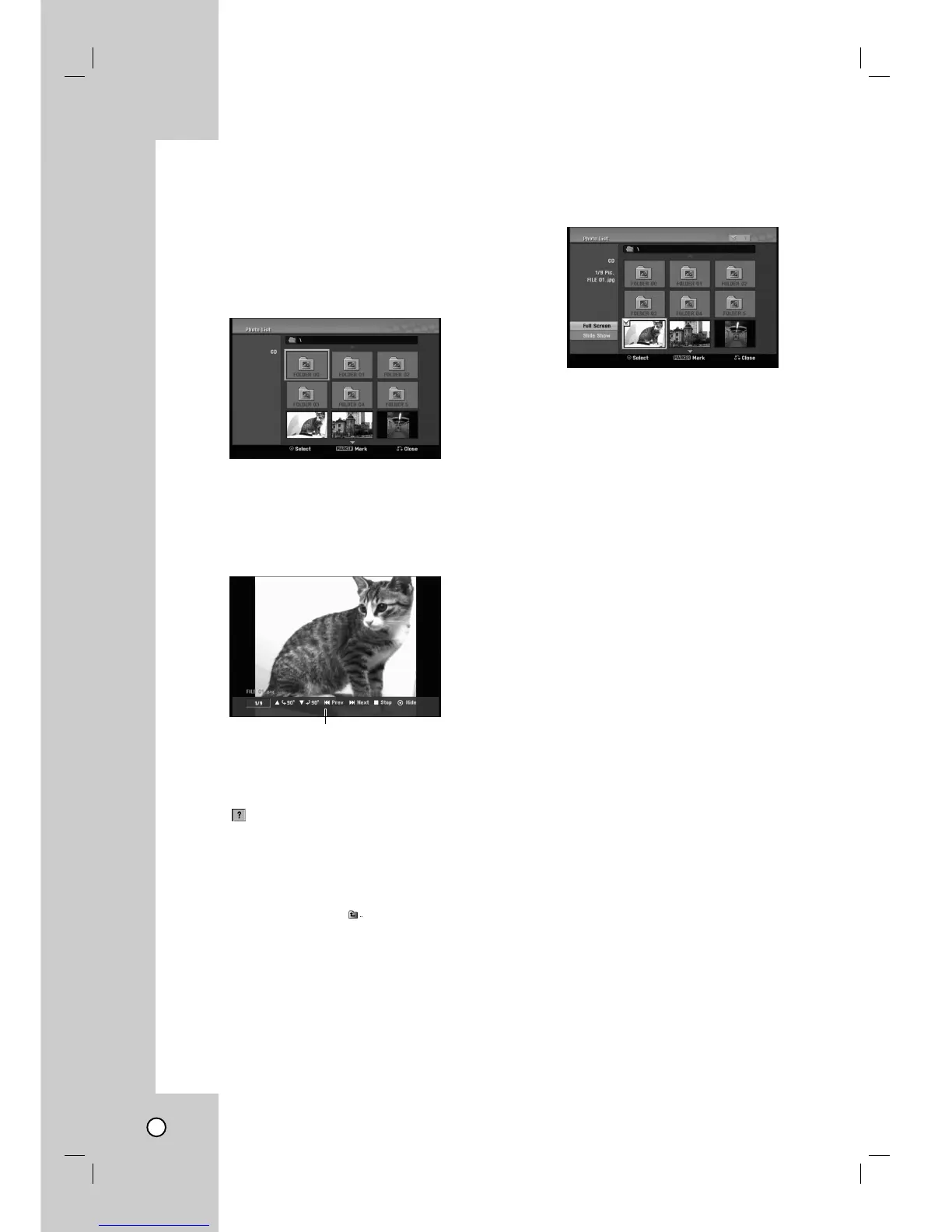
1. Press HOME and the Home menu appears.
2. Select [Photo] > [DISC] and press ENTER.
3. Use v V b B to select a file or folder and press
ENTER.
2. Use v / V to select option and press ENTER.
Example: When you select a file.
3. Use v / V to select [Full Screen] then press
ENTER.
The selected image is displayed in full screen.
4. To stop viewing at any time, press STOP (x).
Notes:
• If the icon displays in the [Photo List] menu, it
means you cannot see those JPEG files.
•You can view video input source by pressing
RETURN (O). If you want to return to the [Photo List]
menu, press DISC MENU/LIST.
• If you are in a file list and want to return to the Folder
list, use the v/V to highlight and press ENTER to
return to the previous menu screen.
• On CDs or DVDs with mixed content (Audio tracks,
MP3/WMA files or JPEG files), you can select among
the [Music List] menu and [Photo List] menu by pressing
TITLE repeatedly.
Photo List menu options
1. Use v V b B to select a file then press ENTER.
The menu options appear.
2. Use v / V to select an option then press ENTER
to confirm your selection.
• [Open] Opens the folder and a list of files in the
folder appears.
• [Full Screen] Shows the selected file as full
screen.
• [Slide Show] Displays Slide Show menu.
Still picture
Use PAUSE/STEP (X) while showing a picture to
pause mode.
Skip Images
While viewing a picture, press SKIP (> or .)
once to advance to the next file or return to the
previous file.
Rotate Images
Use v / V while viewing a picture to flip the picture
clockwise or counterclockwise.
Press ENTER to make this menu appear or disappear.



 To Next Page