EasyManua.ls Logo

Zenith XBV613 - User Manual

Zenith XBV613
38 pages
Print Icon
To Next Page IconTo Next Page
Loading...
V1310MZ.NA1ULZ_ENG
Installation and Operating Guide | Warranty
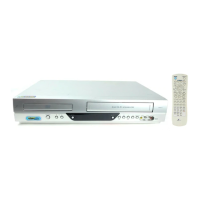
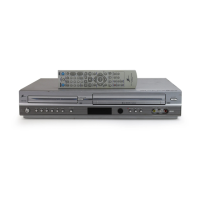
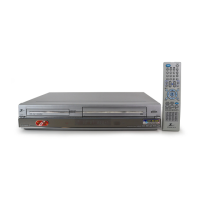
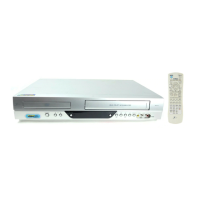
Model Number | XBV613 | DVD Player + Video Cassette Recorder
© Copyright 2005, LG Electronics U.S.A., Inc.
For service/
support Call:
Toll Free Number
1-800-243-0000

Table of Contents

Questions and Answers

  • M
    Michael PooleAug 15, 2025
    How to fix Zenith DVD VCR Combo remote control not working?
    • B
      bwardAug 15, 2025
      If the remote control for your Zenith DVD VCR Combo isn't working correctly, first remove any obstacles between the remote and the unit. Replace the batteries with new ones. Ensure you are pointing the remote at the remote sensor on the DVD+VCR within a distance of 23ft (7m). When using a VCR, first press the VCR button. When using a DVD, first press the DVD button.
  • A
    Abigail Alvarado DDSAug 18, 2025
    Why is there no picture on my Zenith DVD VCR Combo?
    • G
      Gina MullinsAug 18, 2025
      If your Zenith DVD VCR Combo isn't displaying a picture, ensure that your TV is set to the correct video input mode to receive the signal from the DVD+VCR player. Also, check that the video cable is securely connected to the jacks. Verify the connection to ensure it is correct.
  • R
    Rebecca CaseAug 21, 2025
    Why is there no sound coming from my Zenith XBV613 DVD VCR Combo?
    • D
      Donald TaylorAug 21, 2025
      If there is no sound from your Zenith DVD VCR Combo, ensure the equipment connected with the audio cable is set to receive audio from the DVD+VCR. Connect the audio cable into the jacks securely. Check that the power of the equipment connected with the audio cable is turned on. Verify that the AUDIO options are set to the correct position.
  • O
    osanchezAug 25, 2025
    What to do if Zenith DVD VCR Combo does not start playback?
    • J
      Joseph CruzAug 26, 2025
      If your Zenith DVD VCR Combo isn't starting playback, make sure you've inserted a playable disc, checking the disc type and regional code. Place the disc with the playback side down, correctly within the guide on the disc tray. Clean the disc if it's dirty. Also, verify whether the Rating level is set and, if so, cancel the Rating function or change the rating level.
  • M
    Michelle JohnsonAug 28, 2025
    How to improve poor playback picture on Zenith XBV613?
    • K
      Katherine KeyAug 28, 2025
      If the playback picture on your Zenith DVD VCR Combo is poor, start by cleaning the disc. Check that the TV channels are properly tuned. If you're playing a video tape, consider that the tape heads may be dirty and need cleaning. If using a rental tape or one recorded on another VCR, use CH/TRK (v/V) for manual tracking adjustment while the tape is playing. Ensure your TV supports 525p Progressive scan picture or set Progressive scan to off. If the DVD+VCR was turned off while setting the Progressive scan mode, keep pressing the STOP button for more than 5 seconds.
  • J
    Joshua KaiserAug 31, 2025
    How to fix Zenith XBV613 with no power?
    • T
      Tina LamAug 31, 2025
      If your Zenith DVD VCR Combo has no power, plug the power cord into the wall outlet securely.
  • J
    Joseph RobertsSep 3, 2025
    Why is timer recording not possible on my Zenith XBV613 DVD VCR Combo?
    • L
      Laura ClarkSep 3, 2025
      If your Zenith DVD VCR Combo isn't recording on timer, set the clock to the correct time. Reprogram the Timer. Reprogram the Timer and turn DVD+VCR off to enable timer.
  • G
    Gregory YangSep 7, 2025
    How to enable Hi-Fi sound on Zenith DVD VCR Combo?
    • C
      Christina FarrellSep 7, 2025
      If you're not getting Hi-Fi sound on your Zenith DVD VCR Combo, select STEREO by repeatedly pressing AUDIO on the remote control.
  • D
    Donald ValenzuelaSep 12, 2025
    How to display camcorder image on Zenith XBV613 DVD VCR Combo?
    • S
      Stephanie FieldsSep 12, 2025
      To show camcorder image on your Zenith DVD VCR Combo, turn the camcorder on and ensure it's operating correctly. Press INPUT to select LINE input channel (LINE1 or LINE2).

Summary

Installation and Operating Guide

Important Safety Instructions

Comprehensive safety guidelines for product installation and use.

Introduction

Types of Playable Discs

Lists and describes the various types of discs the unit can play.

Selecting the Viewing Source

Instructions on how to choose between DVD and VCR output on the TV.

Remote Control Functions

Playback and Navigation Buttons

Controls for play, pause, stop, skip, search, and rewind/forward.

Menu and Settings Buttons

Buttons for accessing menus, setup, audio, and subtitle options.

Connecting an Antenna or Cable TV

Basic TV Connection Diagrams

Diagrams for connecting the DVD+VCR to a TV using various methods.

Optional TV Connections

Details on S-Video and Component Video connections for DVD playback.

Connection to an Amplifier

Digital Stereo or Multi-channel Connection

Connecting to amplifiers with digital stereo or multi-channel decoders.

Digital Multi-channel Sound Quality

Achieving best sound quality with digital multi-channel connections.

Initial Settings - VCR

Clock Setting Options

Setting the time and date using Auto Clock or Manual Clock.

Tuning and Channel Programming

Setting up the tuner and programming channels.

Audio Mode and Output Settings

Configuring audio modes, broadcast type, and output settings.

Initial Settings - DVD

Language and Audio;Subtitle Setup

Setting menu language, disc audio, and subtitles.

Display and Aspect Ratio Settings

Configuring TV aspect ratio and display modes.

Progressive Scan Configuration

Enabling progressive scan for higher video resolution.

Audio Output Options

Configuring audio formats like Dolby Digital, DTS, MPEG, and PCM.

Other DVD Settings

Adjusting Auto Play, Black Level Expansion, and DivX VOD.

LOCK (Parental Control)

Rating Settings

Setting parental control ratings to block scenes.

Password (Security Code) Management

Setting or changing the security code for parental controls.

Operations - VCR

VCR Tape Playback Basics

Basic steps for playing a video cassette.

VHS Hi-Fi Stereo Features

Using Hi-Fi stereo audio and understanding MTS broadcast signals.

MTS Broadcast Signal Types

Information on stereo, SAP, and MTS signals for broadcast reception.

VCR Tape Recording

Basic Recording Procedures

Steps for recording a TV program or from external sources.

Timer Recording Setup

Setting up unattended recordings using the timer.

Managing Timer Programs

Checking and deleting programmed timer recordings.

Instant Timer Recording

Preset Length Recording

Recording for a specific duration without using the program timer.

Recording from External Components

Recording External Components

Steps for recording from a camcorder or VCR.

Copying from DVD to VCR

DVD to VHS Copying Procedure

Steps to copy content from a DVD to a VHS tape.

Additional VCR Information

VCR Auto Play System

How the unit automatically plays tapes with safety tabs removed.

Operations - DVD

DVD Playback Setup

Initial steps for setting up TV and audio systems for DVD playback.

General DVD Playback Controls

Buttons for opening/closing tray, pause, skip, search, and repeat.

3 D Surround Effect and Time Search

Activating 3D Surround effect and performing time-based search.

Marker Search DVD DivX

Entering and Recalling Markers

Setting and recalling up to nine memorized playback points.

Playing Audio CDs and MP3;WMA Files

Audio CD and MP3;WMA Playback

Steps for playing CDs and MP3/WMA files, including menu navigation.

Maintenance and Service

Troubleshooting Guide

Zenith Limited Warranty (USA)

Zenith XBV613 Specifications

General IconGeneral
BrandZenith
ModelXBV613
CategoryDVD VCR Combo
LanguageEnglish

Related product manuals