15xx-A1 Family Router Users Guide 22
Chapter 3 The Web User Interface
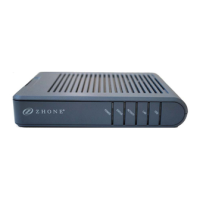
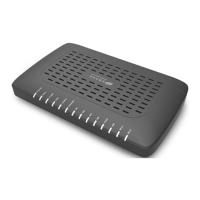
The 65xx-A1 family of combination modem/routers have a Wide Area Network (WAN) connection
which connects to your phone line. This connects to your Internet Service Provider (ISP) via the
phone line. The Local Area Network (LAN) connections are where you plug in your local
computers to the router. The 6518-A1 also has a wireless interface. The router is normally
configured to automatically provide all the PCs on your network with Internet addresses.
Your router may be pre-configured with your ISP configuration to ease your installation. Please
contact your ISP if you need information on how to connect the modem to your ISP. To set up
your router with a basic configuration required by your service provider, you can use the Quick
Setup form the top of the navigation bar. In order for this to work, all other WAN services must
first be removed. To remove services, from the top navigation bar select Quick Setup.
If you connected a PC (rather than a hub or a switch) directly to the router, your LAN consists of that PC. You
may also create connections for various protocol options by creating new connections.
To configure your router you will first need to log in to the router.
Note: Before configuring your router, make sure you have followed the instructions in Chapter 2
Hardware Installation and PC Setup. You should have your PCs configured for DHCP mode (if
your router will be), and have proxies disabled on your browser. If you see a login redirection
screen when you access the web interface, verify that JavaScript support is enabled in your
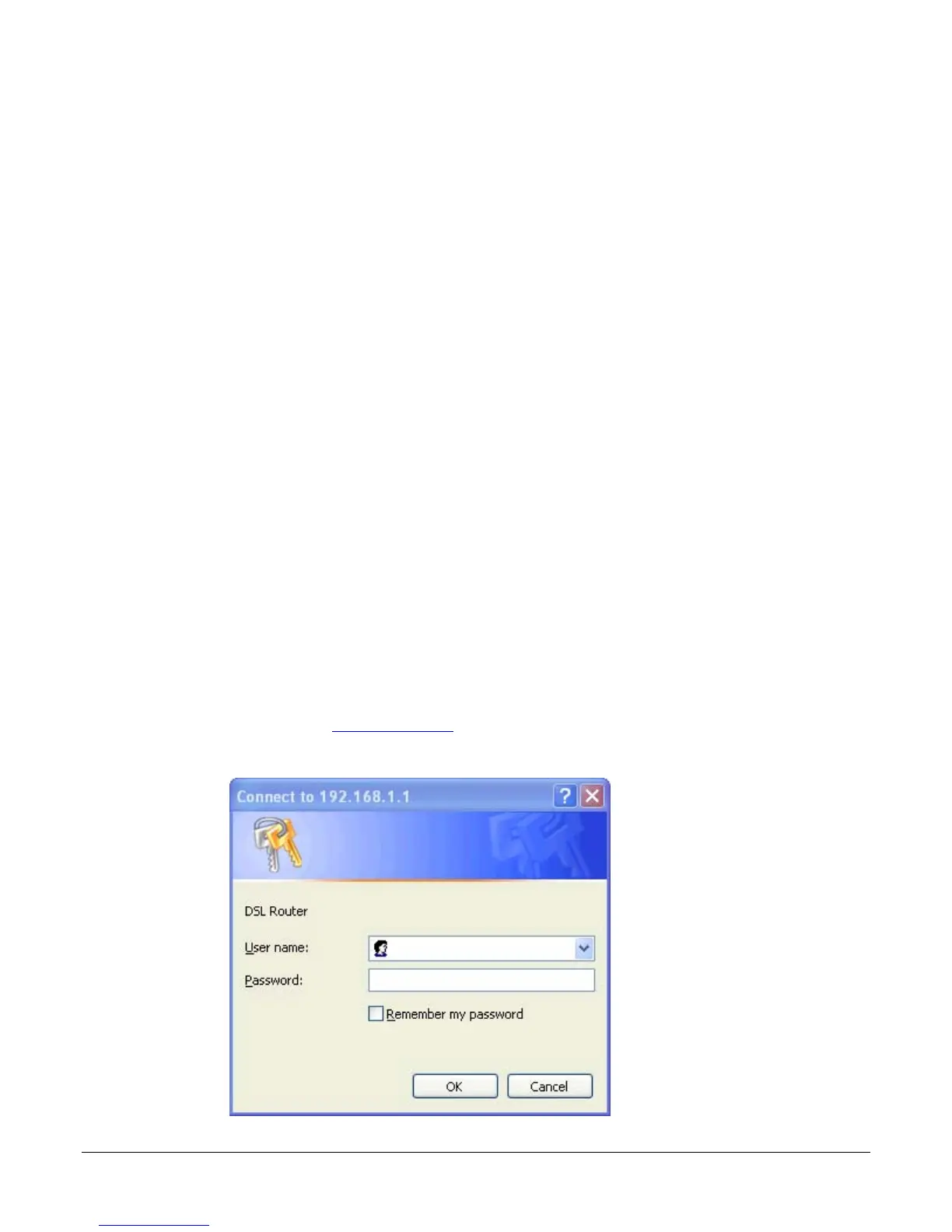
browser. Also, if you do not get the screen shown below, you may need to delete your temporary
Internet files.
Log in to the Router
This section will explain how to log in to your router.
1. Launch your web browser.
2. Enter the URL http://192.168.1.1
in the address bar and press Enter.
A login screen like the one below will be displayed after you connect to the user interface.



 To Next Page