Connect the Computer to the Gateway
9
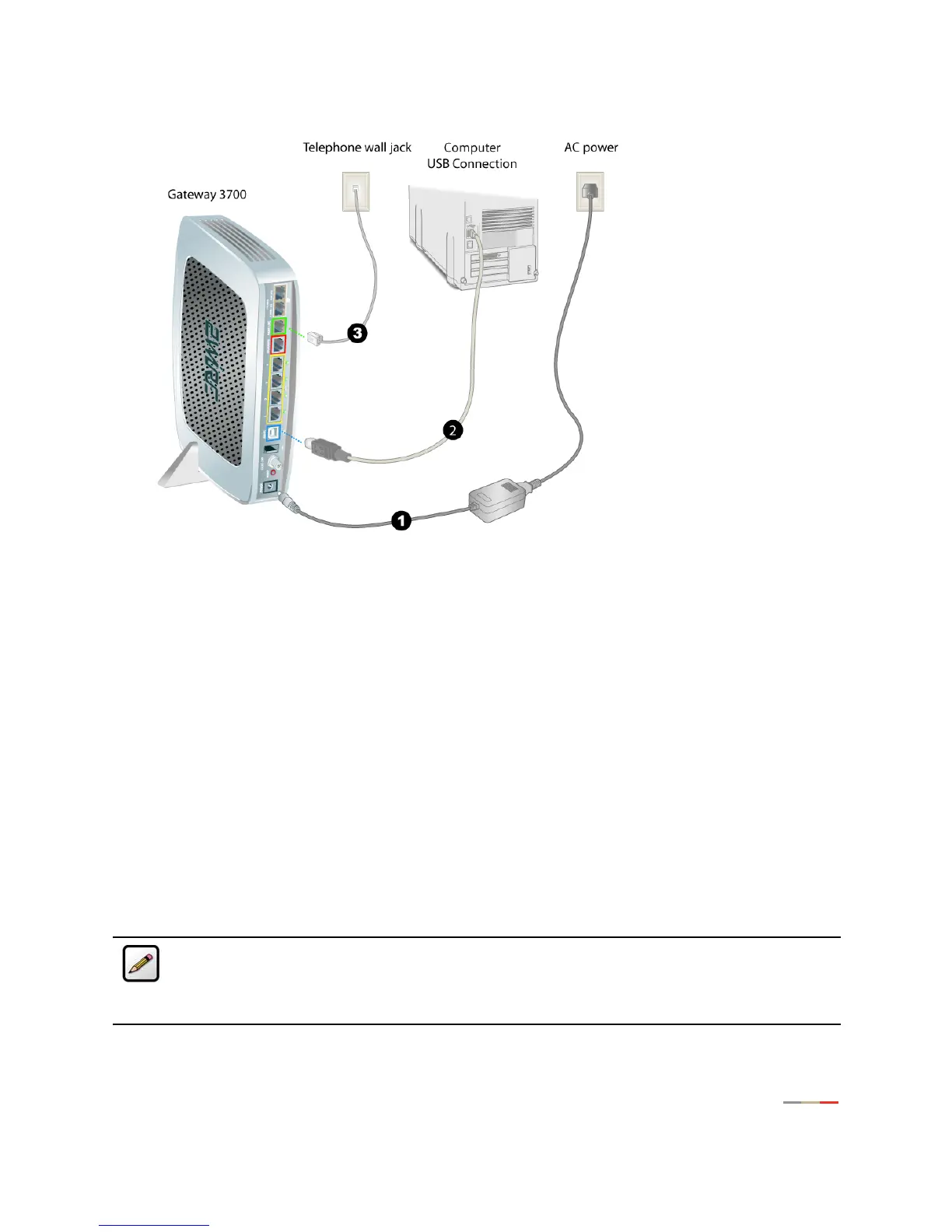
USB to PC Connection
1. Connect the provided AC power adapter from the 3700HGV-B’s POWER port to an electrical outlet. After
the 3700HGV-B has completed its start up process, the
POWER light on the front of the 3700HGV-B
should be green.
2. Connect the provided blue USB cable from the 3700HGV-B’s USB-PC port to the USB port on the
computer.
3. If the VDSL signal is carried over the phone line, connect the provided gray phone cable from the
3700HGV-B's
PHONE LINE port to telephone wall jack. If the VDSL signal is carried over coax, refer to
page 11.
Install the 2Wire Gateway USB Driver - Windows
1. Insert the 2Wire setup CD in your computer’s CD-ROM drive.
2. Power on the computer. If the Add Hardware Wizard displays, follow the on-screen instructions. If
prompted to identify where to search for drivers, deselect
Floppy Disk drive and check CD-ROM drive.
3. After the driver installs click Finish to complete the driver installation. The Setup Wizard will resume
when the PC has rebooted.
Note: Microsoft Windows 98 users may be prompted to insert the Windows 98 installation CD-
ROM after installing the 2Wire gateway USB drivers. After the Windows 98 updates are complete,
remove the Windows 98 CD and reinsert the Setup Wizard CD into the CD-ROM prior to rebooting
the PC.



 To Next Page