68
5 Click Submit.
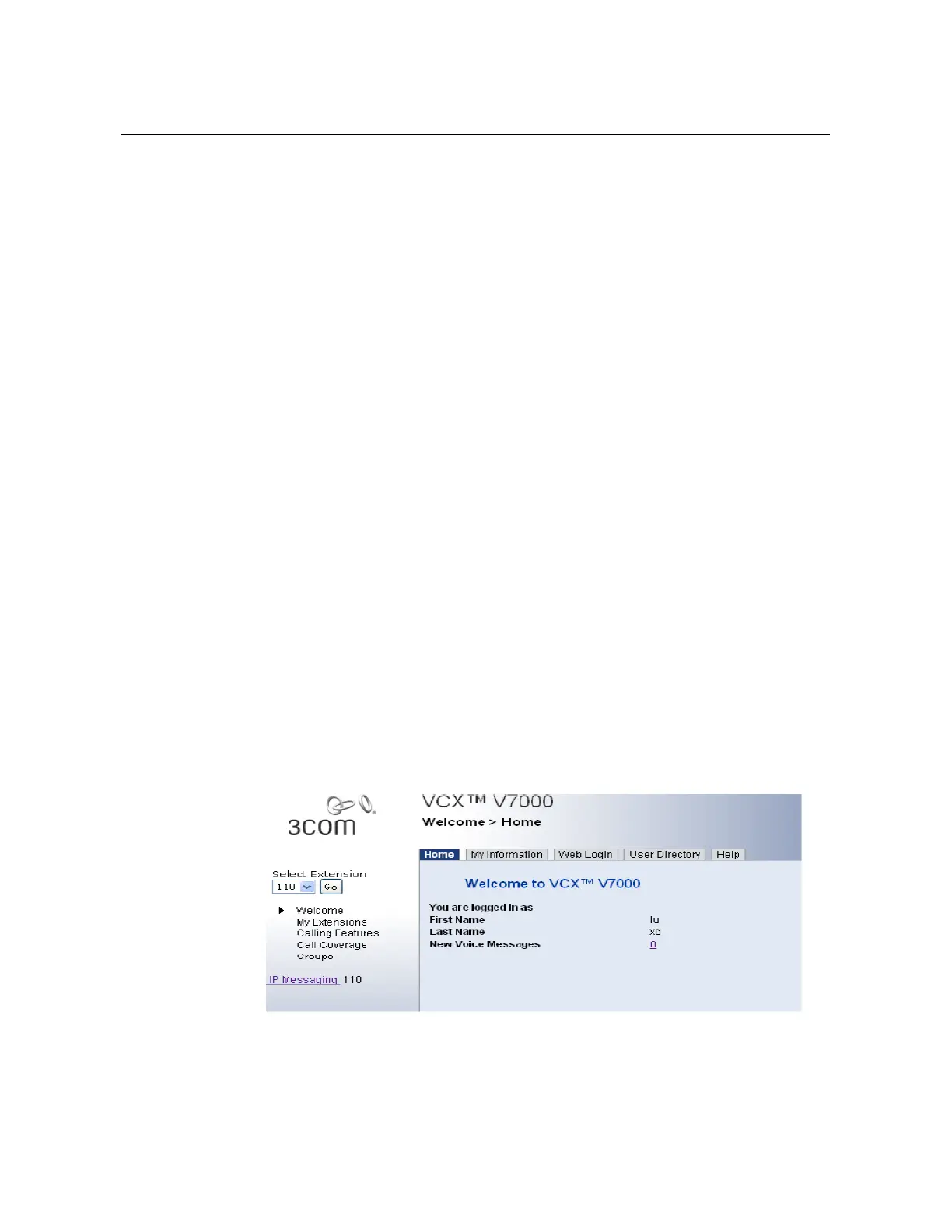
The VCX User Interface displays the Welcome window.
VCX User Interface Overview
The Welcome window illustrates the general structure of the VCX User Interface.
The left column displays seven options:
Welcome
My Extensions
Calling Features
Call Coverage
Groups
Log Out
IP Messaging
Each option (except Log Out and IP Messaging) is associated with a set of tabbed
pages shown on the right side of the window. When you select an option, the set of
tabbed pages changes. Click on a tab to display its contents.
Each tabbed page includes a text box that describes the purpose of the page. Each
text box also includes a Help button. If you need more information on a page, click
Help to launch the VCX User Interface online Help system.
The following list provides a brief description of the features you can manage on each
tabbed page. For detailed information, refer to the online Help. Note that some features
must be enabled on the telephone after configuration in the VCX User Interface. These
features are noted in the list.
Welcome
Home — Provides an initial welcoming page that can include your user name and
the number of new mails in the current telephone mailbox. Click the number link to
view the IP Messaging page. Figure 4 displays the Home page.
Figure 10 Home
My Information — Displays name and address information that you can modify
as necessary. Also enables you to change the language type and the size of the
font used in your telephone’s Display Panel.
Web Login —
Allows you to change the password you use to access the VCX
User Interface.



 To Next Page