12
through a microphone.
15
Forward to Voicemail
button
Press the Forward to Voicemail button to set
the destination of call forwarding as your voice
mailbox. Subsequent incoming calls will be
directly forwarded to your voice mailbox.
When the Forward to Voicemail function is
enabled, the backlight of the Forward to
Voicemail button is turned on.
16 Up volume button
Press this button to raise the volume of the ring
while your telephone is ringing, raise the voice
level of the callers while talking through the
handset, or raise the volume of the speaker
while in speakerphone mode.
17 Mute button
While on a call, you can press the Mute button
to prevent callers from hearing you. When the
telephone is muted, the backlight of the Mute
button is turned on.
18 Down volume button
Press this button to lower the volume of the
ring while your telephone is ringing, lower the
voice level of the callers while talking through
the handset, or lower the volume of the
speaker while in speakerphone mode.
19 Handset Pick up the handset to talk to the callers.
Access Buttons
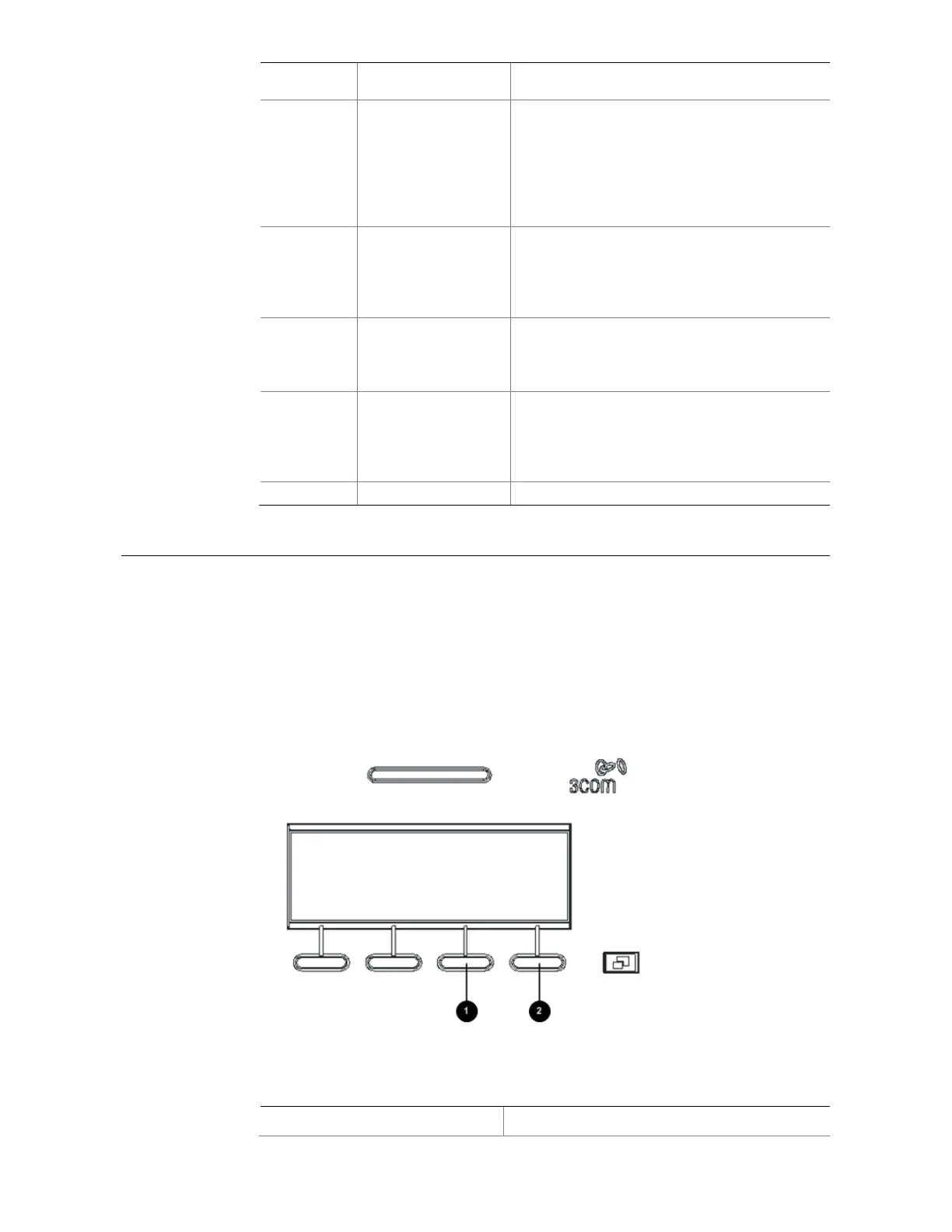
Figure 4, Figure 5, and Figure 6 show the Access buttons on the 3500 series IP phones.
You can view button assignments through the Telephone User Interface (see Feature
Options) or change button assignments through the VCX User Interface (see Assigning
Access Button Functions Using the VCX User Interface).
Figure 4 Access buttons on the 3500/3500B/3501 telephone
Table 6 Access buttons on the 3500/3500B/3501 telephone
No. Button



 To Next Page