EasyManua.ls Logo

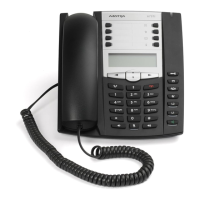
Aastra 6757I - User Manual

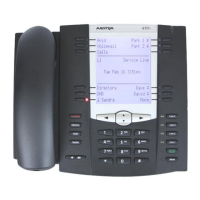
Aastra 6757I
276 pages
Print Icon
To Next Page IconTo Next Page
Loading...
User Guide
6757i IP Phone
6757i IP Phone
41-001201-15
Rev 00
Release 2.4

Table of Contents

Other manuals for Aastra 6757I

Questions and Answers

  • D
    Dr. Tanya LeeAug 12, 2025
    Why does my Aastra IP Phone display the “No Service” message?
    • E
      Edwin RomeroAug 12, 2025
      If your Aastra IP Phone displays the “No Service” message, it means the SIP settings haven't been correctly configured. While you can still use the phone, it's not registered with the Registrar. Consult your system administrator for guidance on registering your phone.
  • J
    John WhiteAug 15, 2025
    Why doesn’t my Aastra IP Phone ring?
    • J
      Jennifer BowmanAug 15, 2025
      If your Aastra IP Phone isn't ringing, the ring volume may be too low or muted. To adjust it, press the volume key when the phone is on-hook and idle.
  • K
    Kaitlyn SchaeferAug 19, 2025
    Why can’t I get dial tone on my Aastra IP Phone?
    • R
      Rachel DeanAug 19, 2025
      If you're not getting a dial tone on your Aastra IP Phone, check for any loose connections and ensure the phone has been installed correctly.
  • A
    Alexis HenryAug 23, 2025
    Why is my handset not working on my Aastra IP Phone?
    • N
      Nicole GarnerAug 23, 2025
      If your Aastra IP Phone handset isn't working, ensure the handset cord is fully connected to both the phone and the handset. The handset connection is marked with the handset symbol on the bottom of the phone.
  • A
    Alvin SandersAug 27, 2025
    Why is my display blank on my Aastra IP Phone?
    • T
      Thomas RossAug 27, 2025
      If your Aastra IP Phone display is blank, ensure that power is being supplied to your phone. If your network doesn't provide inline power over Ethernet, you can use an Aastra PoE inline power supply to provide power. Refer to the Aastra Model 6757i Installation Guide, “Connecting to the Network and to Power” section for details.
  • R
    Rita ThorntonAug 31, 2025
    What to do if my Aastra IP Phone shows 'Network Disconnected' message?
    • H
      hurstanthonyAug 31, 2025
      If you're experiencing a 'Network Disconnected' message on your Aastra IP Phone, verify that the cables are securely connected to both the phone and the wall jack. The phone should automatically detect the reconnection. If network settings have been altered, restarting the phone might be necessary. Contact your system or network administrator for further assistance.
  • R
    Ryan CarlsonSep 3, 2025
    Why is my speaker not working on my Aastra IP Phone?
    • G
      Gary SmithSep 4, 2025
      If the speaker lamp flashes when you press the Speaker key on your Aastra IP Phone, but you don't hear a dial tone, the 'Set Audio' option in the phone's Options list might be configured for headset use. Press the Speaker key again. If the lamp turns off, the phone is set for headset or handset use only. If the lamp remains on and you hear a dial tone, you can switch between the speaker and headset by pressing the Speaker key.
  • J
    John WaltonSep 7, 2025
    Why is the lamp not coming on when I have a new Voicemail Message on my Aastra IP Phone?
    • B
      Brenda BowmanSep 7, 2025
      For the new voicemail message lamp to work on your Aastra IP Phone, your phone system or service provider needs to offer a visual Message Waiting service. Please contact your system administrator.

Summary

Getting Started

Plugging in and Starting the Phone

Explains the phone's startup sequence and initial display screens.

IP Phone Keys and Key Descriptions

Key Descriptions

Identifies and describes the function of each physical key on the phone.

Methods for Customizing Your Phone

Phone Options via the IP Phone UI

Details how to customize phone settings using the phone's interface.

Phone Options via the Aastra Web UI

Explains how to customize phone settings using the Aastra Web UI.

User Password

Setting a User Password

Steps to change the user password via the IP Phone UI.

Resetting a User Password

Reset a User Password

Instructions to reset the user password via the Aastra Web UI.

Restarting your phone

Restarting your phone

How to restart the phone using IP Phone UI or Aastra Web UI.

Phone Lock

Locking;Unlocking a Phone

Procedures for locking and unlocking the phone for security.

Defining an Emergency Dial Plan

Defining an Emergency Dial Plan

How to specify emergency numbers for quick dialing.

Line Keys and Softkeys

Multiple Line and Call Appearances

Explains the 4 hard line keys and their call status indicators.

Softkeys

Describes the 12 softkeys and configuring them for functions.

Speeddial Key

How to program and use speeddial keys for quick dialing.

Do not Disturb (DND) Key

How to configure and use the DND feature.

Park;Pickup Keys

How to configure and use call park and pickup features.

Call Forward Key

How to configure and use the Call Forward feature.

BLF;Xfer

Combined BLF and Transfer key functionality.

Speeddial;Xfer

Combined Speeddial and Transfer key functionality.

Making Calls

Dialing a Number

Standard procedure for dialing a phone number.

Using Intercom

Using Intercom

How to initiate and answer intercom calls using the Icom key.

Receiving Calls

Answering an Incoming Call

Steps to answer an incoming call using different methods.

Handling Calls

Placing a Call on Hold

How to place an active call on hold and retrieve it.

Transferring Calls

Explains blind and consultative call transfer methods.

Conferencing Calls

Describes local and centralized conferencing methods.

Managing Calls

Directory List

How to access, add, edit, and delete directory entries.

Callers List

How to access, view, and manage the list of incoming calls.

Additional Features

Incoming Intercom Call Features

Details settings for handling incoming intercom calls.

Group RTP Paging (receives RTP streams)

How to configure RTP streaming for paging applications.

Troubleshooting Solutions

Why is my display blank?

Troubleshooting steps for a blank phone display.

Why is my speakerphone not working?

Troubleshooting steps for speakerphone issues.

Why can’t I get a dial tone?

Troubleshooting steps for issues with obtaining a dial tone.

Why doesn’t my phone ring?

Troubleshooting steps for a phone that does not ring.

Why is my handset not working?

Troubleshooting steps for a non-functional handset.

Aastra 6757I Specifications

General IconGeneral
Protocol SupportSIP
PoEYes
DisplayGraphical, backlit LCD
Network10/100 Mbps Ethernet
AudioFull-duplex speakerphone
PowerPoE or AC adapter
ExpansionSupports up to 3 expansion modules
Ethernet Ports2
SpeakerphoneFull-duplex
Headset PortYes, dedicated headset port
Weight1.2 kg
Dimensions200 x 200 x 100 mm
Lines9 lines with call appearances

Related product manuals