BIOS Utility
92 User’s Guide
3. Press Enter. The retype password box appears.
4. Retype the password to verify your first entry and press
Enter.
After setting the password, the computer automatically
sets the chosen password parameter to Present.
5. Press Esc to return to the main menu.
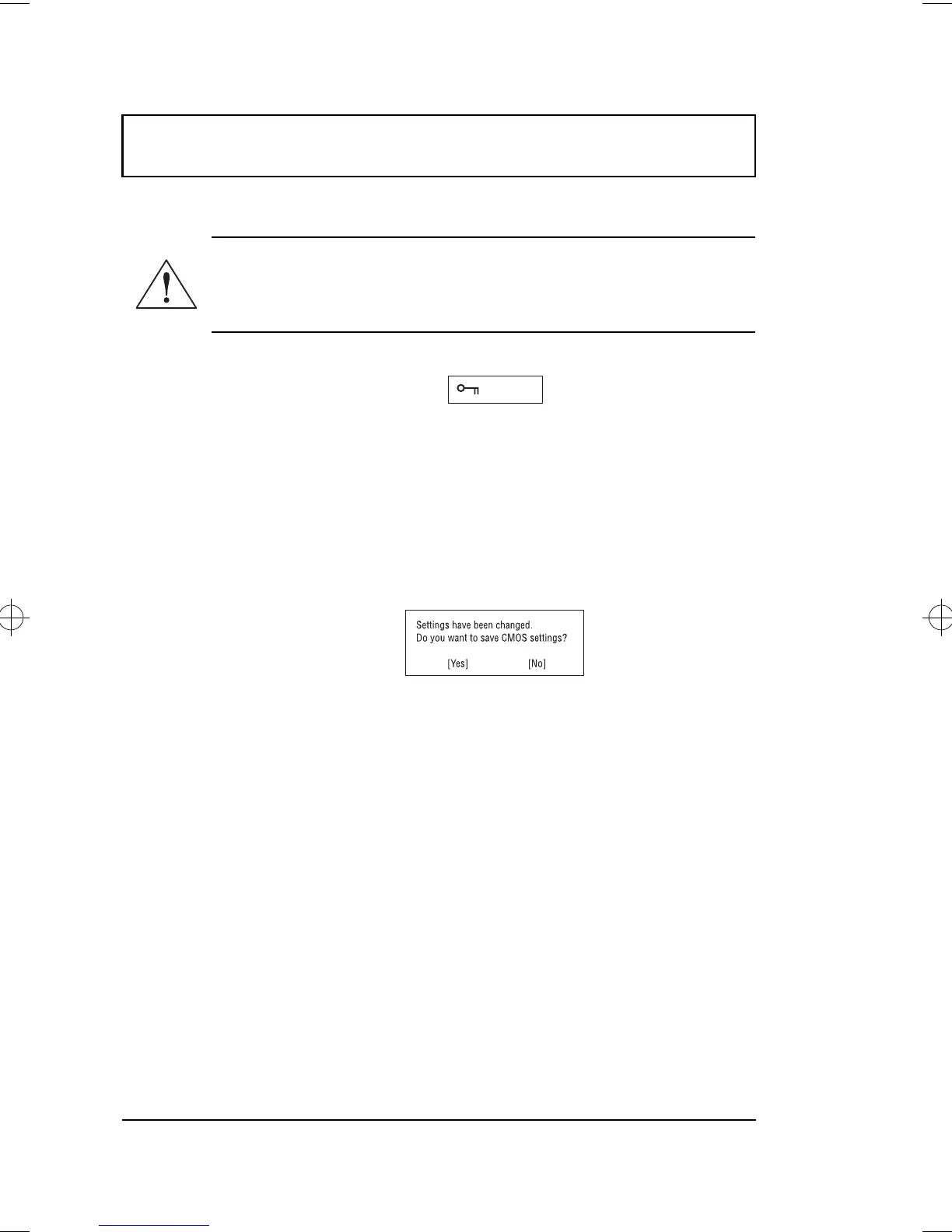
6. Press Esc. The following dialog box appears.
7. Select Yes and press Enter to save the password and
exit the BIOS Utility.
Changing a Password
To change a password, follow the same steps used to set a
password.
Removing a Password
To remove a password, use the ↑ and ↓ keys to highlight a
password parameter and press the
←
or
→
key.
Important: Be very careful when typing your
password because the characters do not appear on
the screen.
500-e.book : 500-5e.fm Page 92 Monday, August 17, 1998 9:36 PM










 To Next Page