EasyManua.ls Logo

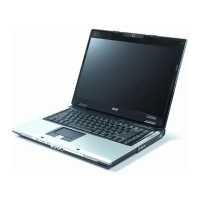
Acer 510 Series - User Manual

Acer 510 Series
149 pages
Print Icon
To Next Page IconTo Next Page
Loading...
510.book : 510-COP.fm Page i Thursday, March 4, 1999 1:03 PM

Table of Contents

Questions and Answers

  • D
    Daniel RojasAug 15, 2025
    Why won't my Acer 510 turn on?
    • L
      lwuAug 15, 2025
      If your Acer Laptop doesn't start, first ensure the AC adapter is connected to recharge the battery. If the power indicator is lit, press any key or tap the touchpad to resume. Also, check if there's a non-bootable diskette in the floppy drive; if so, remove it and restart the system by pressing Ctrl-Alt-Del. If the issue persists, the operating system files may be damaged. Try inserting the startup disk created during Windows setup and restart.
  • M
    Mrs. Marissa Sanchez MDAug 18, 2025
    What to do if there is no audio from my Acer 510 Laptop?
    • A
      Anthony AndersonAug 19, 2025
      If you're not getting any sound from your Acer Laptop, first check the volume control icon on the taskbar in Windows to ensure the volume isn't muted. If it is crossed-out, click the icon and deselect the Mute option. Also, ensure the speakers are turned on by pressing Fn-F8. Finally, check the volume level in Windows to make sure it isn't too low.
  • D
    David CurtisAug 21, 2025
    What to do if nothing appears on the screen of my Acer 510?
    • R
      Raven YoungAug 21, 2025
      If nothing appears on your Acer Laptop's screen, it may be due to the power management system blanking the screen to save power. Press any key to turn the display back on.
  • N
    Nathaniel HobbsAug 25, 2025
    What to do if pressing a key does not turn the display back on Acer Laptop?
    • J
      Julie MartinezAug 25, 2025
      If pressing a key doesn't turn the display back on for your Acer Laptop, the contrast and/or brightness level might be too low. Try pressing Fn-? and Fn-? to adjust the contrast level. Also, the display device might be set to an external monitor. Press the display toggle hot key Fn-F6 to toggle the display back to the computer.
  • D
    Daniel FlynnAug 27, 2025
    Why can’t I charge my Acer Laptop's battery to 100%?
    • C
      Charles Sharp Jr.Aug 27, 2025
      To preserve the life of the battery, the system only allows charging when its capacity falls below 95%. It is recommended that you use the battery power completely before charging.
  • P
    Pamela TorresAug 30, 2025
    What to do if my Acer 510 shows 'Insert system diskette and press Enter'?
    • T
      Tyler DunnAug 30, 2025
      Insert a system (bootable) diskette in the floppy drive (A:), then press Enter to reboot your Acer Laptop.
  • J
    justinlangSep 2, 2025
    What to do if the image is not full-screen on my Acer 510?
    • S
      Sean AndersonSep 2, 2025
      Make sure the resolution is set to 800x600 or 1024x768 on your Acer Laptop.
  • A
    ajohnsonSep 5, 2025
    What to do if the printer does not work with my Acer Laptop?
    • L
      Lisa FletcherSep 6, 2025
      Make sure that the printer is connected to a power outlet and is turned on. Also, make sure the printer cable is securely connected to the computer’s parallel port and the corresponding port on the printer.
  • M
    Mrs. Dominique BerrySep 8, 2025
    What to do if the serial mouse does not work with my Acer 510 Laptop?
    • J
      Jennifer MorenoSep 9, 2025
      Make sure that the serial cable is plugged securely into the serial port of your Acer Laptop.
  • S
    Stacy BlackSep 12, 2025
    What to do if external microphone does not work with my Acer 510 Laptop?
    • C
      Courtney PowersSep 12, 2025
      Make sure the external microphone is connected to the microphone-in jack and/or the audio line-in device is connected to the audio line-in jack on your Acer Laptop’s front panel.

Summary

Getting Familiar with your Computer

Features

Details performance, multimedia, and connectivity features of the notebook.

Display

Explains display configurations, video performance, and dual display capabilities.

Keyboard

Covers keyboard layout, special keys, lock keys, and ergonomics.

Ports

Describes front, left, rear, and right ports for external connections.

Securing your Computer

Explains security notch and two-level password protection.

Operating on Battery Power

Battery Pack

Information on battery characteristics, charging, and maintenance.

Power Management

Details power-saving modes, features, and optimization.

Peripherals and Options

External Monitor

Instructions for connecting and using an external monitor.

External Keyboard and Pointing Devices

Connecting external keyboards, keypads, and mice.

Printer and Audio Devices

Connecting printers and external audio equipment.

PC Cards and USB Devices

Information on PC Card slots and USB peripheral connections.

Key Component Upgrades

Details on upgrading memory and hard disk drive.

Moving with your Computer

Disconnecting from the Desktop

Steps for safely disconnecting the computer from accessories.

Taking the Computer Home

Preparing the computer for transport to and from home.

Traveling with the Computer

Guidelines for local travel, including packing and security.

Traveling Internationally with the Computer

Specific considerations for international travel, including power compatibility.

Software

System Software

Lists preloaded operating system and utility software.

Sleep Manager

Explains power-saving functions like Standby and Hibernation.

Notebook Manager

Details the system setup utility for configuration and settings.

BIOS Utility

Hardware configuration program for system settings and security.

Troubleshooting

Frequently-Asked Questions

Answers to common questions about computer operation and issues.

Error Messages

Lists error messages and recommended corrective actions.

Troubleshooting Tips

Guidance on using PC-Doctor for hardware diagnostics.

Online Services

Information on accessing technical support and online resources.

Specifications

Microprocessor

Details about the computer's CPU.

Memory and Storage

Information on RAM capacity and storage drive types.

Display and Video

Specifications for the display and graphics capabilities.

I;O Ports

List and description of all input/output ports.

Physical Specifications

Details on weight, dimensions, temperature, and humidity.

Acer 510 Series Specifications

General IconGeneral
RAM4GB / 8GB LPDDR4X
Storage256GB, 512GB, or 1TB SSD
Display10.1" IPS LCD Touchscreen, 1280 x 800 resolution
GraphicsIntel UHD Graphics or NVIDIA GeForce GTX
Operating SystemWindows 10 Home or Pro
WirelessWi-Fi 6 (802.11ax)

Related product manuals